Create and manage Collections
Learn how to create, refine, and maintain Collections in Chief using label-based filters.
Written By Mark Ku
Last updated 6 months ago
Before you start
To see Collections, you need to turn Advanced user mode on. Learn how to enable it → Unlocking "Advanced Mode" Features
You also need labels in your project before Collections can be useful. → Create and manage Labels
Collections filter model
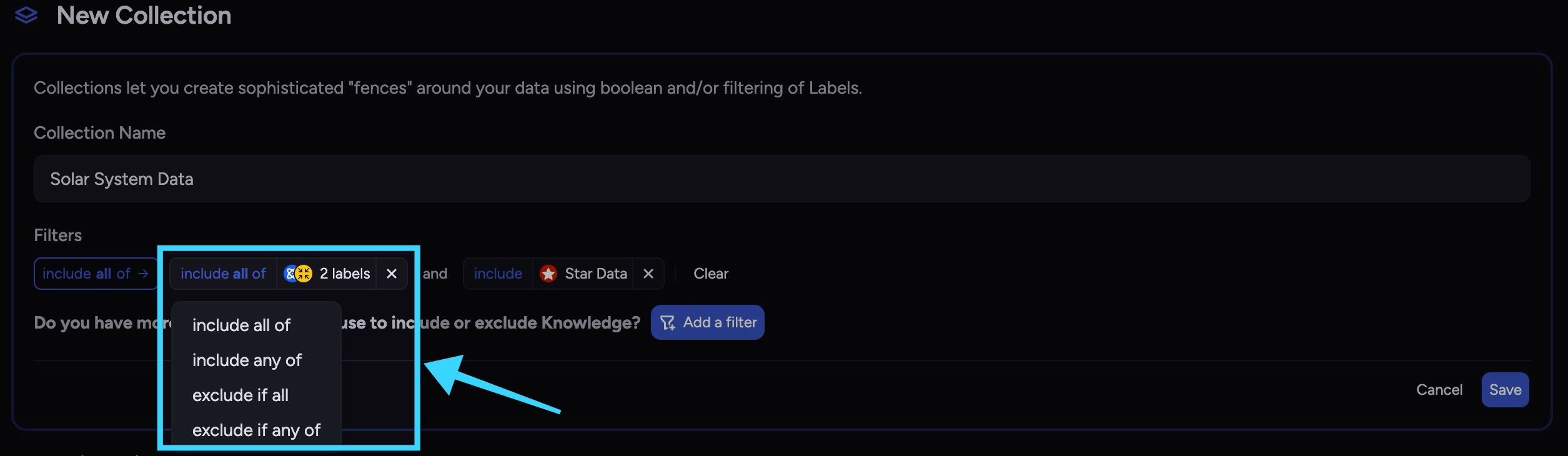
Collections use two operator layers:
Group operator: combines labels inside one filter group.
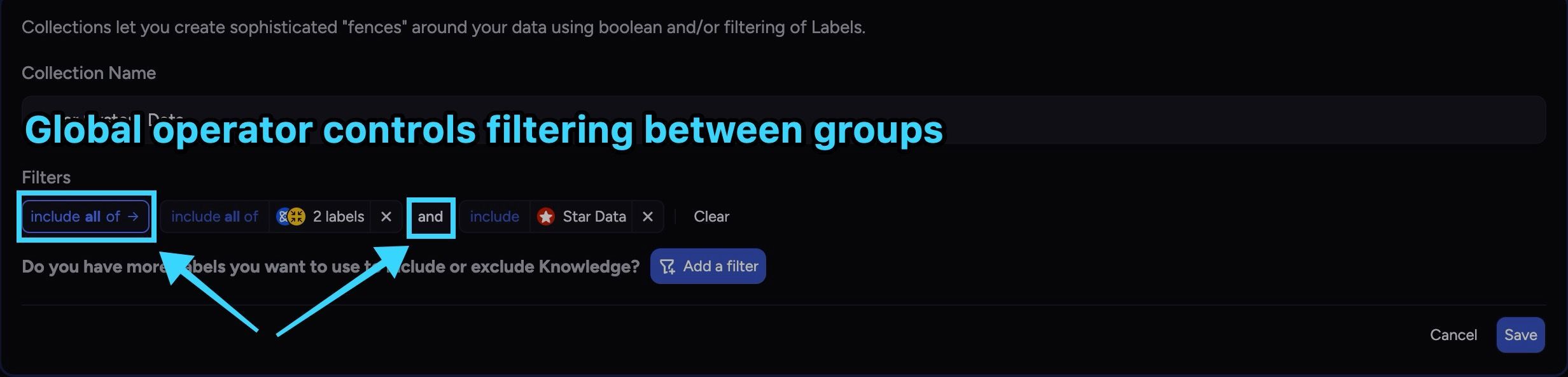
Global operator: combines multiple filter groups.
Group operators
include all of- a file must match all labels in that groupinclude any of- a file can match any label in that groupexclude if all- a file is excluded only if all labels in that group matchexclude if any of- a file is excluded if any label in that group matches
Global operator between groups
Include all of- a file must satisfy every groupInclude any of- a file can satisfy any one group
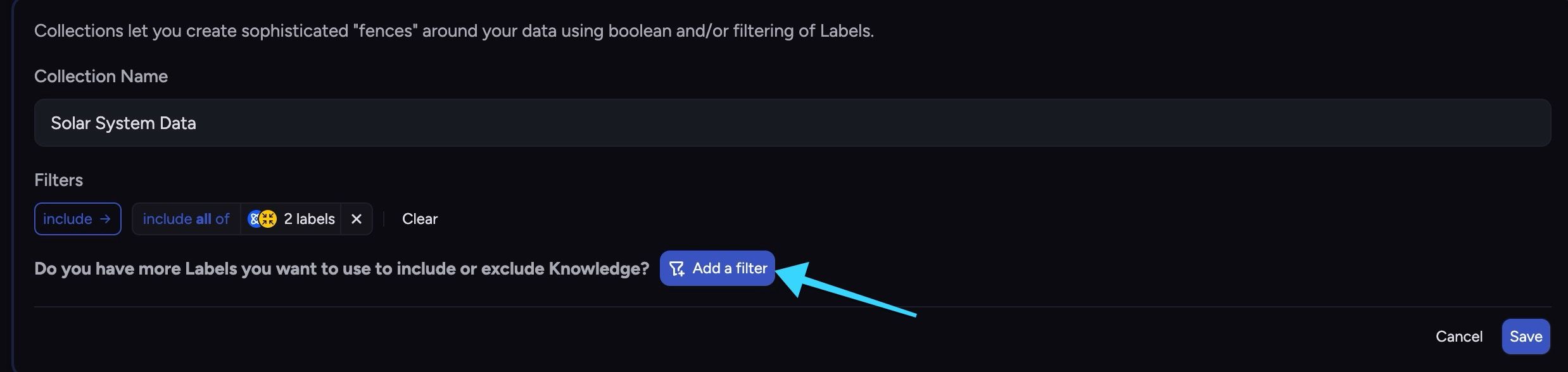
To add groups, click Add a filter repeatedly.
Create a Collection
🚀 Pro-Tip: To add files to an existing Collection, just apply labels to those files that will match the Collection’s filters. All files with matching labels will automatically be included in that Collection.
Go to Sidebar -> Library -> Collections.
Click Create Collection.
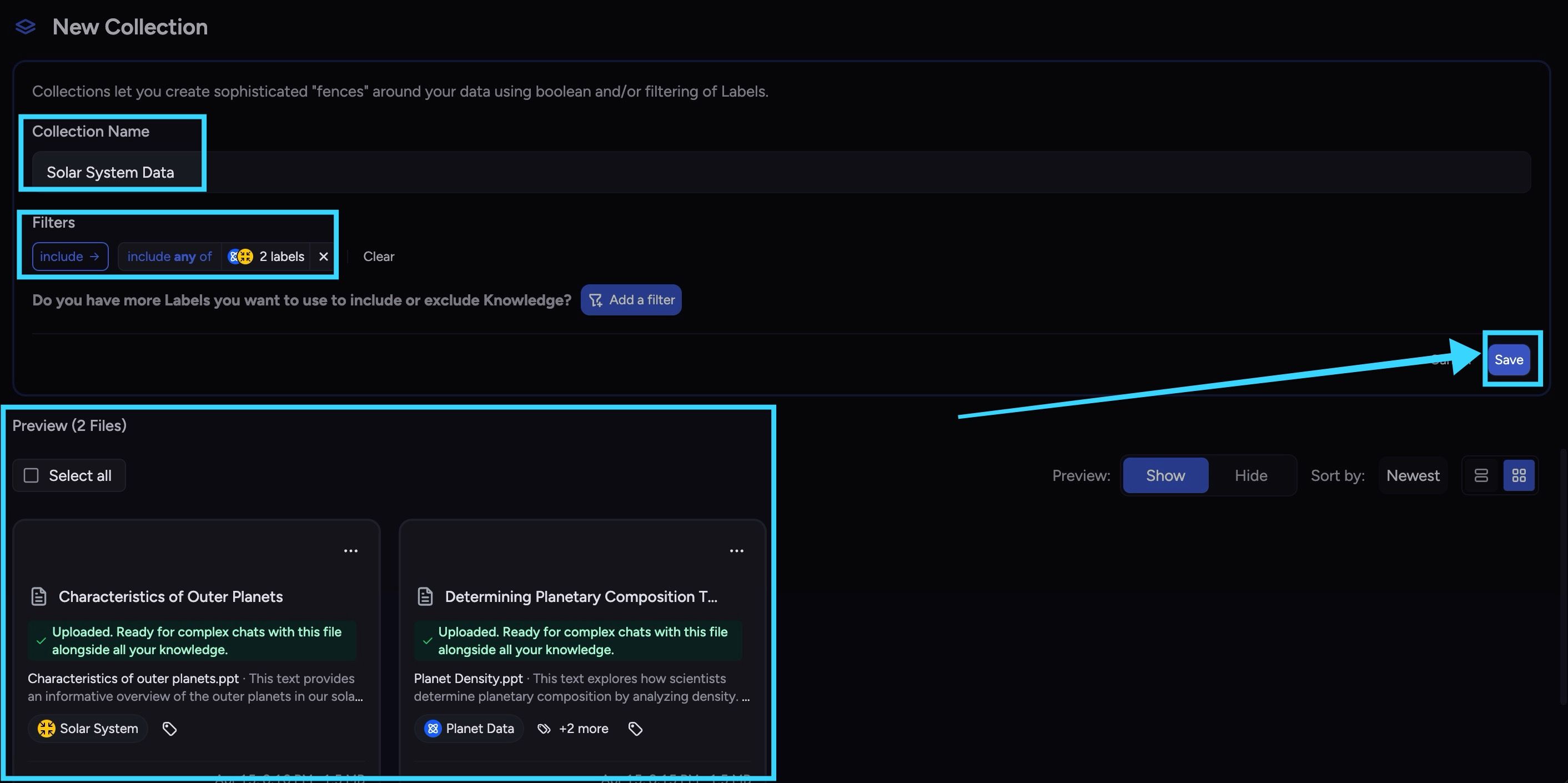
Enter a collection name.
Add labels and choose operators.
Review the live Preview list.
Click Save.
⚠️ Important: Save is disabled until at least one filter exists.
Edit and save changes
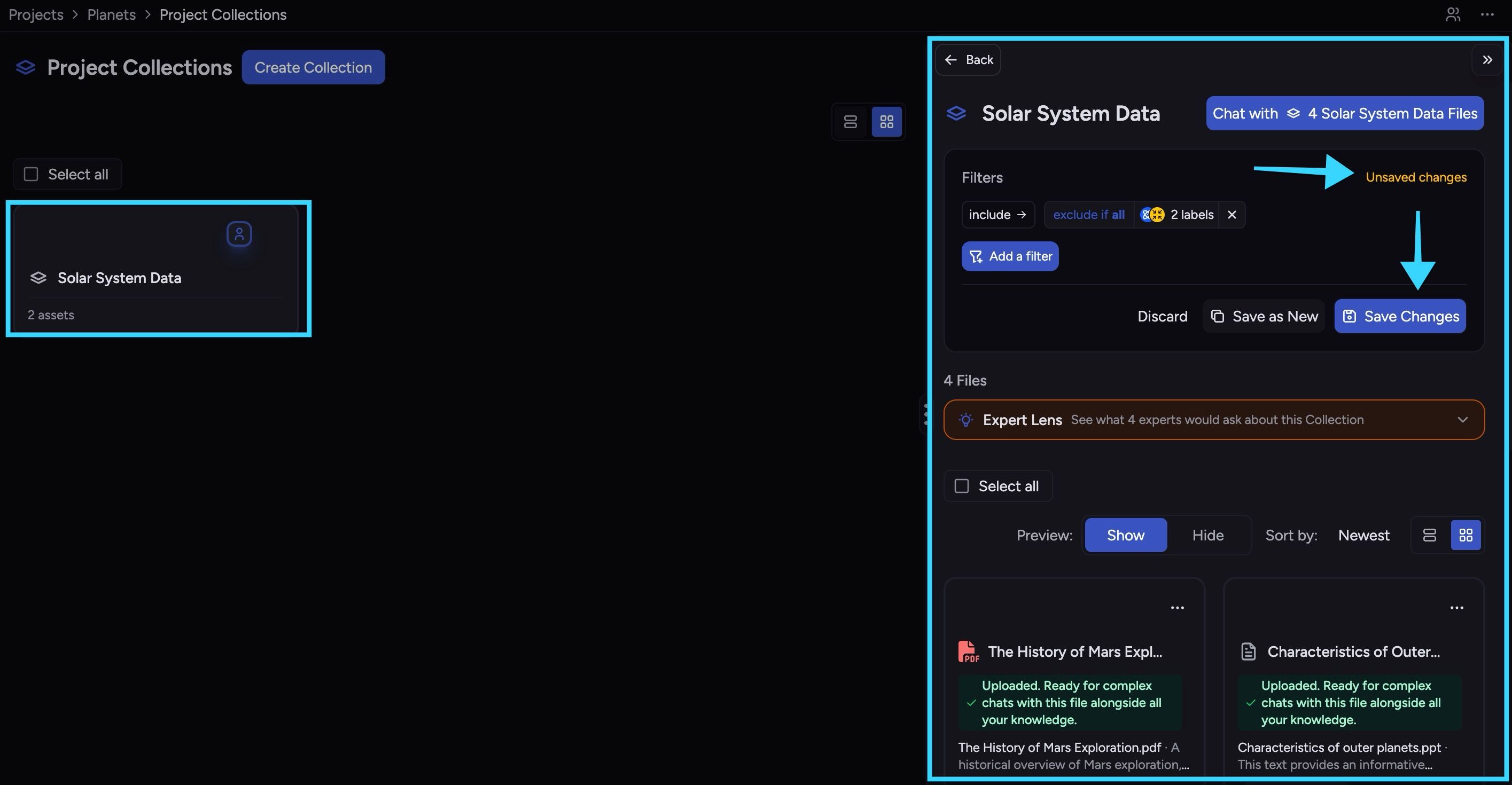
Open a collection from Project Collections.
Adjust filters and operators.
Review updated file matches.
Click Save Changes.
If you see Unsaved changes, edits are local until saved.
Save as New and Discard
Save as New
Use Save as New to create a new Collection without overwriting the original.
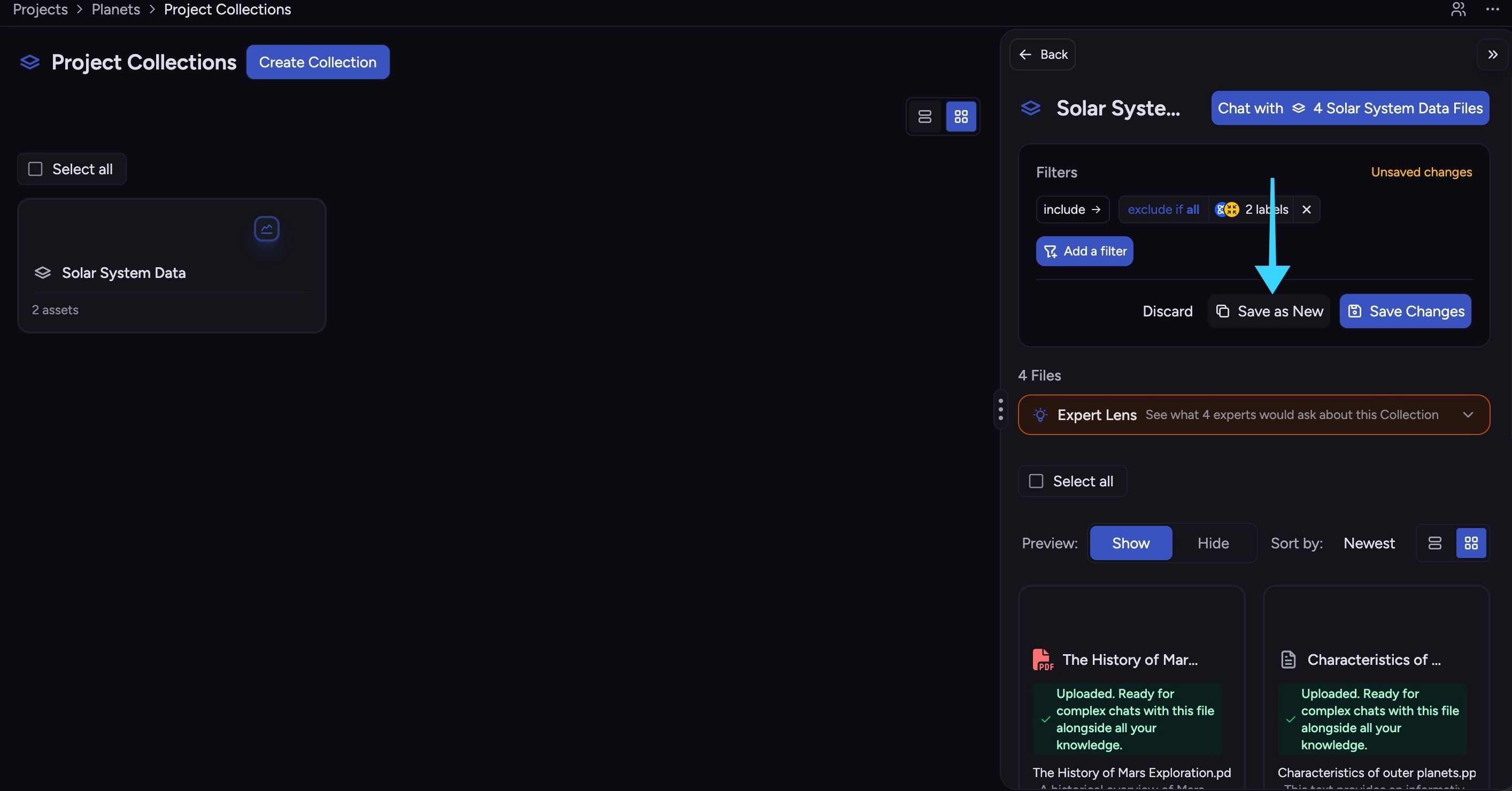
Open the source collection.
Make edits.
Click Save as New.
Enter a new name.
Discard
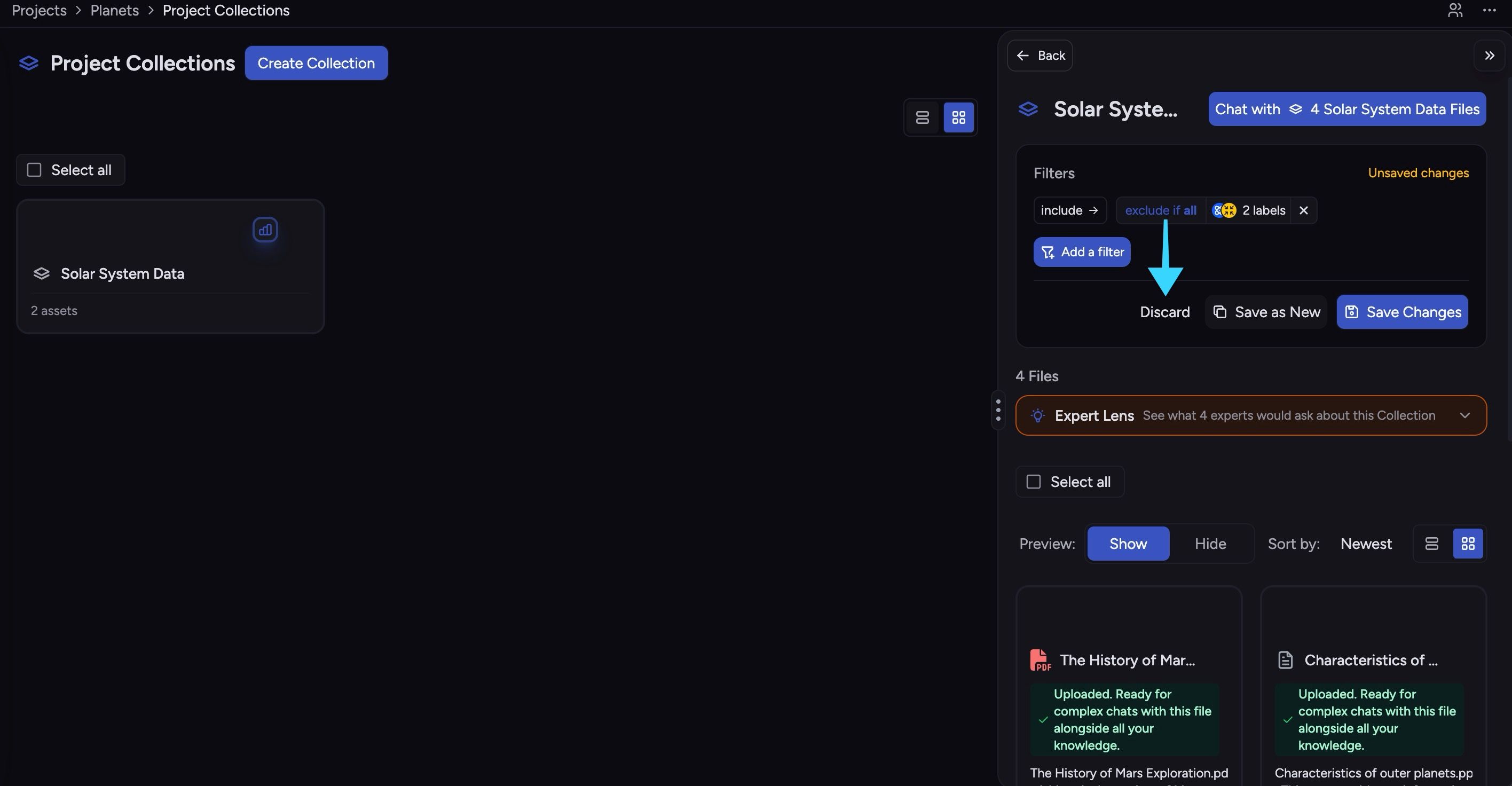
Use Discard to revert unsaved edits and restore the last saved version.
Delete a Collection
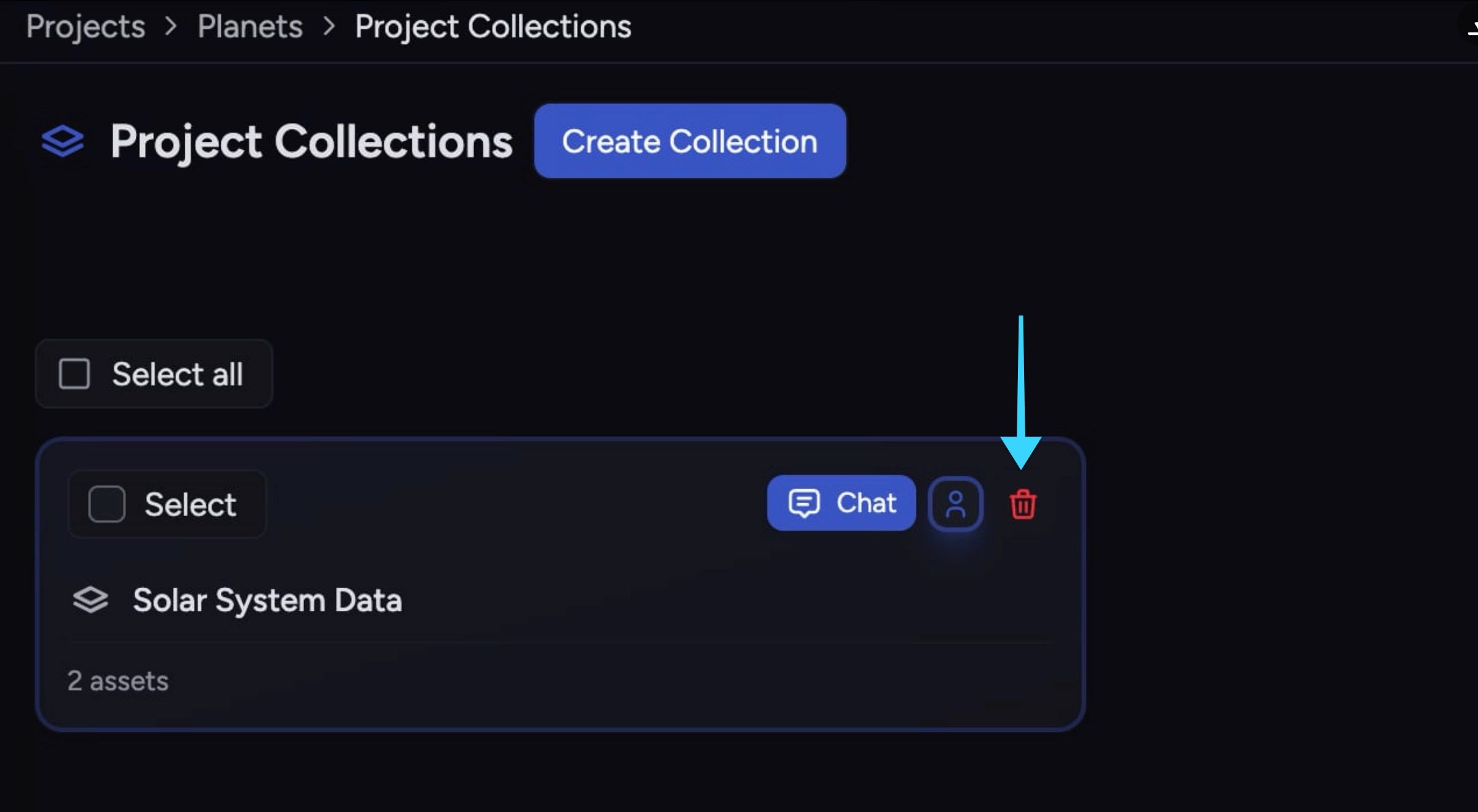
Go to Sidebar -> Library -> Collections.
Hover over the collection card/row.
Click the trash icon.
Confirm.
ℹ️ Deleting a collection removes only its saved scope definition, not files or labels.
Troubleshooting
If results look wrong:
Confirm labels are applied correctly on files.
Recheck operator choices (
allvsany, include vs exclude).Use Preview or detail file list to validate matches.
Save changes after editing filters.
Still need help? Ask the team