Starting a Live Session
Start a Live Session in your macOS app to begin capturing and analyzing your meeting in real time.
Written By Patrick Intervalo
Last updated 4 months ago
Overview
Starting a Live Session begins real-time audio capture and intelligence generation in Chief.
You choose a project to store the session in, then Chief automatically starts processing the conversation once confirmed.
Start a Live Session
To begin a session:
Click Start Live Session in the top-right corner of the macOS app
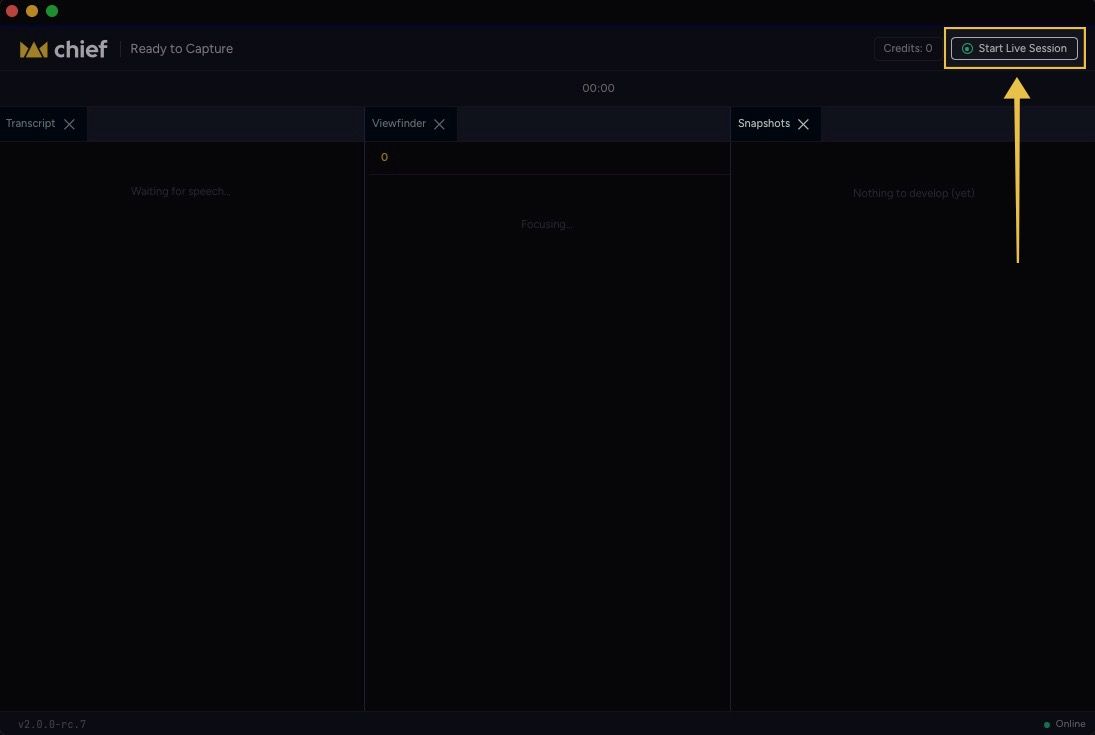
Select the project where you want the session to be stored
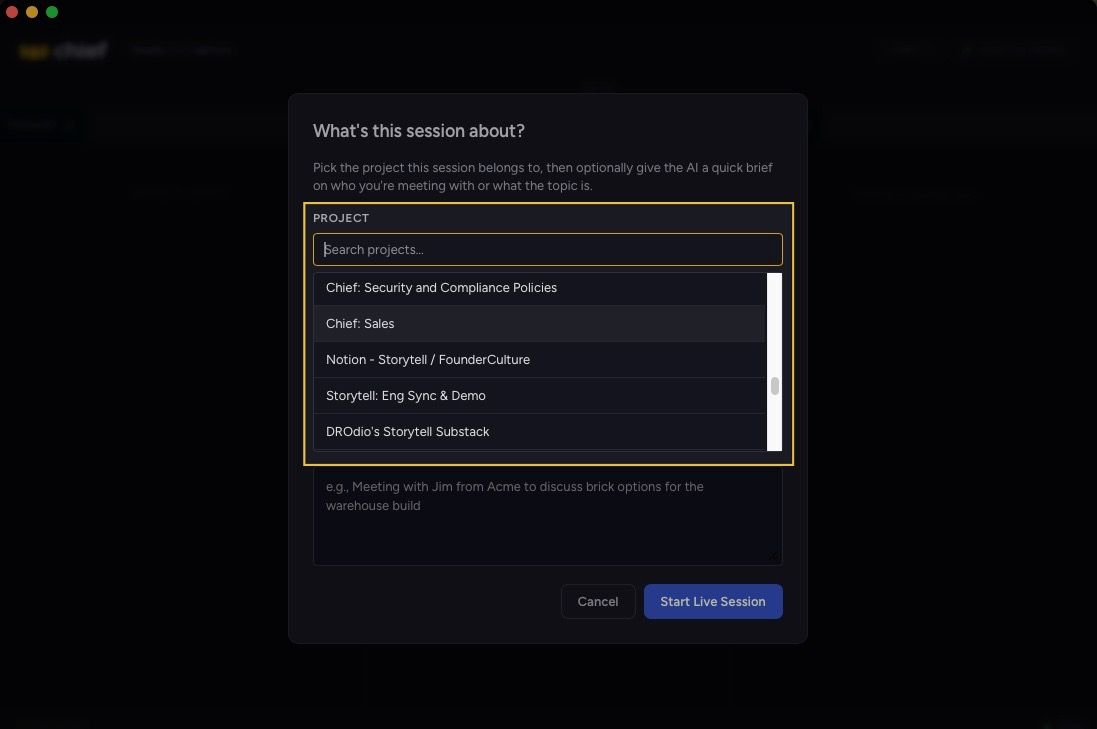
Confirm to start the session
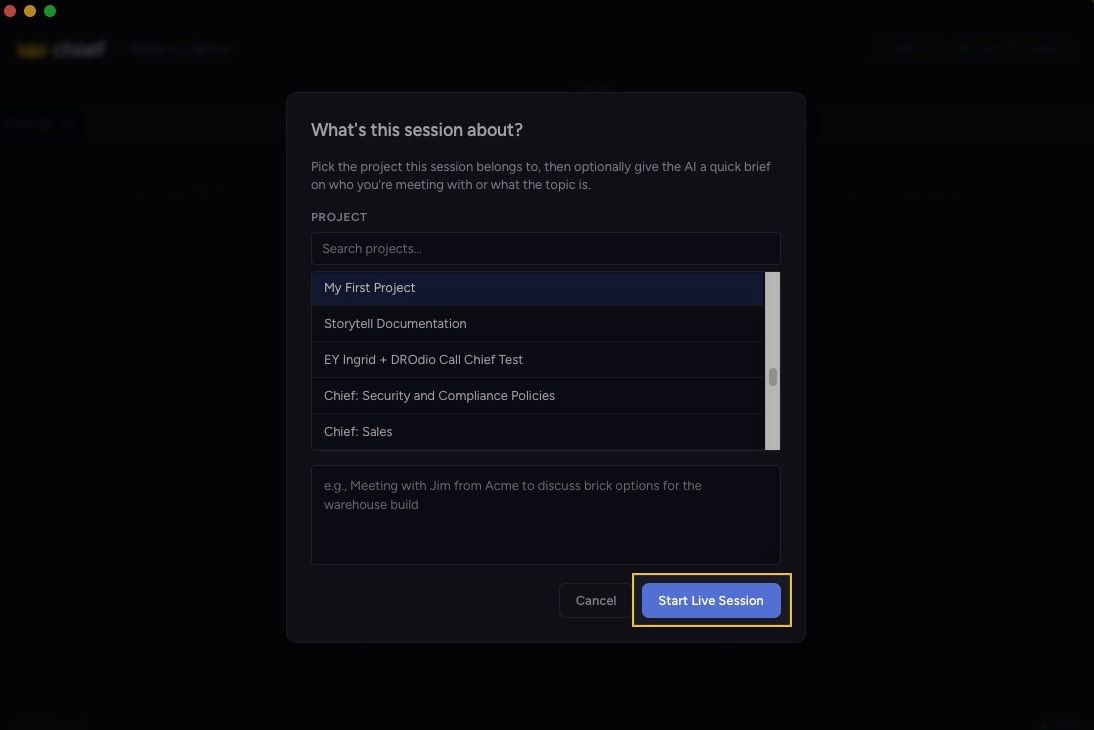
Once confirmed, Live Session will automatically begin capturing audio and generating real-time insights.
During the session
While the session is active:
Audio is captured and processed in real time
A live transcript is generated
Insights and suggestions are surfaced as the conversation progresses
The session is continuously saved under the selected project
Stop a Live Session
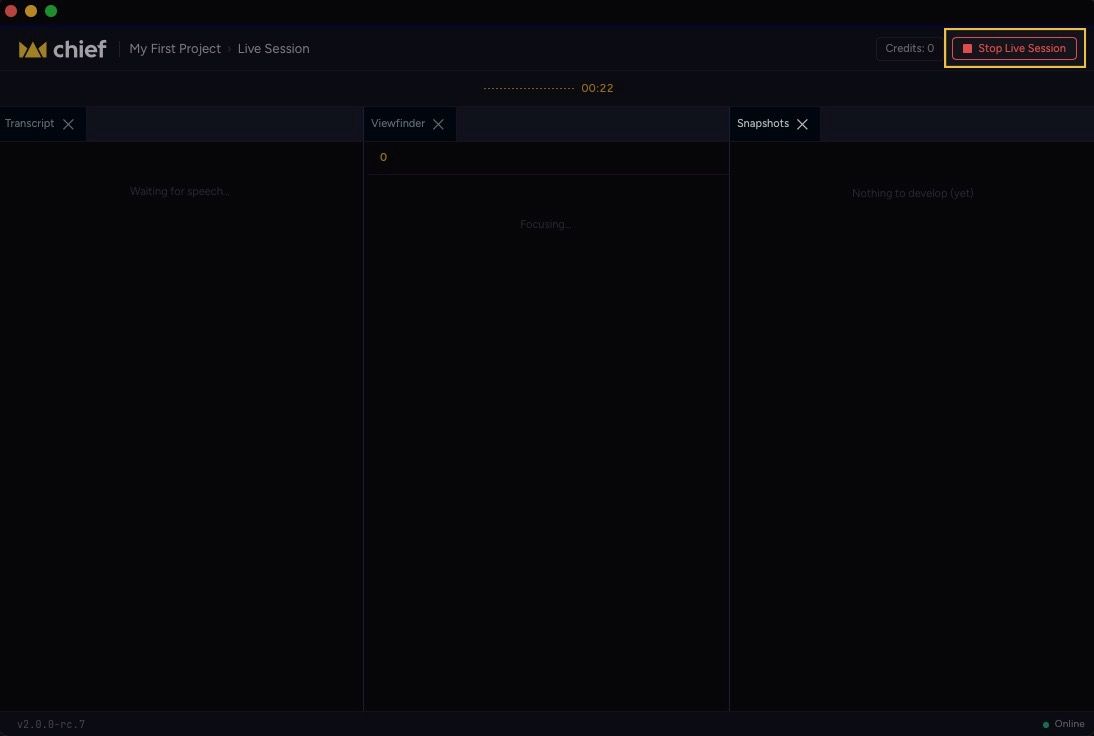
You can stop a session at any time.
To end the session:
Click Stop Live Session in the top-right corner of the app
Once stopped:
Audio capture ends immediately
The session is finalized and processed
The results are saved to your selected project in Chief
After the session
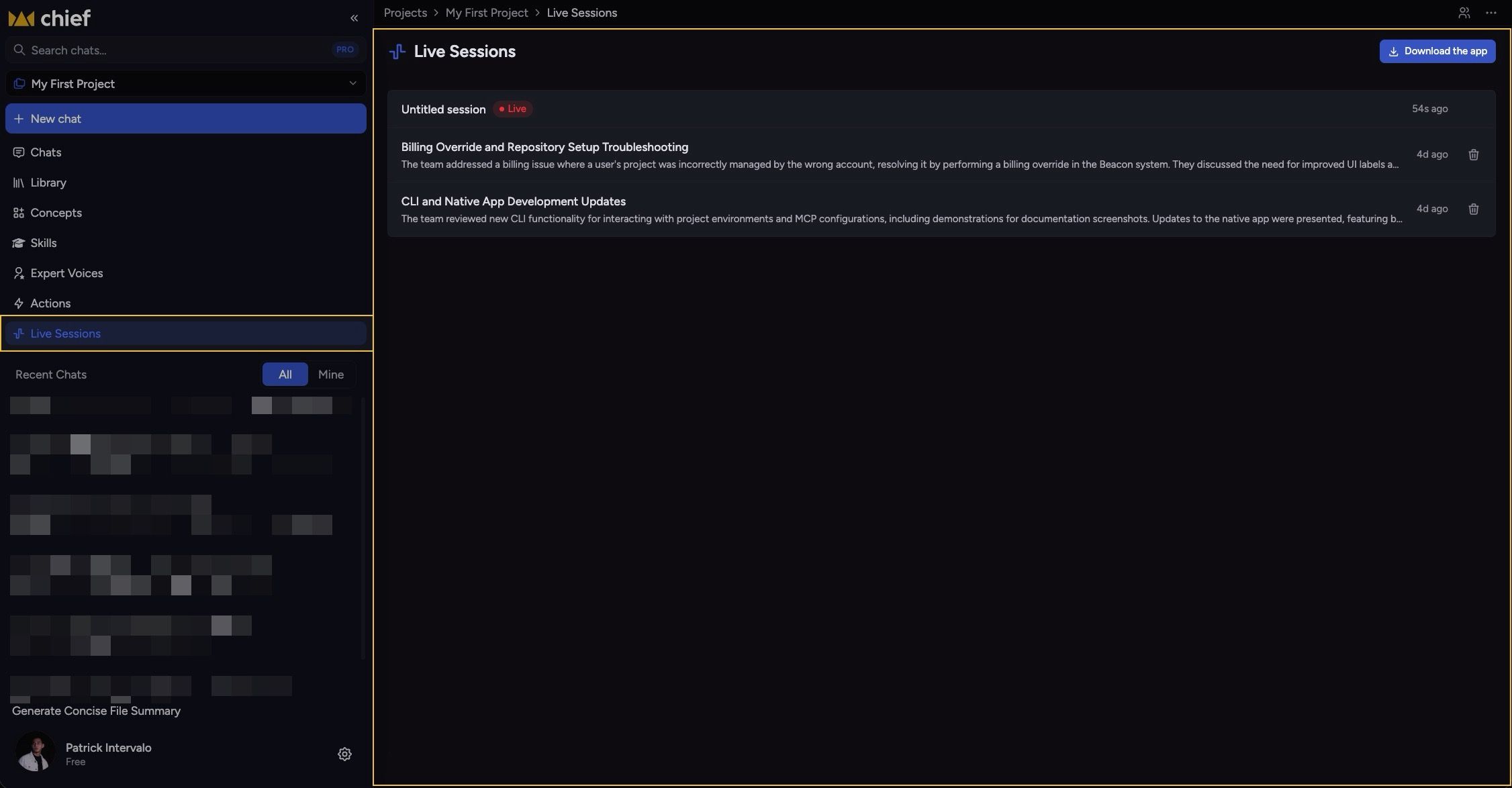
After stopping a Live Session, it will appear in your Chief workspace under the project you selected.
You will be able to view:
The full session transcript
A structured summary
Key decisions and action items
The complete session timeline
Still need help? Ask the team