Unlocking "Advanced Mode" Features
Here are the advanced and experimental features that are turned off by default
Written By DROdio
Last updated 6 months ago
How to turn Advanced mode on
If you’re an advanced user, you might enjoy some of these features that we leave turned off by default. Here’s how to turn Advanced user mode on:
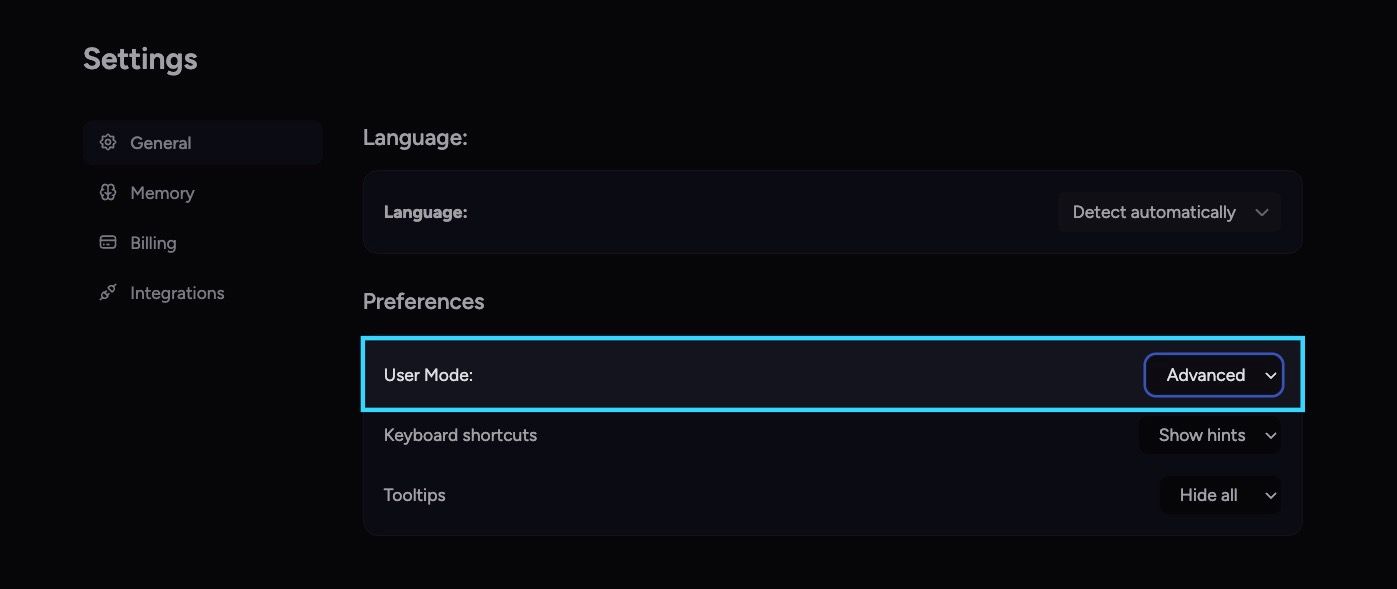
Open your account settings
Go to General
Find User mode (or the equivalent label in your language).
Choose Advanced instead of Regular.
Your choice is saved in the browser (local storage) and persists across sessions.
What happens when you switch to Advanced mode
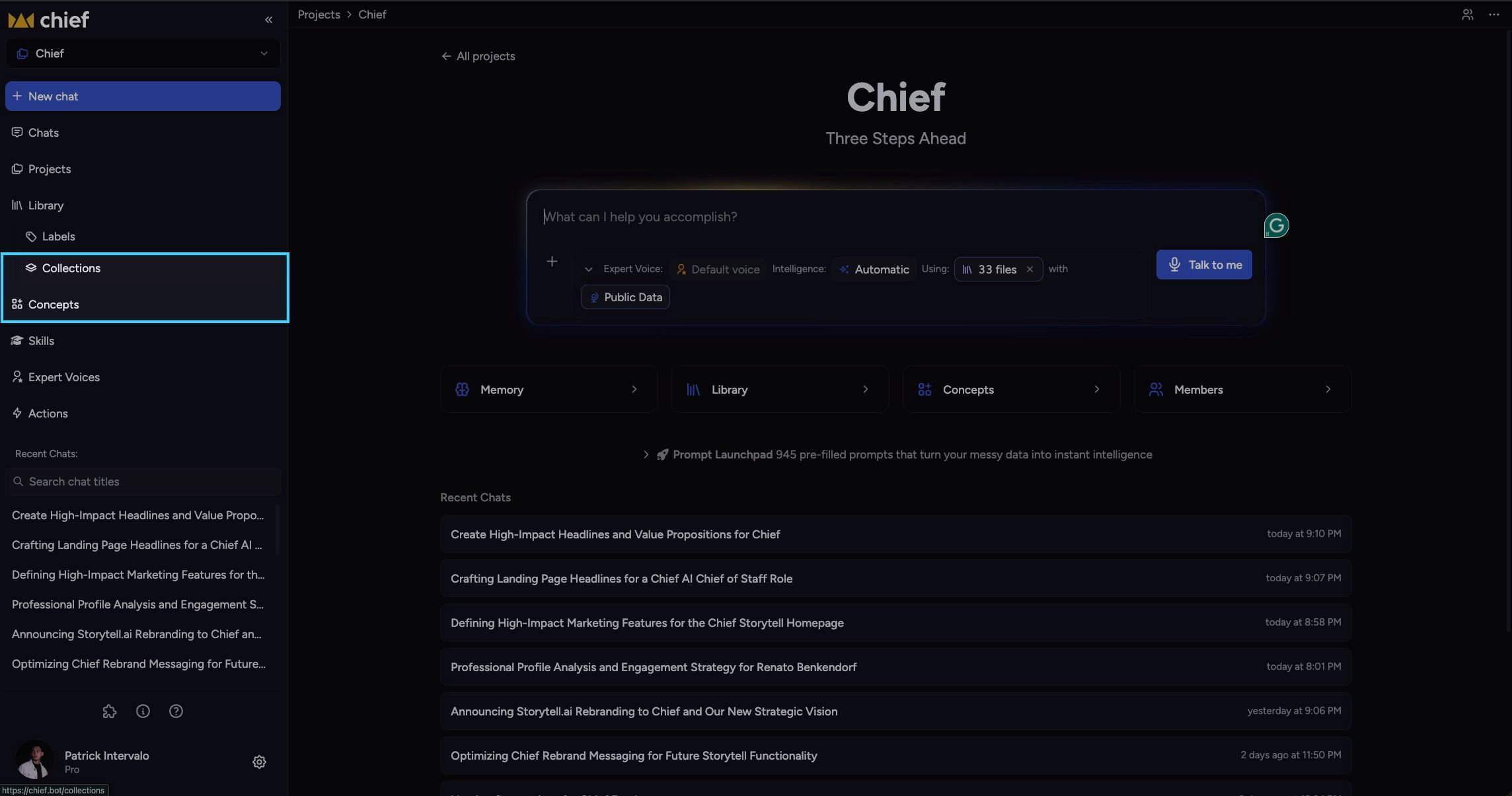
When you change from Regular to Advanced, the app briefly highlights places where new options appear—for example, Concepts and Collections in the sidebar, the knowledge scope control in the prompt area, and (when the prompt bar is expanded with text) the share / copy / save controls. This is intentional feedback so you know where to look.
Ready to rock n’ roll? Here’s what you can do in Advanced mode:
Navigation: Concepts and Collections
In the left navigation, the Concepts and Collections entries are shown only in Advanced mode. Files, Labels, Skills, and Actions remain available in both modes.
Files: concept graph and concept badges
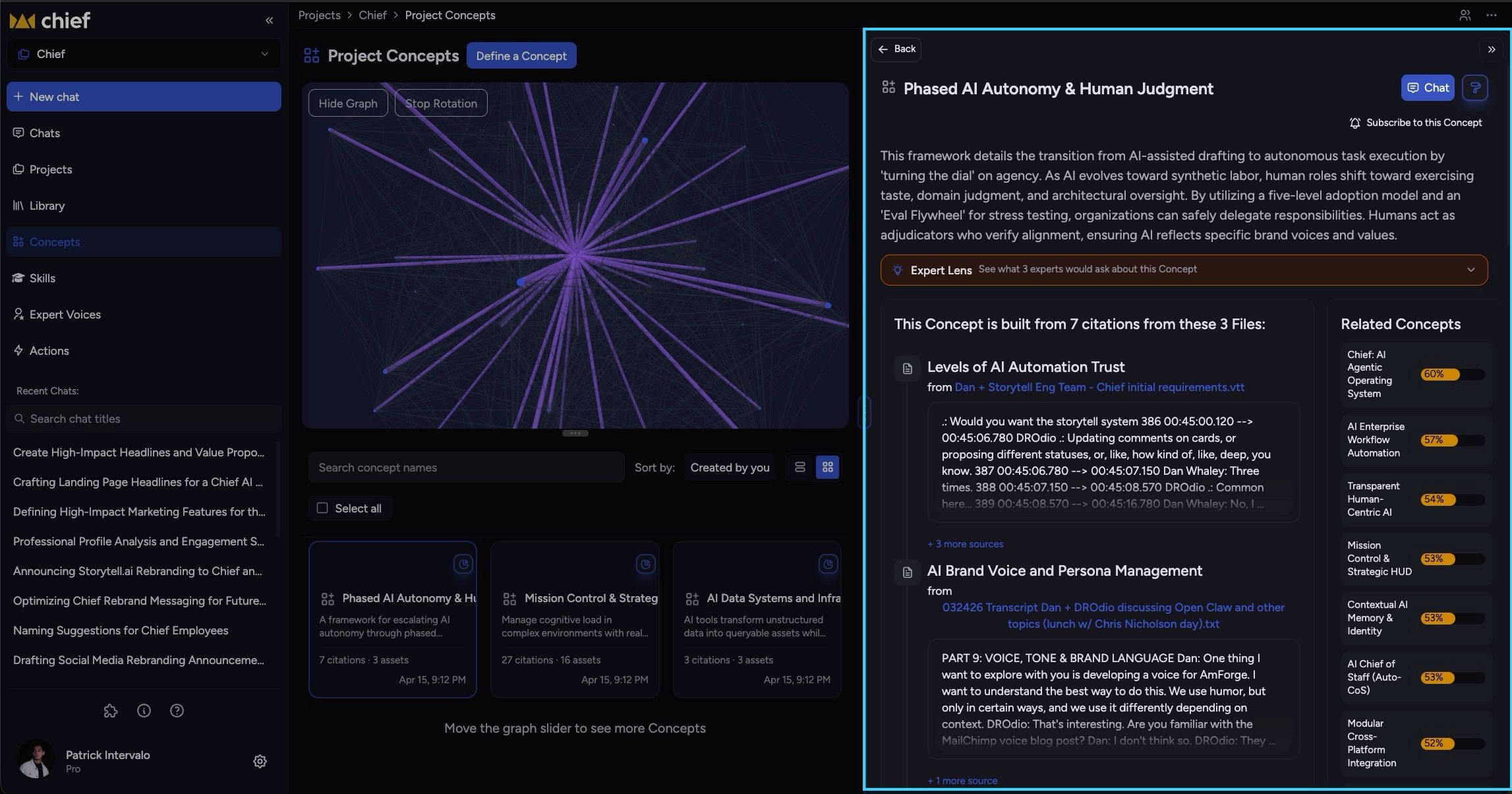
When opening a file, if the file has concepts, Advanced users get a toggle between file view and concept graph. Regular users stay on the standard file preview when concepts exist.
Response menu
When you select text in a response, the response menu offers actions.
Regular mode
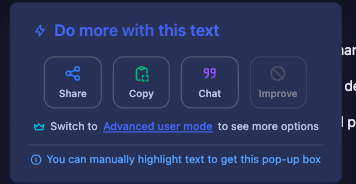
Share, Copy, and Chat (start a follow-up from the selection) are available.
A short hint invites you to switch to Advanced for more actions.
Advanced mode Adds:
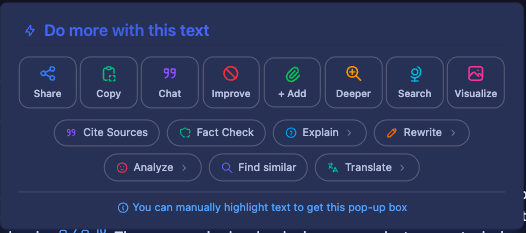
Improve (refine the selected text via prompt)
+ Add — add selected content into the project / knowledge flow
Deeper — expand with more detail
Search — web search styled follow-up
Visualize — image-style visualization flow
A second row of chip actions, including Cite sources, Fact check, Explain (submenu), Rewrite (submenu, including personality variants), Analyze, Find similar, Translate, etc.
Chat messages: fork and delete
On each user message bubble (when not in a read-only shared view):
Fork (start a new chat from that point in the thread)
Delete message
Create & Share Draft Prompts with Variables
By default, any user can share any prompt they’ve already written by using the “share” icon, like this:
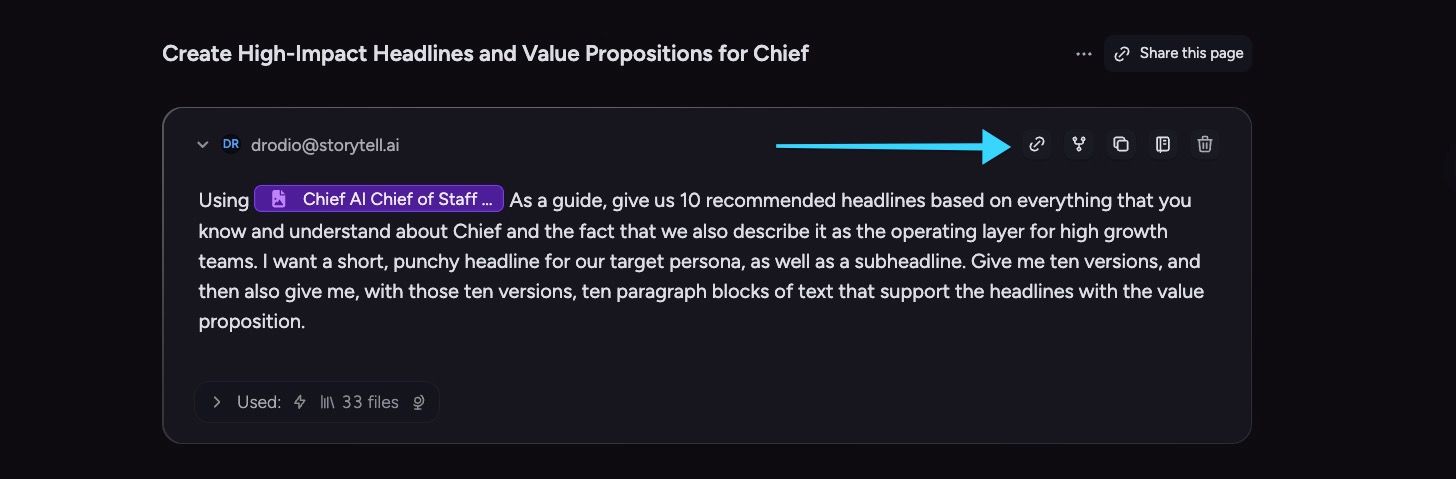
Doing so will create a shareable URL that can be sent to anyone (via email, Slack, text, etc) and when clicked by the person receiving it, will allow them to run the same prompt.
However, when you turn on Advanced mode, you get even more powerful prompt composition and sharing functionality.
Creating draft prompts with variables:
On Chief’s home page, you’ll see many 1-click prompts that use variables, like this:
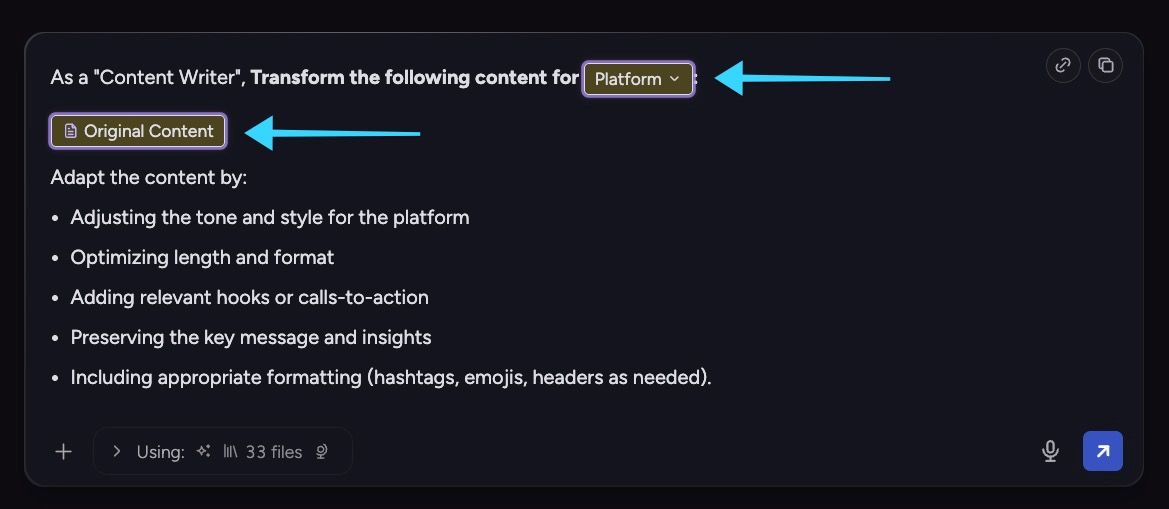
In advanced mode, you also have the ability to create and share draft prompts with variables just like these.
When Advanced mode is on, the prompt bar shows two extra actions in the top right while you have text in the editor and the bar is expanded (not collapsed):
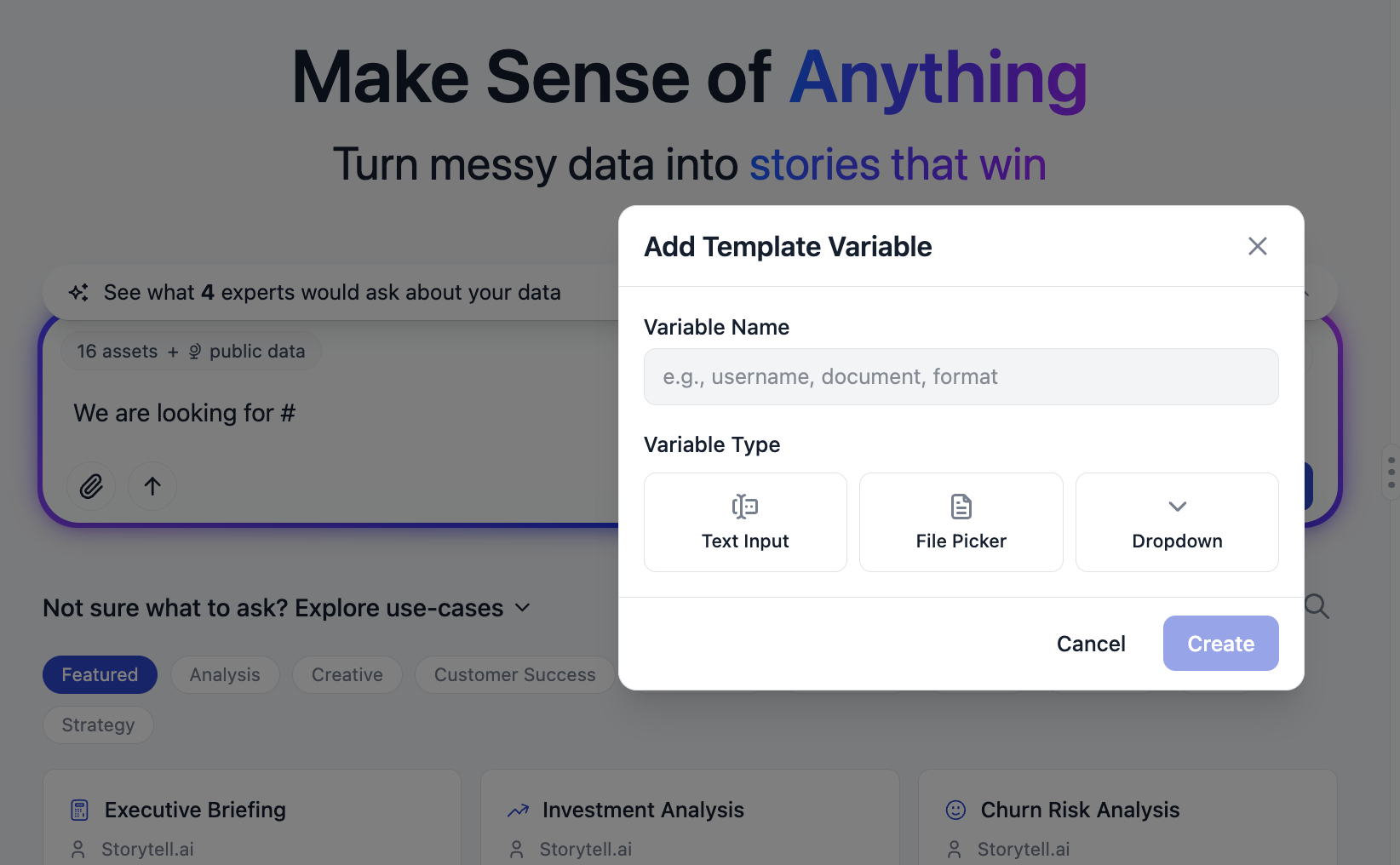
Creating a prompt with a variable in it is easy. Just use the # hashtag symbol when you are writing a prompt. Doing so will cause an Add Template Variable button to appear, like this:
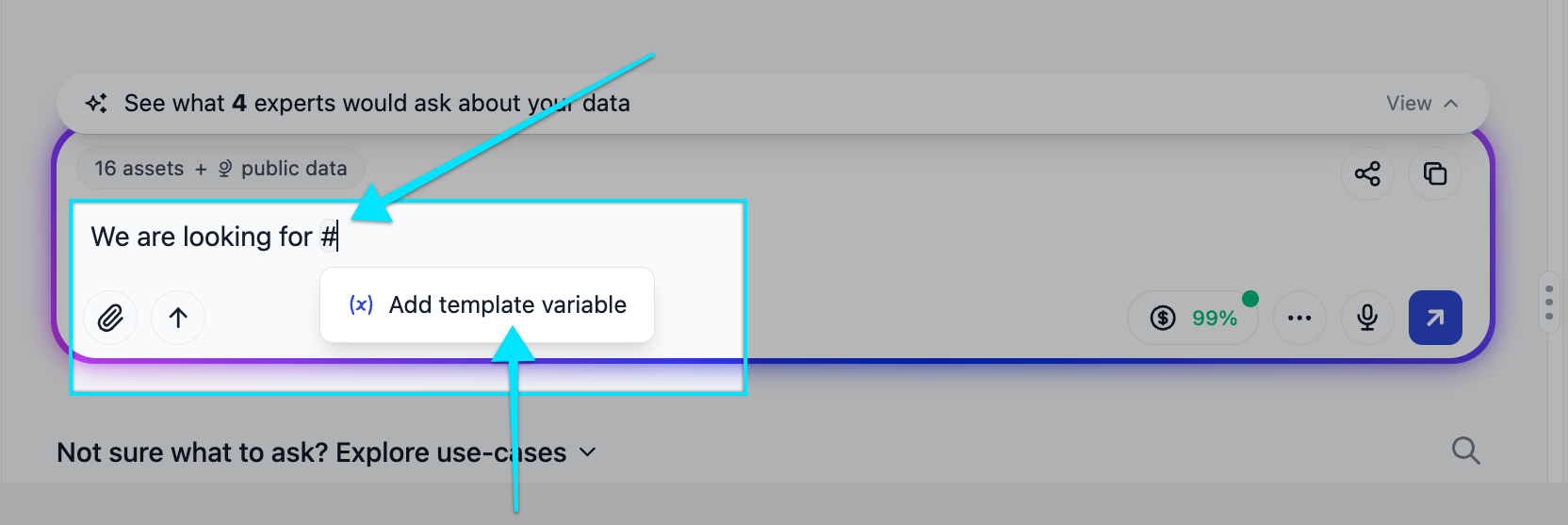
You can select between three template variable types:
Text Input
File Picker
Dropdown
You can also determine if you want your variable to be required or optional:
If you choose optional, you can add fallback text to be used as a placeholder if the user does not fill the field in when they send the prompt.
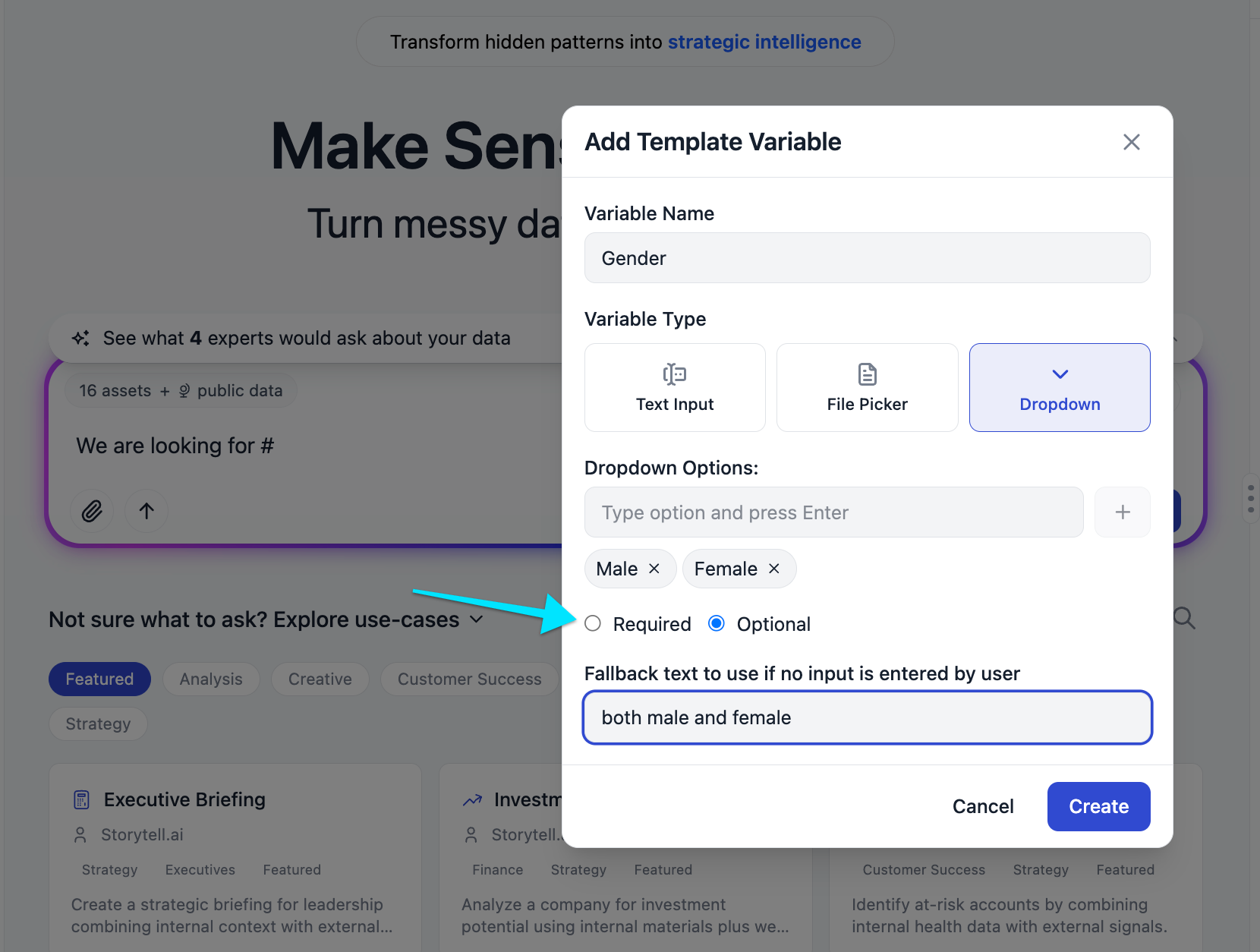
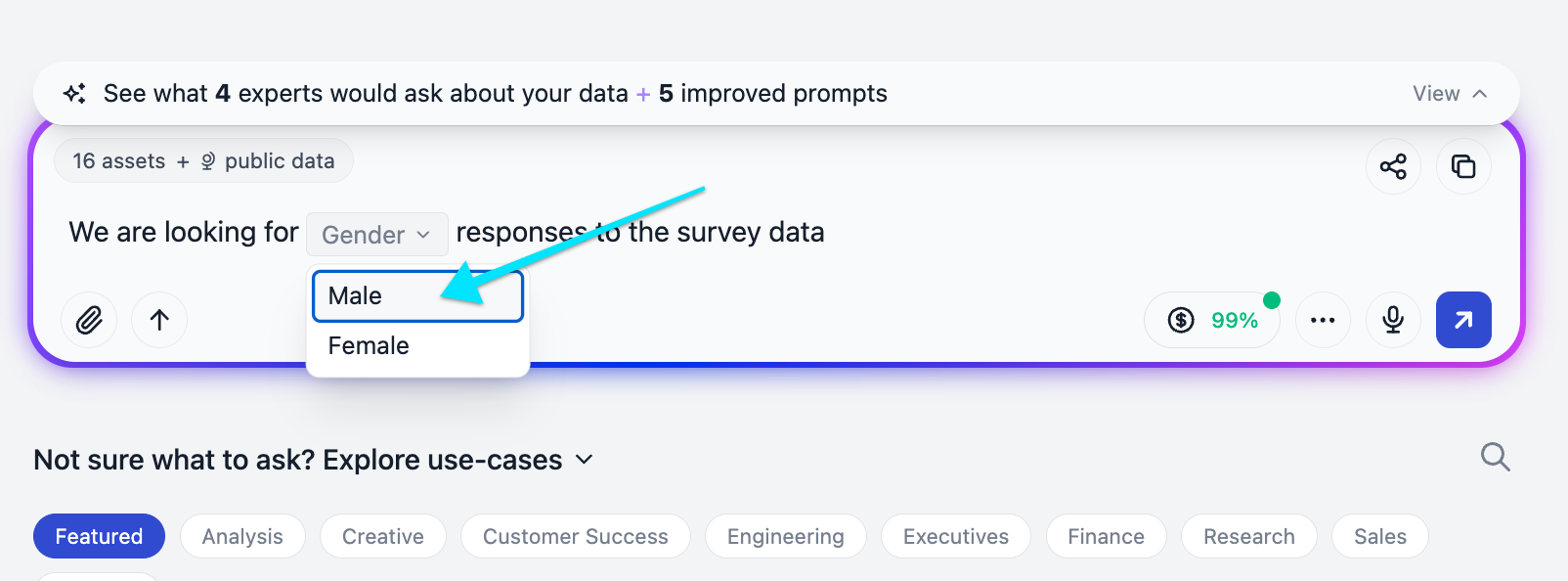
In the screenshots above, here’s how different scenarios would play out:
If the user selects an option…
… this is the prompt that gets submitted:
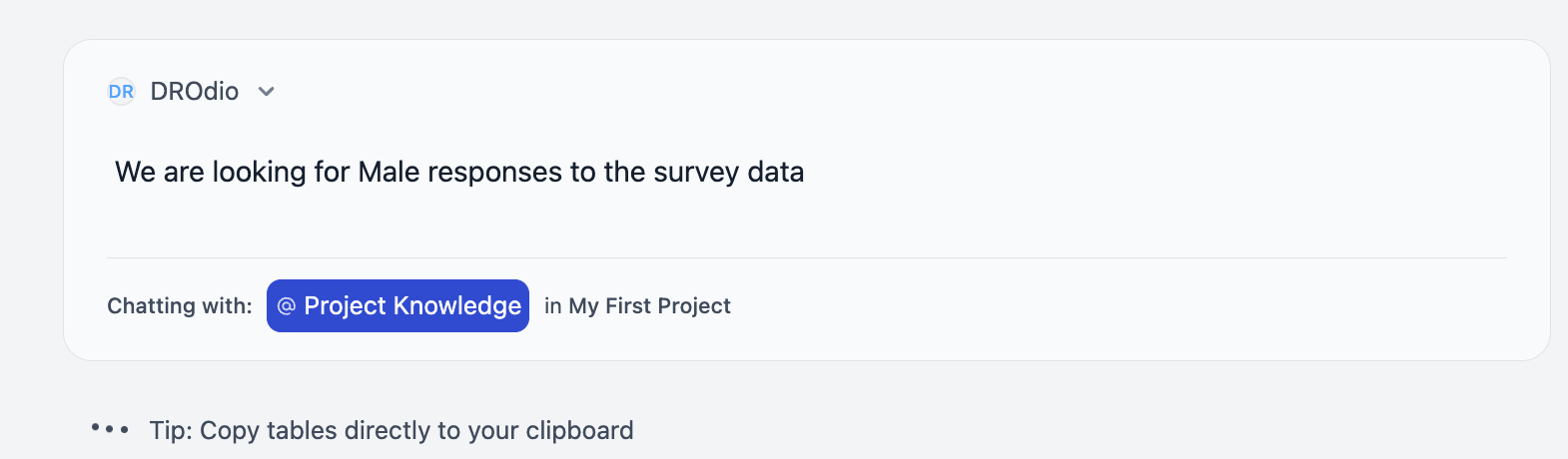
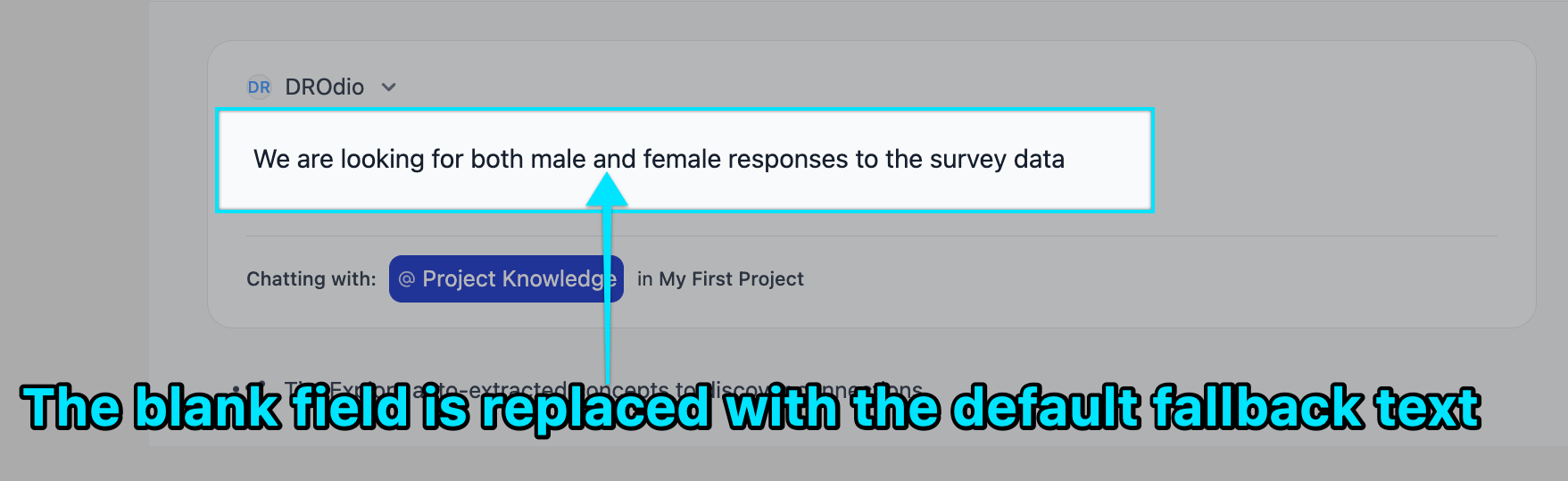
But since the fallback text was both male and female if the user did not fill in the variable, then if the user were just to submit the prompt without picking an option…
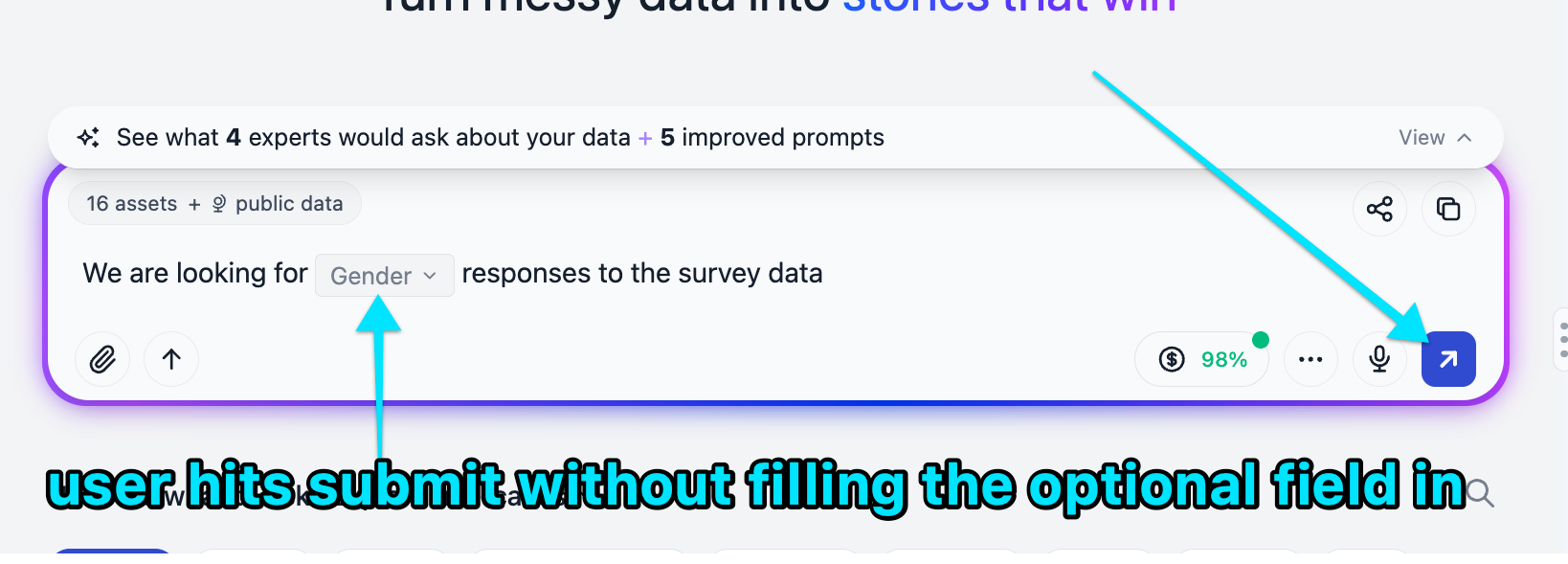
… then the fallback text gets inserted, and this is the actual prompt that gets submitted:
Sharing draft prompts with variables
The power of using variables is in sharing draft (not submitted!) prompts. Once the prompt has been submitted, it works just like any other prompt. But as an advanced user, you can share a draft prompt you’ve made with other users for them to fill in and submit. Here’s how:
First compose your draft prompt using the instructions above. Use the # hashtag symbol when writing a prompt to introduce variables into the prompt you’re drafting.
🛑 Do not hit submit! Instead, once you’ve crafted your prompt, click the “share” icon in the prompt bar, like this:
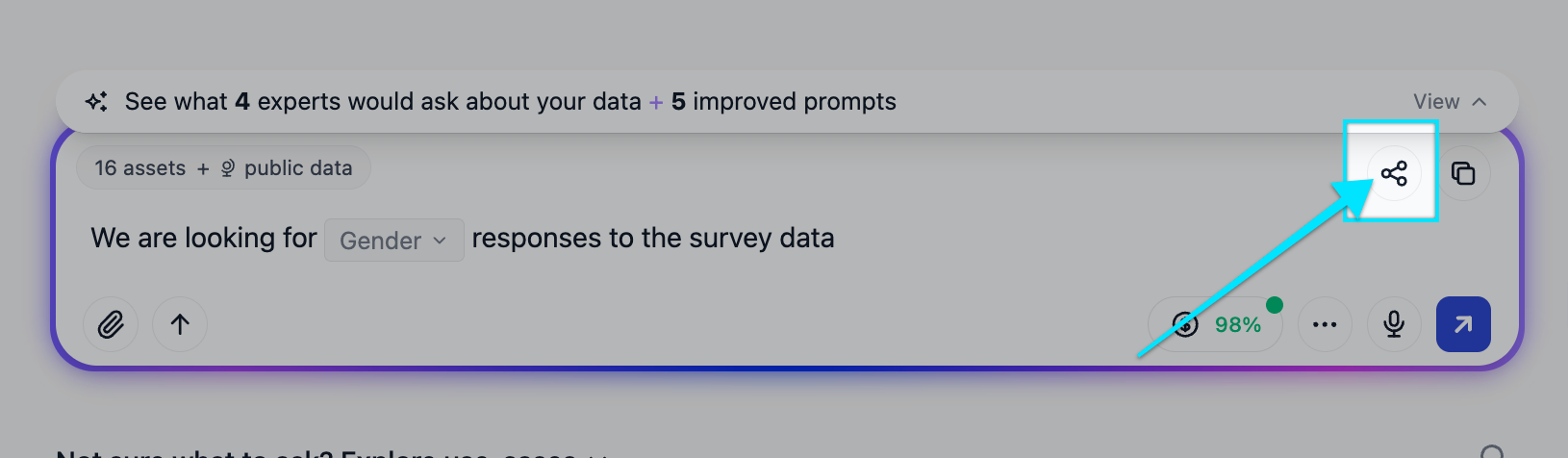
This will create a shareable URL that has your variables in it.
When you share that URL with another user, the page will load for them with the prompt fields ready to be filled in and submitted.
Still need help? Ask the team