Change your Chief language
Chief lets you switch the interface language at any time. This includes navigation labels, buttons, and system-generated text. You can set Chief to a specific language or let it detect your preferred language automatically.
Written By Patrick Intervalo
Last updated 6 months ago
When You’ll Use This
You want Chief to appear in a different language
You accidentally switched languages and need to switch back
You want Chief to match your browser or system language automatically
How Language Localization Works
Chief determines your interface language in two ways:
1. Automatic (Default)
By default, Chief uses your primary browser language.
In Chrome, you can change your primary browser language by:
Going to
chrome://settings/languagesMoving your preferred language to the top (primary)
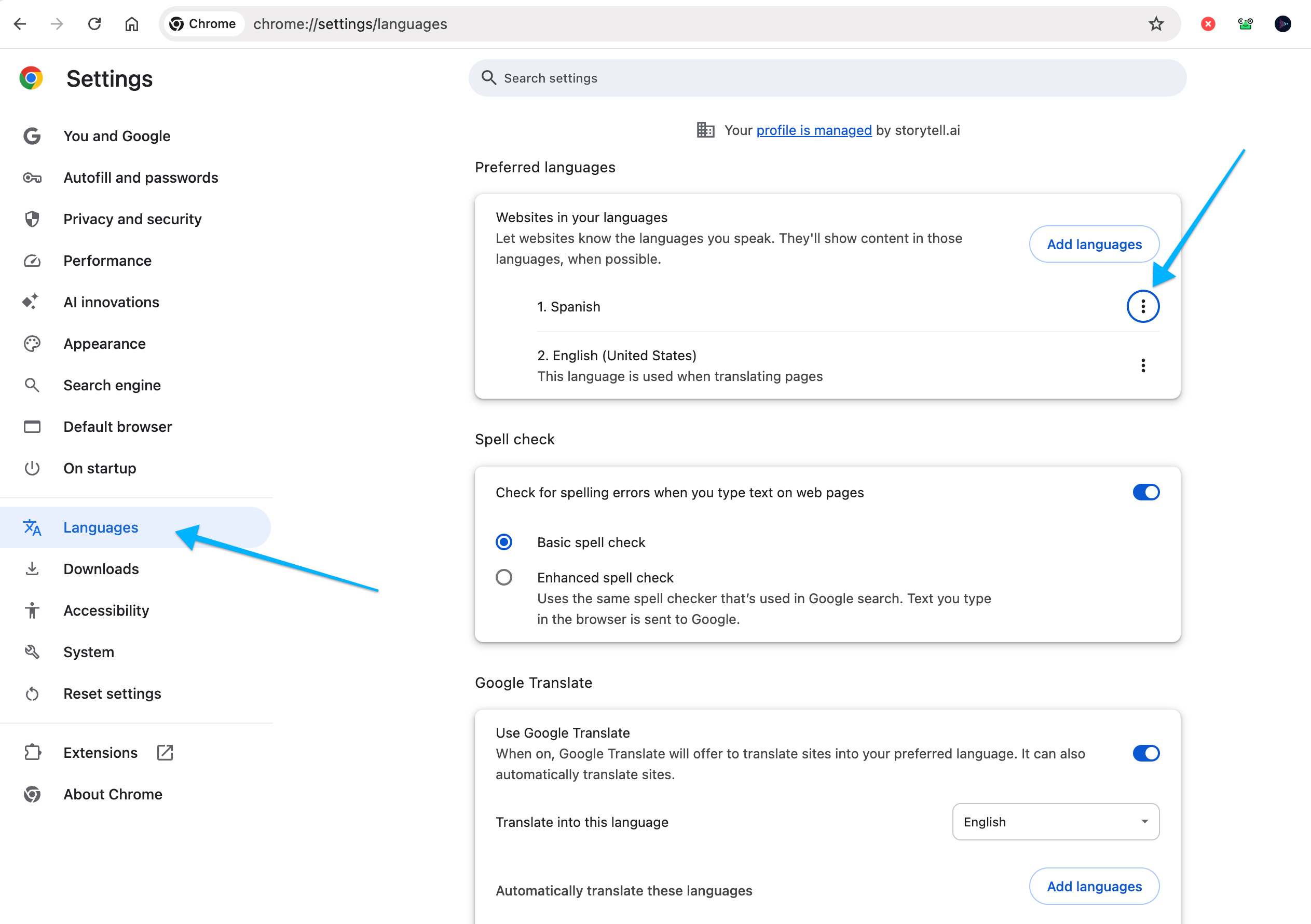
Chief will automatically switch to match
You can override automatic detection by selecting a language directly in Chief.
Once selected, the interface updates immediately.
How to Change Your Language
1. Open the Settings Panel
From the Home screen, open the sidebar.
Click Settings.
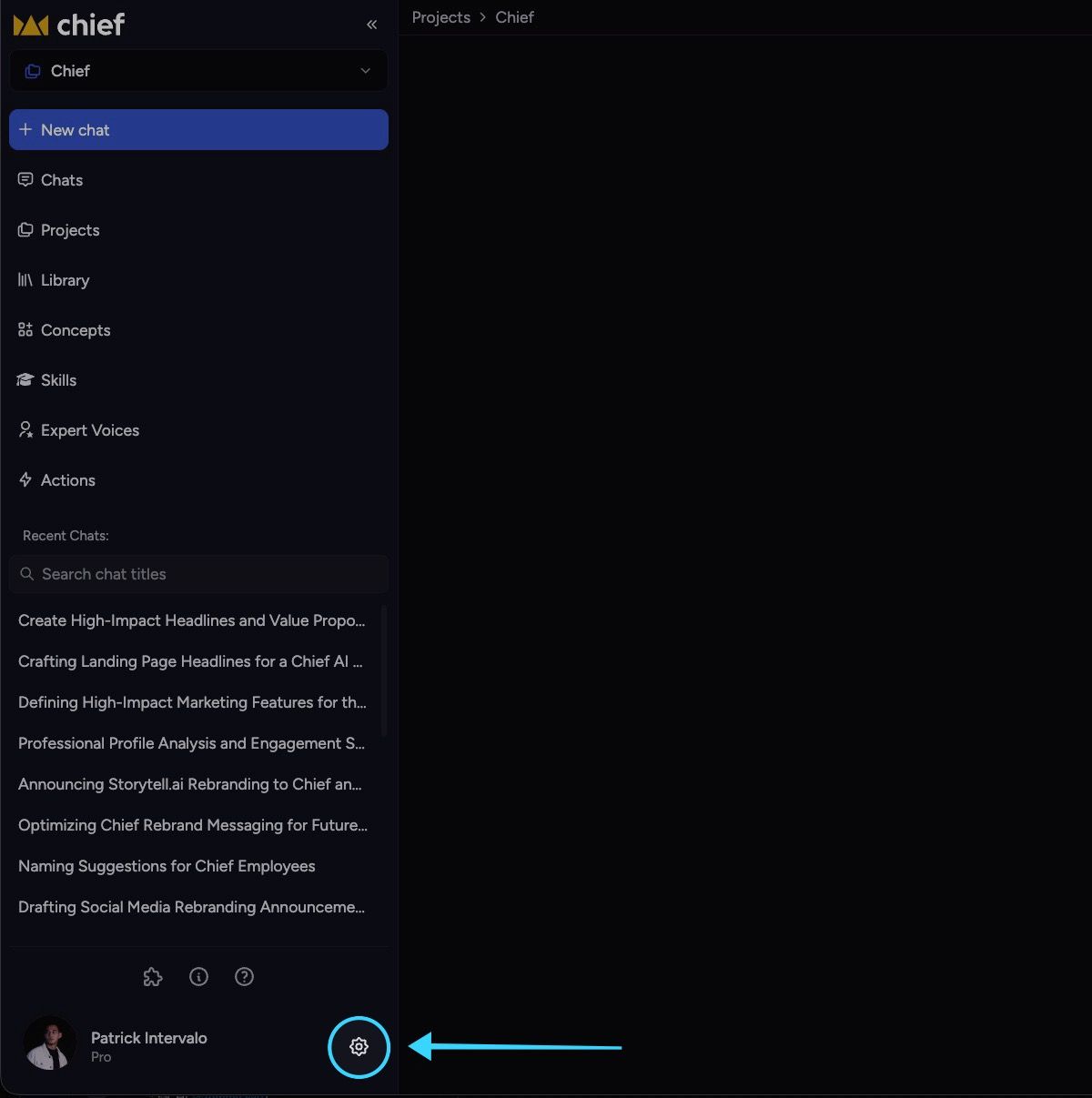
Then go to the General tab
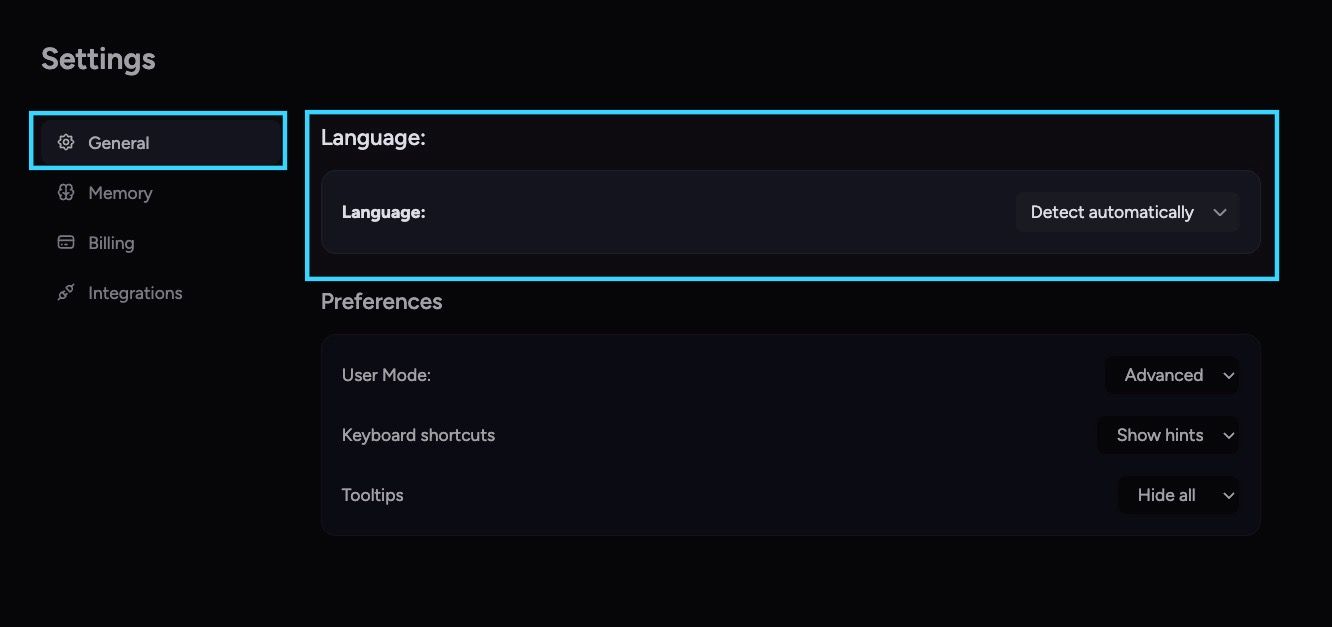
2. Select Your Preferred Language
In the Language section, open the dropdown.
Choose one of the following:
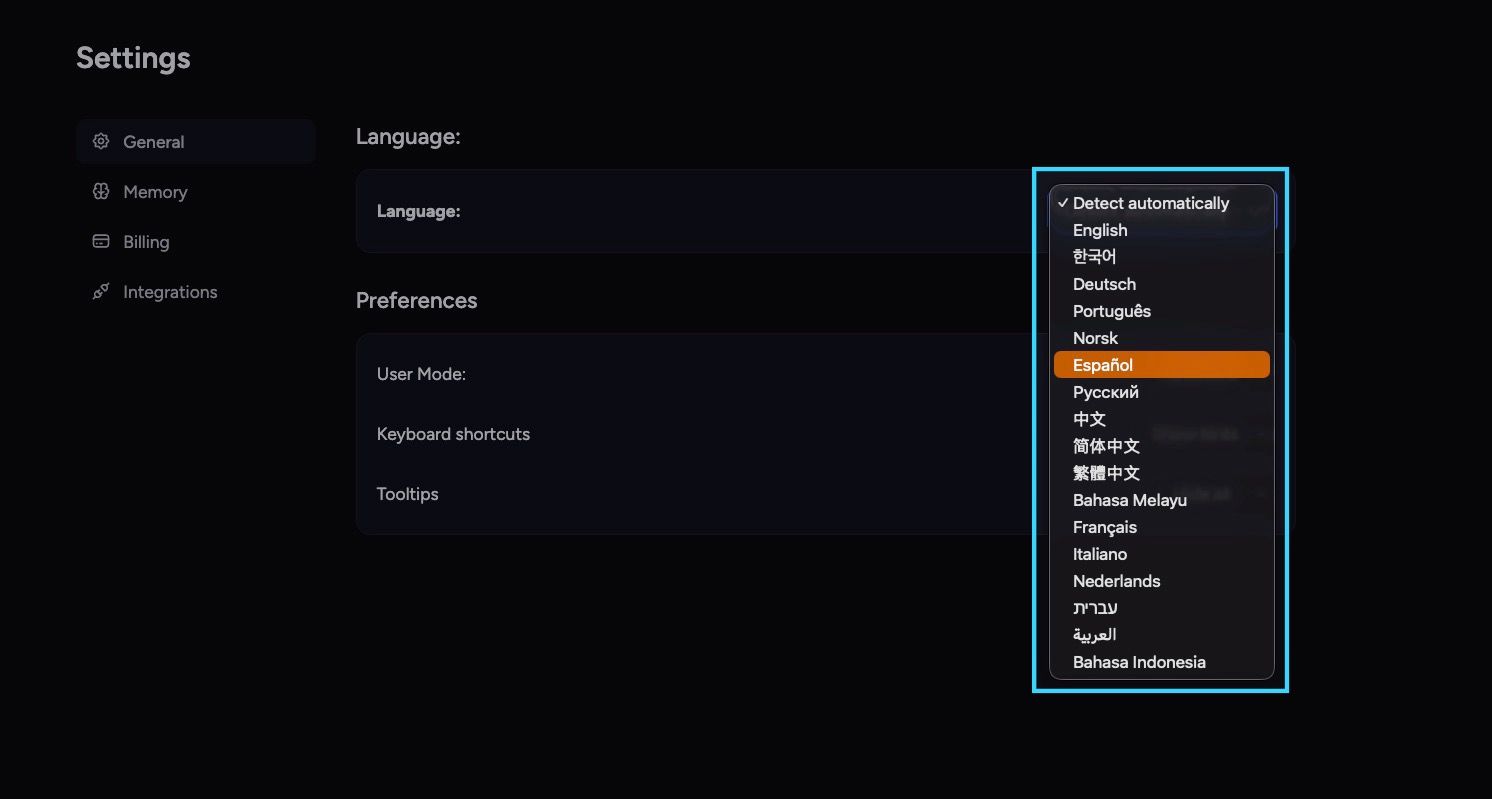
Detect automatically — Chief adjusts based on your browser or system settings.
A specific language (e.g., English, Spanish, etc.).
Once you select a language, Chief updates the interface immediately.
Chief currently supports the following languages
Chief currently supports the following languages
English (en)
Español (es) — Spanish
Français (fr) — French
Deutsch (de) — German
日本語 (ja) — Japanese
한국어 (ko) — Korean
中文 (zh) — Chinese (generic)
简体中文 (zh-CN) — Simplified Chinese
繁體中文 (zh-TW) — Traditional Chinese (Taiwan)
繁體中文(香港)(zh-HK) — Traditional Chinese (Hong Kong)
हिन्दी (hi) — Hindi
العربية (ar) — Arabic
Português (pt) — Portuguese
Русский (ru) — Russian
বাংলা (bn) — Bengali
اردو (ur) — Urdu
Filipino (fil)
Română (ro) — Romanian
Հայերեն (hy) — Armenian
1337 5p34k (leet) — Leet Speak
Italiano (it) — Italian
Türkçe (tr) — Turkish
Bahasa Indonesia (id) — Indonesian
Tiếng Việt (vi) — Vietnamese
Polski (pl) — Polish
Nederlands (nl) — Dutch
עברית (he) — Hebrew
ไทย (th) — Thai
Svenska (sv) — Swedish
Čeština (cs) — Czech
Ελληνικά (el) — Greek
فارسی (fa) — Persian/Farsi
Bahasa Melayu (ms) — Malay
Norsk (no) — Norwegian
Suomi (fi) — Finnish
Magyar (hu) — Hungarian
Українська (uk) — Ukrainian
Қазақша (kk) — Kazakh
Kiswahili (sw) — Swahili
Tagalog (tl) — Filipino
Dansk (da) — Danish
Notes & Tips
Switching languages does not change the content of your documents, prompts, or files, only the interface.
If you ever see Chief in an unexpected language, check that Detect automatically isn’t enabled.
Some features or labels may briefly appear in English if translations are still being updated.
Still need help? Ask the team