Keyboard shortcuts
Keyboard shortcuts in Chief help you navigate, switch Projects, and move between prompts faster. By default, they are enabled and appear when you hover over relevant buttons for quick reference. You can turn them off in Settings if you prefer a mouse-driven workflow.
Written By Patrick Intervalo
Last updated 6 months ago
How Keyboard Shortcuts Work
Shortcuts appear on hover over interface elements when enabled.
Using keyboard shortcuts speeds up workflow for navigation, prompt management, and reviewing results.
All shortcuts are enabled by default, but you can toggle them off in Settings.
How to Turn Keyboard Shortcuts On or Off
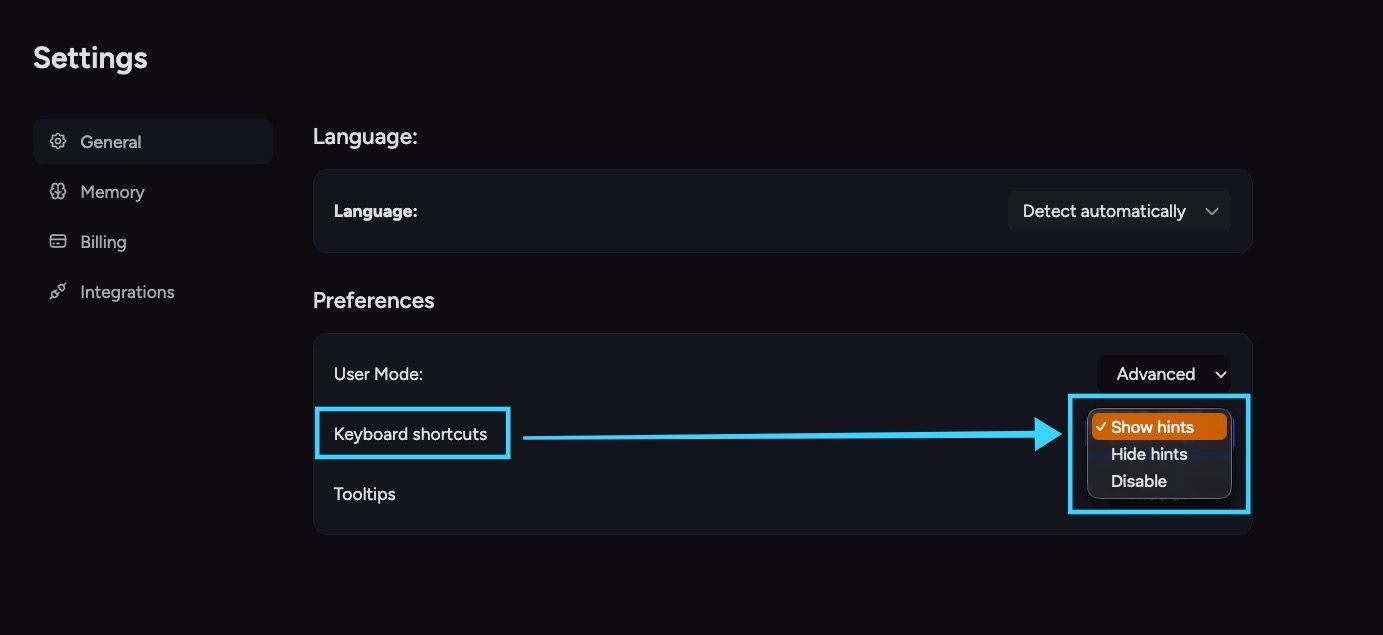
Open the Settings panel from your account settings.
On the General tab, look for the Keyboard shortcuts section.
Select your preferred mode:
Show Hints — Shortcuts appear when you hover over buttons for quick reference.
Hide Hints — Shortcuts are hidden and will not display on hover.
Note: When enabled, hovering over buttons shows the available shortcuts for faster navigation.
Still need help? Ask the team