Chat settings
Learn how to control response style, reasoning depth, scope, and external context from Chat settings.
Written By Mark Ku
Last updated 6 months ago
Overview
Chat settings are the controls next to your prompt input that shape how Chief answers.
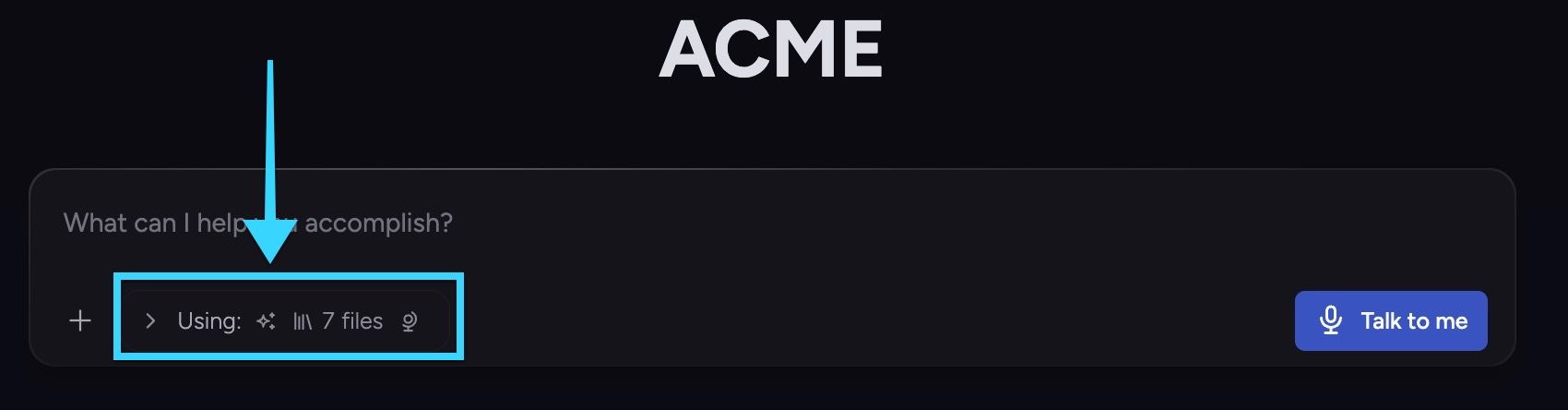
The main settings are:
Expert Voice
Intelligence
Using
Public Data
Together, these let you tune who the assistant sounds like, how deeply it reasons, which project sources it uses, and whether public web context is allowed.
Open Chat settings
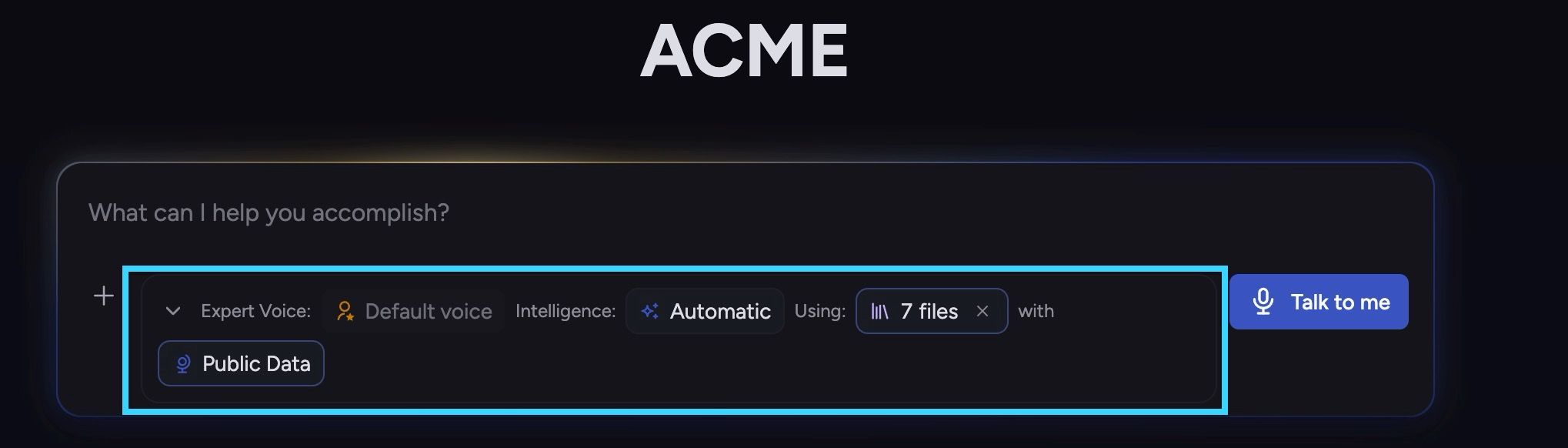
Open or start a new chat.
In the prompt bar area, click the settings row / chips
Expand the settings panel if needed.
You can collapse or expand this row quickly with Opt + Shift + J.
Expert Voice
Expert Voice controls persona/voice style for responses.
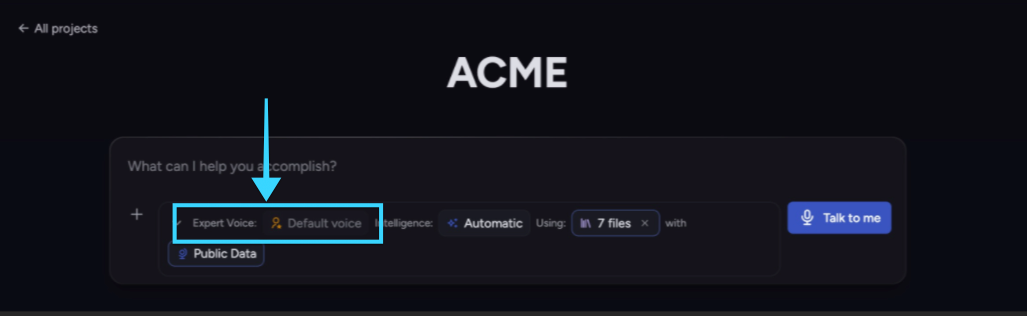
What you can do:
keep Default voice
choose a Persona that Chief responds with
reset back to default voice
To change Expert Voice:
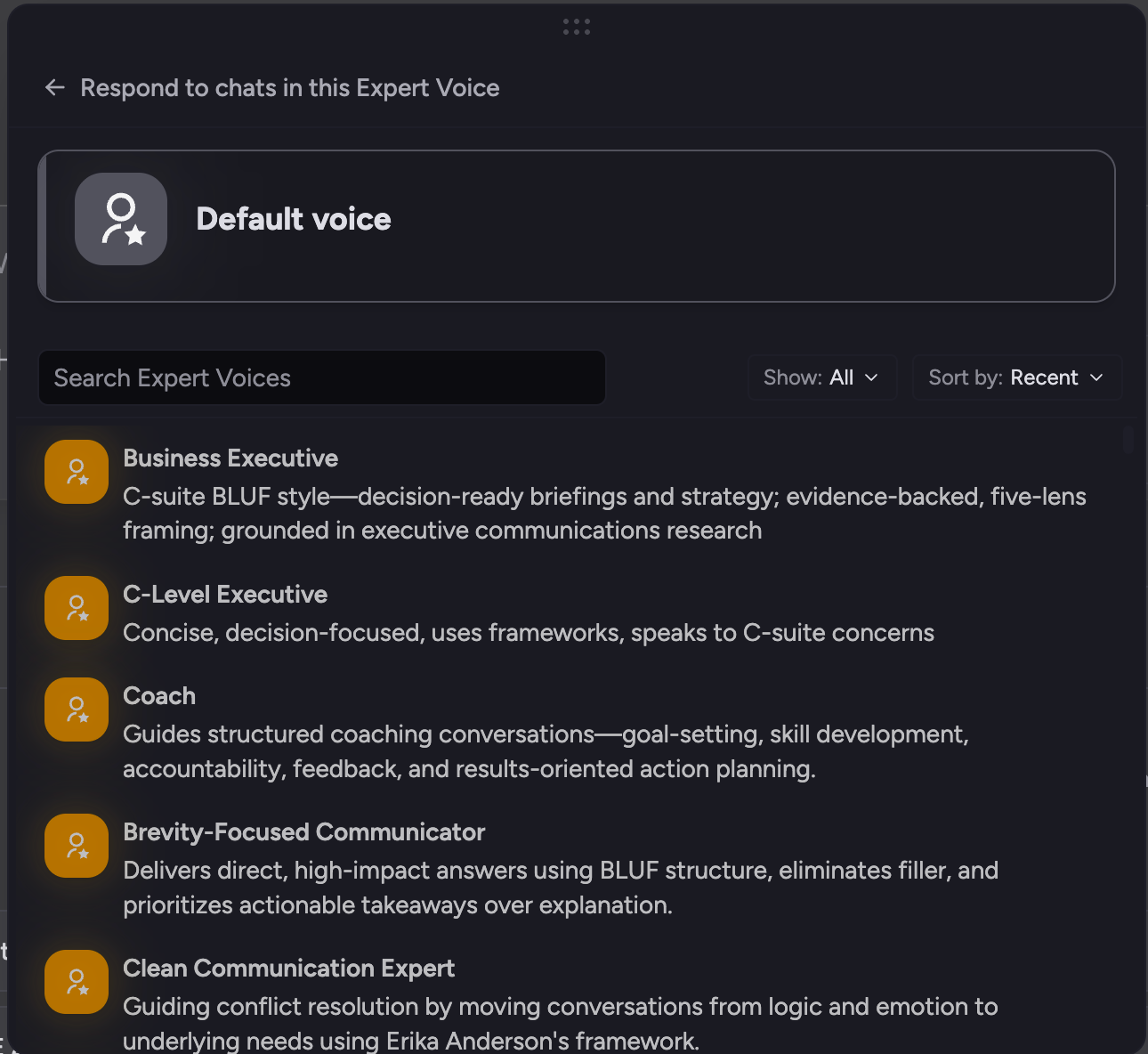
Open Chat settings.
Click Expert Voice.
Select a voice from the list.
Submit your prompt.
Chief responds in that selected voice style until you change or reset it.
ℹ️ Good to Know: The selected voice appears as a chip and can be removed quickly with the x reset control.
Intelligence
Intelligence controls reasoning mode for the prompt.
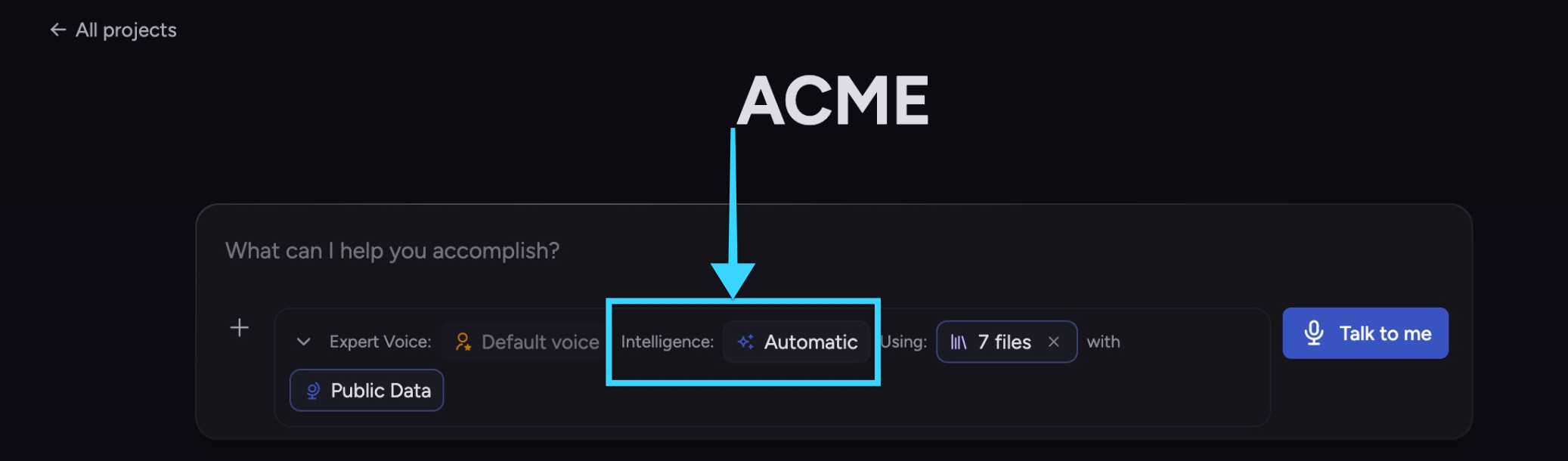
Current modes:
Automatic - Chief either Fast or Expert mode based on prompt complexity
Fast - prioritizes speed
Expert - deeper reasoning, slower than Fast
Deep Intelligence - long-running multi-agent workflow (available only on Paid plans)
To change Intelligence:
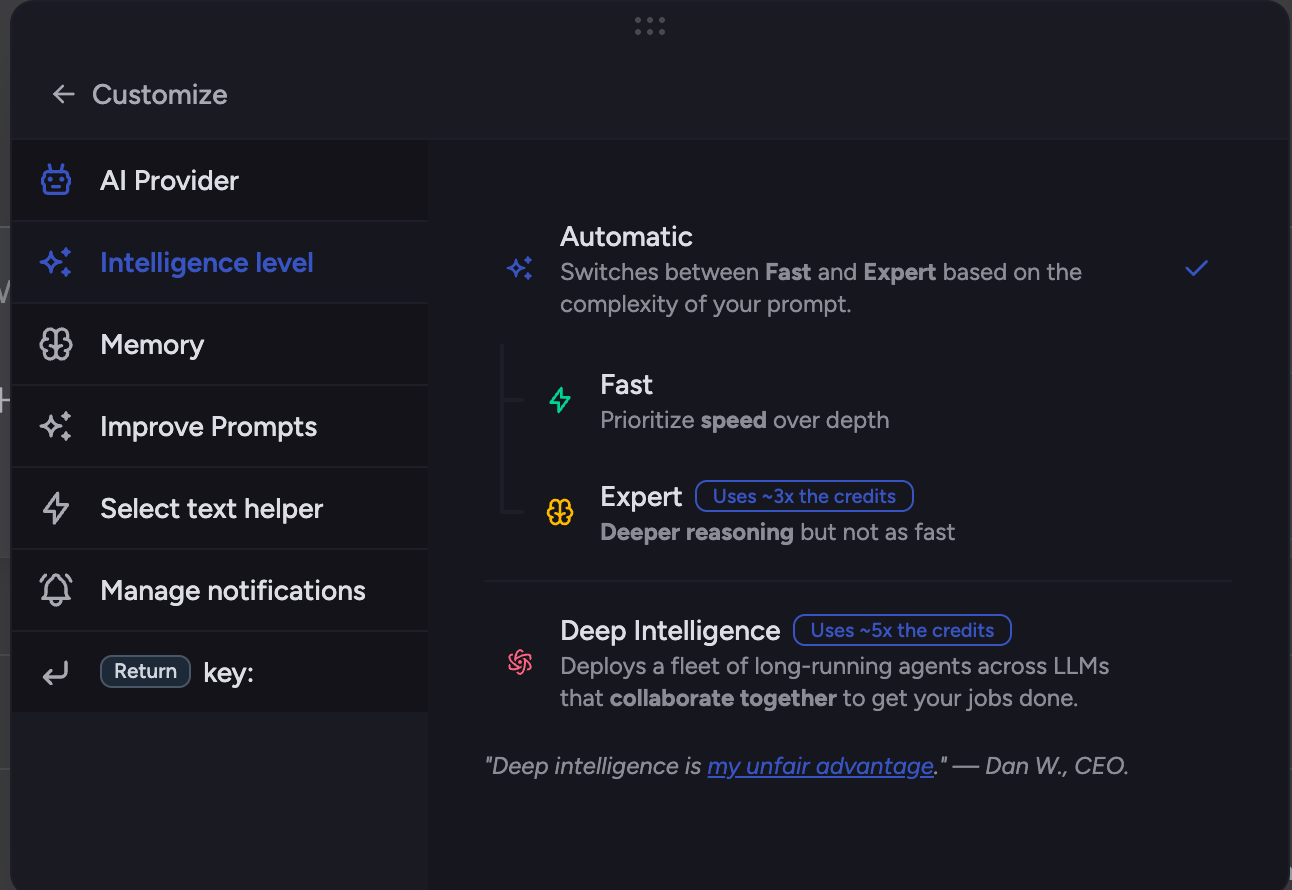
Open Chat settings.
Click Intelligence.
Select the mode you want.
Send your prompt.
Using
Using controls chat scope (the project sources that power answers).
Learn more here: How to manage scope
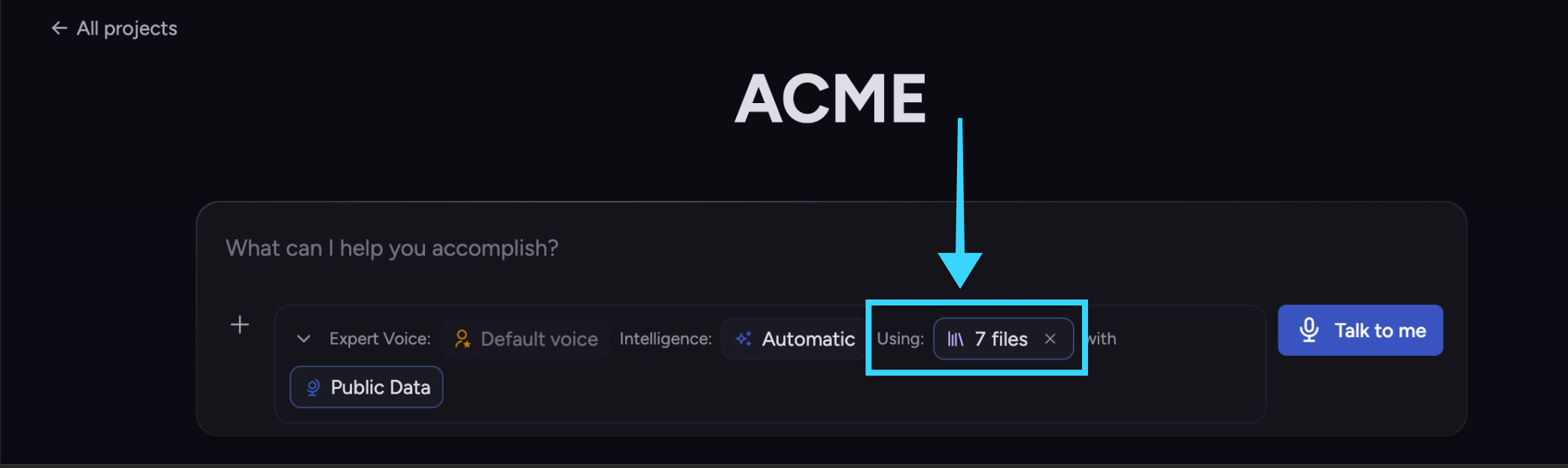
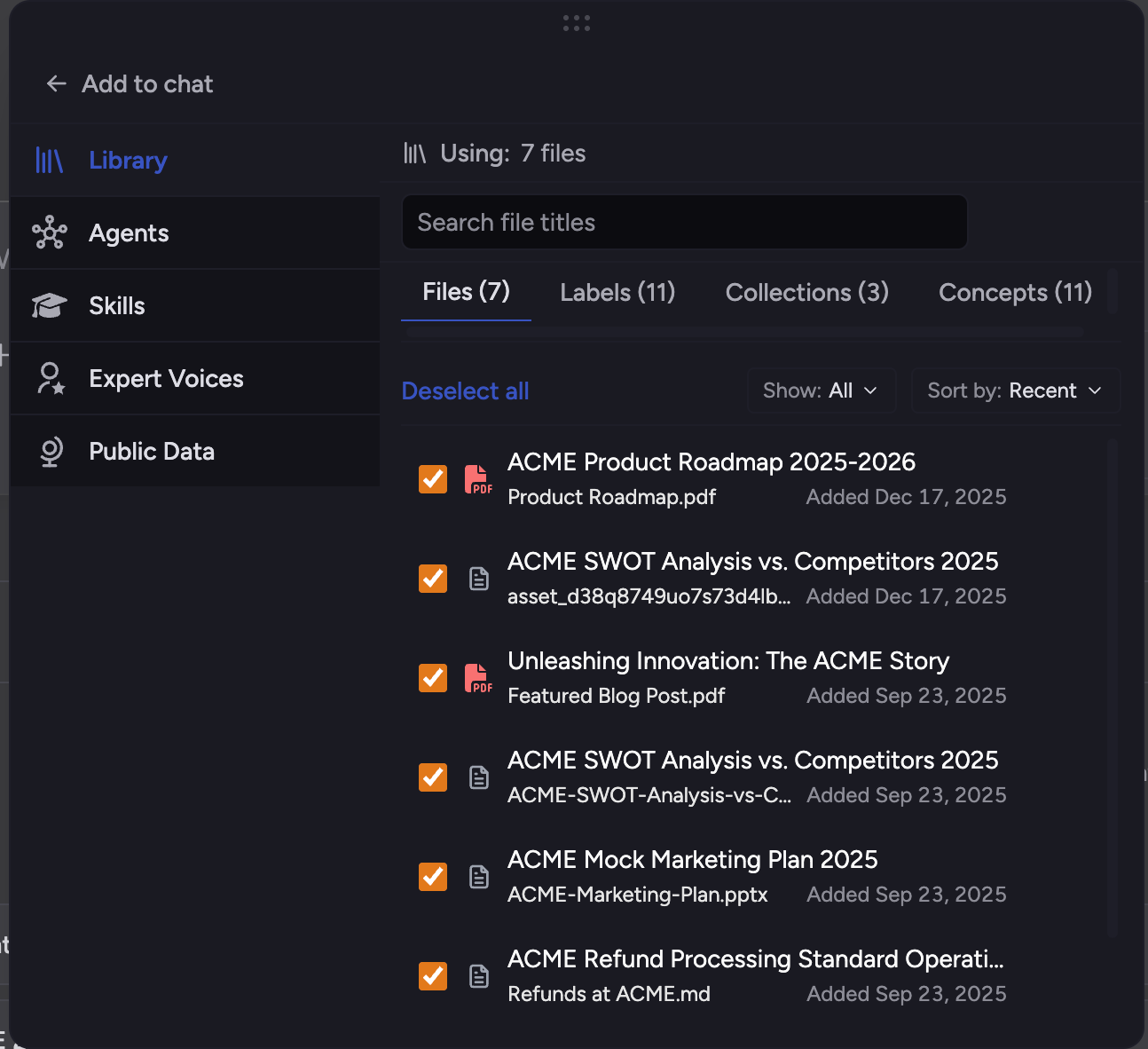
It can include:
files
labels
collections
concepts
To update scope:
Open Chat settings.
Click Using.
In the scope picker/flyout, add or remove sources.
Confirm staged changes (add/remove).
You can also clear scope with the x control on the Using chip.
The chip summary shows the current scoped count (for example 12 files, plus labels/collections/concepts when present).
Public Data
Public Data controls whether Chief can augment Library context with public web data.
Learn more here: Chat with Public Data Sources
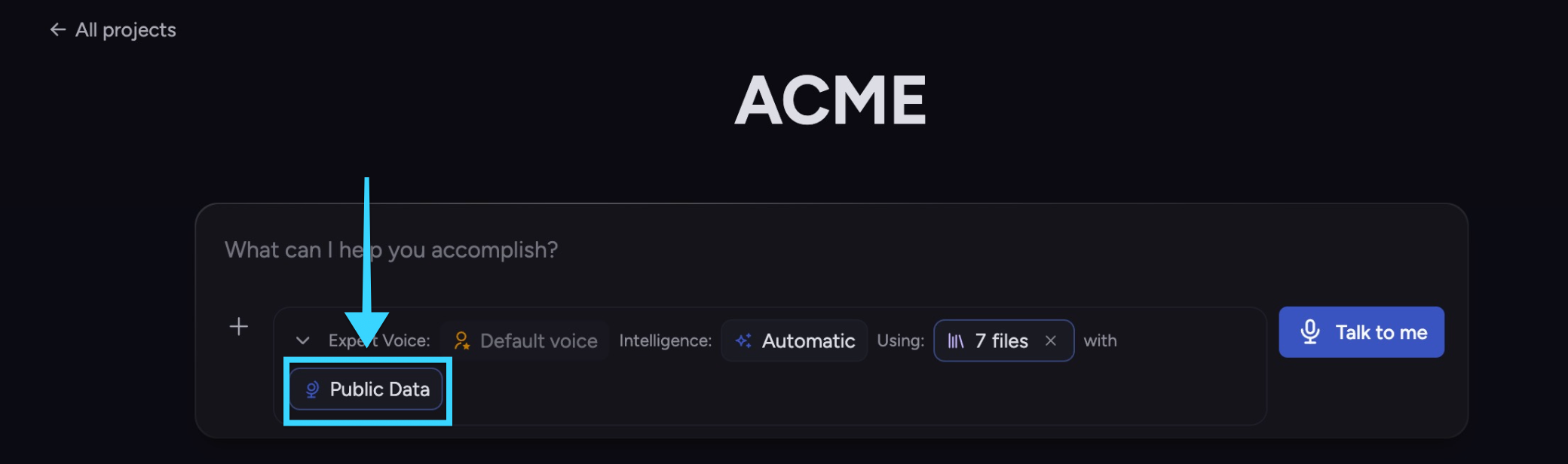
Modes:
Automatic - Chief decides when to use public data and cites when used
Off - only your Library context is used
To change Public Data mode:
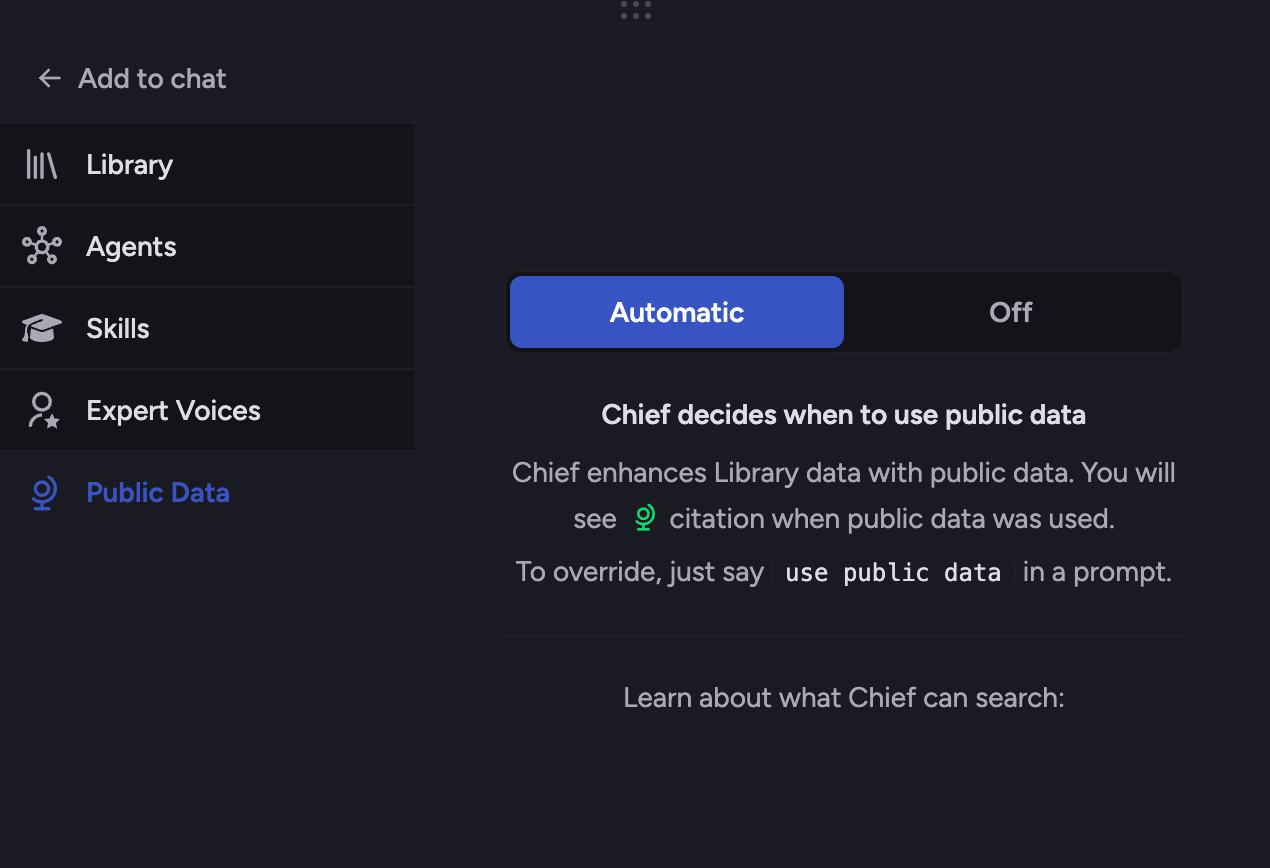
Open Chat settings.
Click Public Data.
Choose Automatic or Off.
💡 Tip: Even with Public Data controls, prompt phrasing can influence behavior. The UI includes an override hint command like use public data.
How settings work together
A single prompt is shaped by all four controls at once:
Expert Voice -> response tone/perspective
Intelligence -> reasoning depth/speed
Using -> knowledge scope
Public Data -> whether external context may be added
If answers feel off, verify all four before retrying.
Troubleshooting
If output quality is not what you expect:
Confirm Using scope is correct first.
Switch Intelligence to Expert for deeper reasoning tasks.
Check whether Public Data is set to Off when you expected external context.
Reset Expert Voice to default to isolate tone effects.
Retry with a shorter prompt and one clear objective.
If you still see inconsistent behavior, share your settings combination and sample prompt with support.
Still need help? Ask the team