Google Drive integration
Chief’s Google Drive integration lets you connect your Google Drive account and import files directly into your Projects. This makes it easy to access your existing documents without manual uploads. Your folder structure is preserved automatically through Chief’s labeling system.
Written By Patrick Intervalo
Last updated 6 months ago
Overview
Chief’s Google Drive integration allows teams to bring existing files into their Projects quickly and efficiently. Once connected, users can access documents, spreadsheets, and presentations directly within Chief. The integration supports a variety of workflows, including Project collaboration, research management, and internal knowledge sharing.
Files retain their original structure, making it easy to navigate content and find what you need. This ensures that important information is always available in the right context without requiring manual downloads or repeated uploads.
Why use Google Drive integration
Instant Access: Files appear in Chief without waiting for uploads.
Better Workflow: Keep your data where it already lives and access it in Chief.
Enhanced Productivity: Users note that if files cannot be imported, they cannot fully use the system.
Automatic Organization: Folder hierarchies in Google Drive are preserved as labels in Chief.
Features and capabilities
File selection and import
Selective Import: Choose individual files or entire folders to import.
Per-Project Control: File selection happens for each Project. You can pick different files for different Projects.
Project Knowledge Display: Imported files appear in the Project knowledge section.
Learn more about Chief Projects: Projects Overview
Folder hierarchy and Labels
Automatic Labeling: Each folder level in Google Drive becomes a label in Chief.
Hierarchical Organization: Files nested in multiple folders will receive labels for each folder level.
Preserved Structure: Your Google Drive organization is maintained automatically.
File synchronization
Real-Time Changes: Updates in Google Drive appear in Chief shortly after they occur.
Sync Frequency: Changes are processed in batches every five minutes.
File Movement: Moving a file in Google Drive causes it to be treated as a new file in Chief.
Webhook Renewal: Webhooks for updates must be recreated every seven days.
File size limitations
Files exceeding these limits appear in the file list but are skipped during ingestion.
Rate limiting
To maintain stability, Chief limits file ingestion:
Concurrent Processing: Five files can be processed at a time per organization.
Automatic Queueing: Additional files are queued and processed every fifteen seconds.
🚀 Pro tip: For large folders, import subfolders incrementally to stay within limits.
How to connect Google Drive to Chief
Prerequisites
Before you begin, make sure you have:
An active Chief account with access to a Project
A Google account with access to the files you want to integrate
Permissions in your Chief Project to connect integrations
1. Navigate to your Project
Log in to Chief.
Open the Project where you want to connect to Google Drive.
⚠️ Important: Integration is configured per Project, so you will need to select files separately for each Project.
2. Initiate the connection
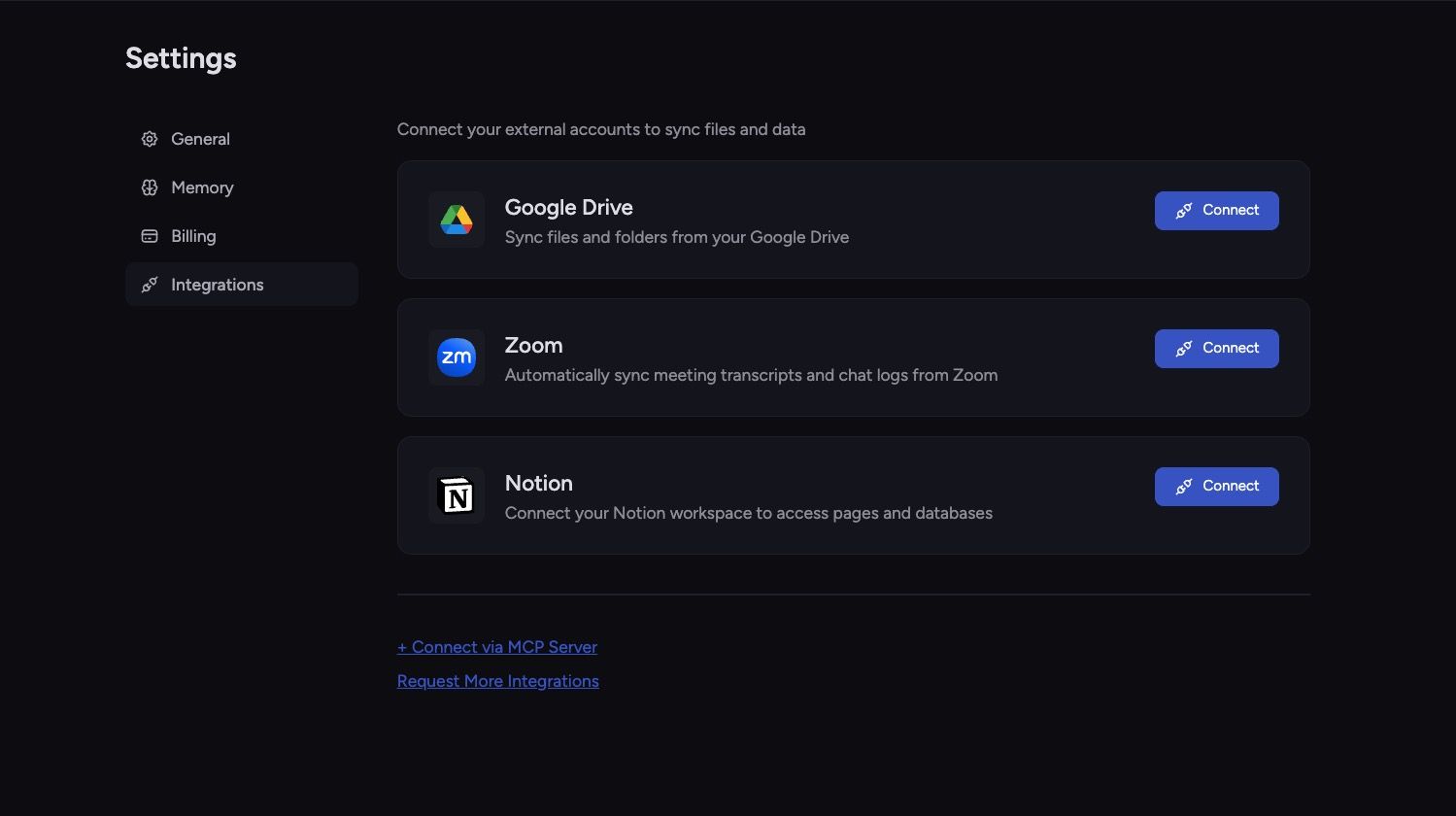
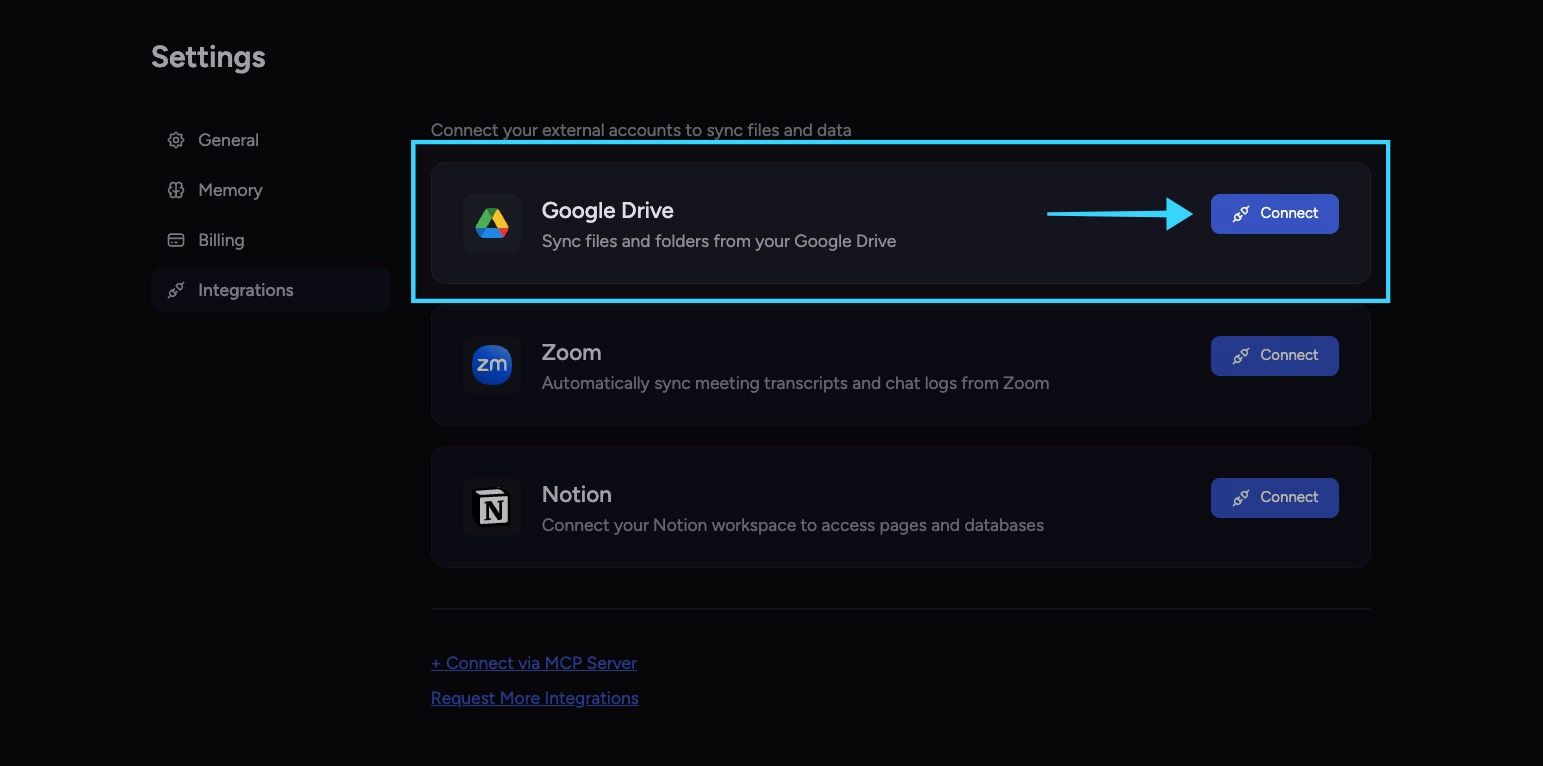
Go to your account settings, then click on integration.
Click Connect Google Drive to start the authentication process.
3. Complete OAuth (Open Authorization) authentication
Sign in with your Google account if not already signed in.
Review the requested permissions.
Click Allow or Grant Access.
⚠️ Important: This OAuth process is secure and is used for all Chief Google integrations.
4. Browse and select files
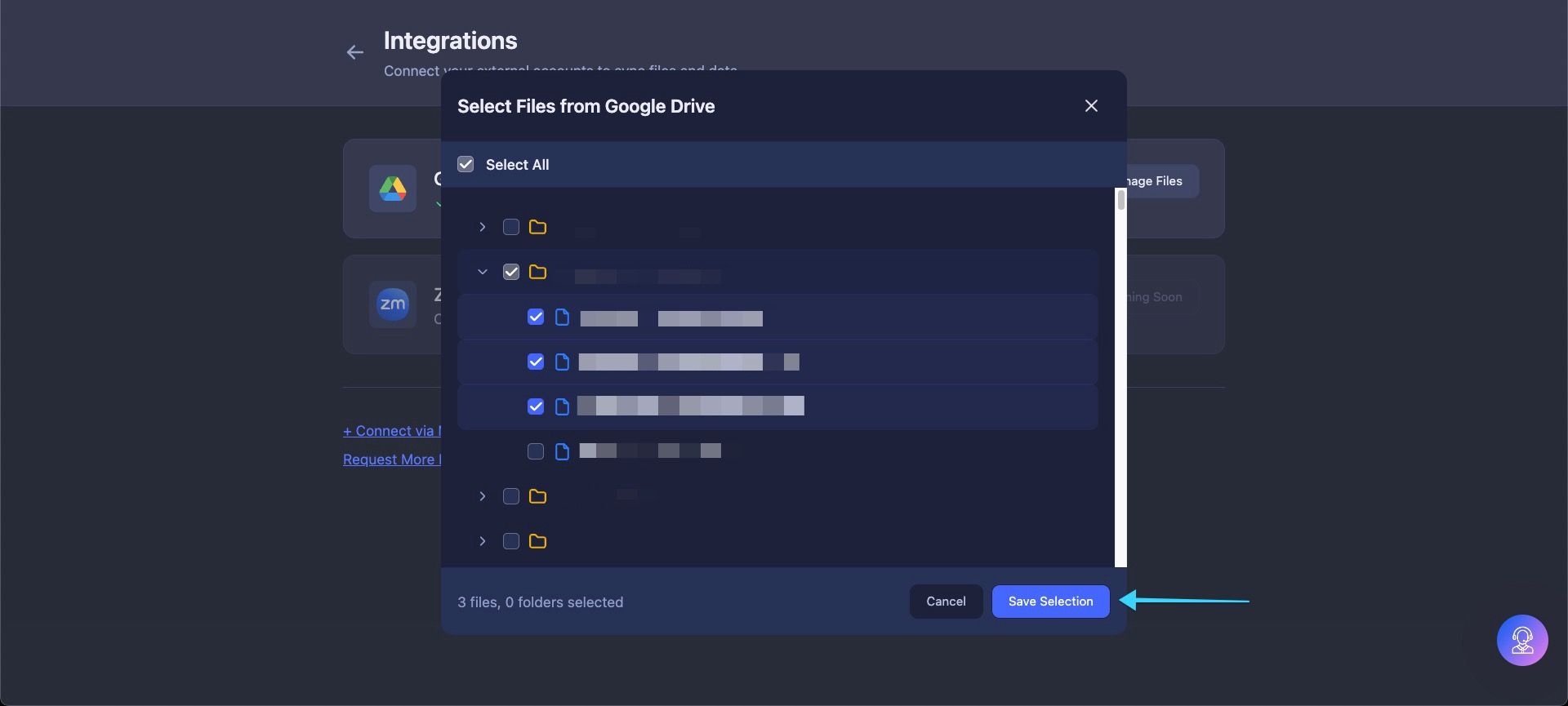
Use the explorer interface to browse your Google Drive.
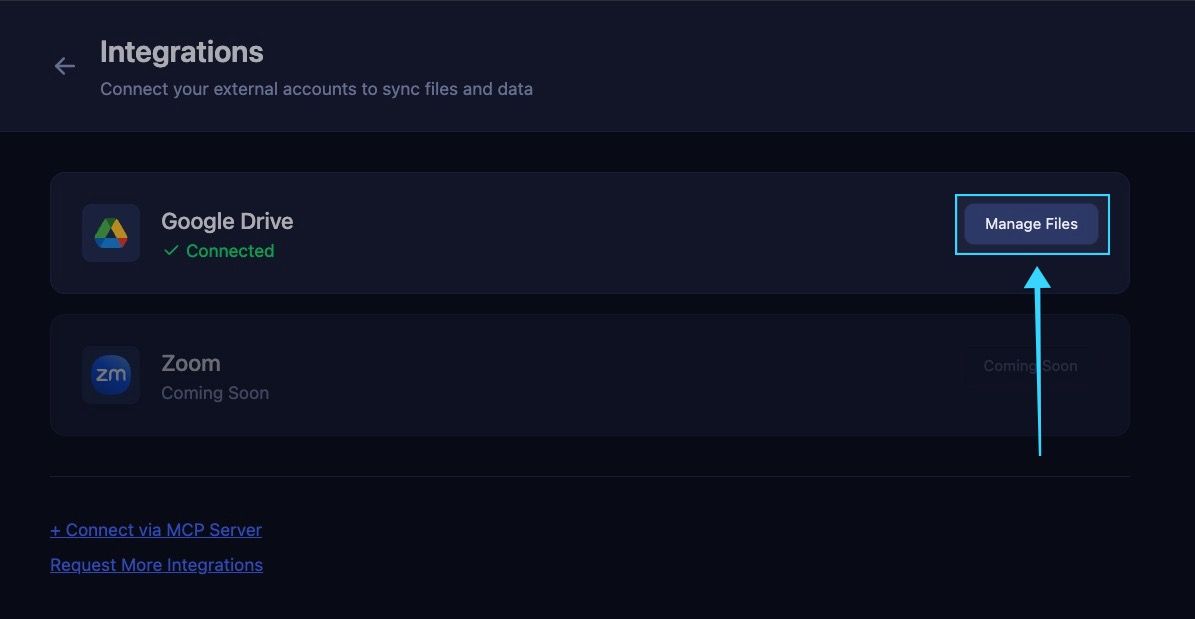
Select the files or folders to import:
Individual files
Entire folders
Multiple selections at once
⚠️ Important: Files must be manually selected—nothing is imported automatically.
5. Confirm your selection
Review your selected files and folders.
Be mindful of:
File size limits: Docs/Sheets up to 10 MB, Slides up to 100 MB
Processing limits: Only 5 files process concurrently; extra files queue automatically
Confirm to begin ingestion.
6. Monitor import progress
Selected files will start processing.
Files appear in your Project Knowledge section once ingested.
Files that exceed size limits appear in the list but will not be ingested.
7. Verify the integration
Navigate to your Project Knowledge area.
Confirm your Google Drive files are visible.
Check that files have labels matching their Google Drive folder structure.
Working across multiple Projects
One-time authentication: The same Google account works across all Projects.
Per-project selection: You can pick different files in each Project.
No re-authentication required for additional Projects.
Use cases and best practices
Ideal use cases
Team Documentation: Import shared folders with Project notes and reports.
Research Projects: Bring in research papers, datasets, and analysis documents.
Client Work: Organize client folders for individual Projects.
Knowledge Management: Import company wikis, handbooks, and internal documentation.
Best practices
Keep Google Drive folders organized to produce clean labels in Chief.
Select only the folders needed to avoid clutter.
Use separate Chief Projects for different knowledge domains.
Monitor which files fail to import due to size limits.
Known issues and limitations
Permissions: Chief does not replicate Google Drive file-level permissions. All Project members can access imported files.
File Size Restrictions: Native Google Docs, Sheets, and Slides have limits. Files exceeding 10 MB or 100 MB cannot be ingested.
Authentication: Each user connects with their own OAuth token. Removing a user may make files they owned inaccessible.
File Movement: Moving files in Google Drive deletes and re-adds them in Chief, which can affect references to those files.
Troubleshooting
Files not appearing
Confirm OAuth authentication is complete.
Check file type and size restrictions.
Allow up to five minutes for synchronization.
Slow ingestion
Only five files are processed concurrently. Larger batches queue automatically.
Break large imports into smaller sets if needed.
Authentication issues
Reconnect Google Drive if access problems occur.
Confirm your Google account has permission to view the files.
Still need help? Ask the team