Projects Overview
Learn how Projects organize your work, separate data and collaborators, and keep chats scoped to the right context.
Written By Mark Ku
Last updated 6 months ago
What are Projects?
A Project is your workspace inside Chief. It groups chats, files, and (when you use them) concepts, skills, and other project resources so everything stays in one place.
You use Projects to:
Talk to the right data — Content and context stay tied to the Project you are in.
Collaborate safely — Invite people with clear roles instead of sharing everything across your organization.
Switch contexts quickly — Move between initiatives, clients, or teams without mixing work.
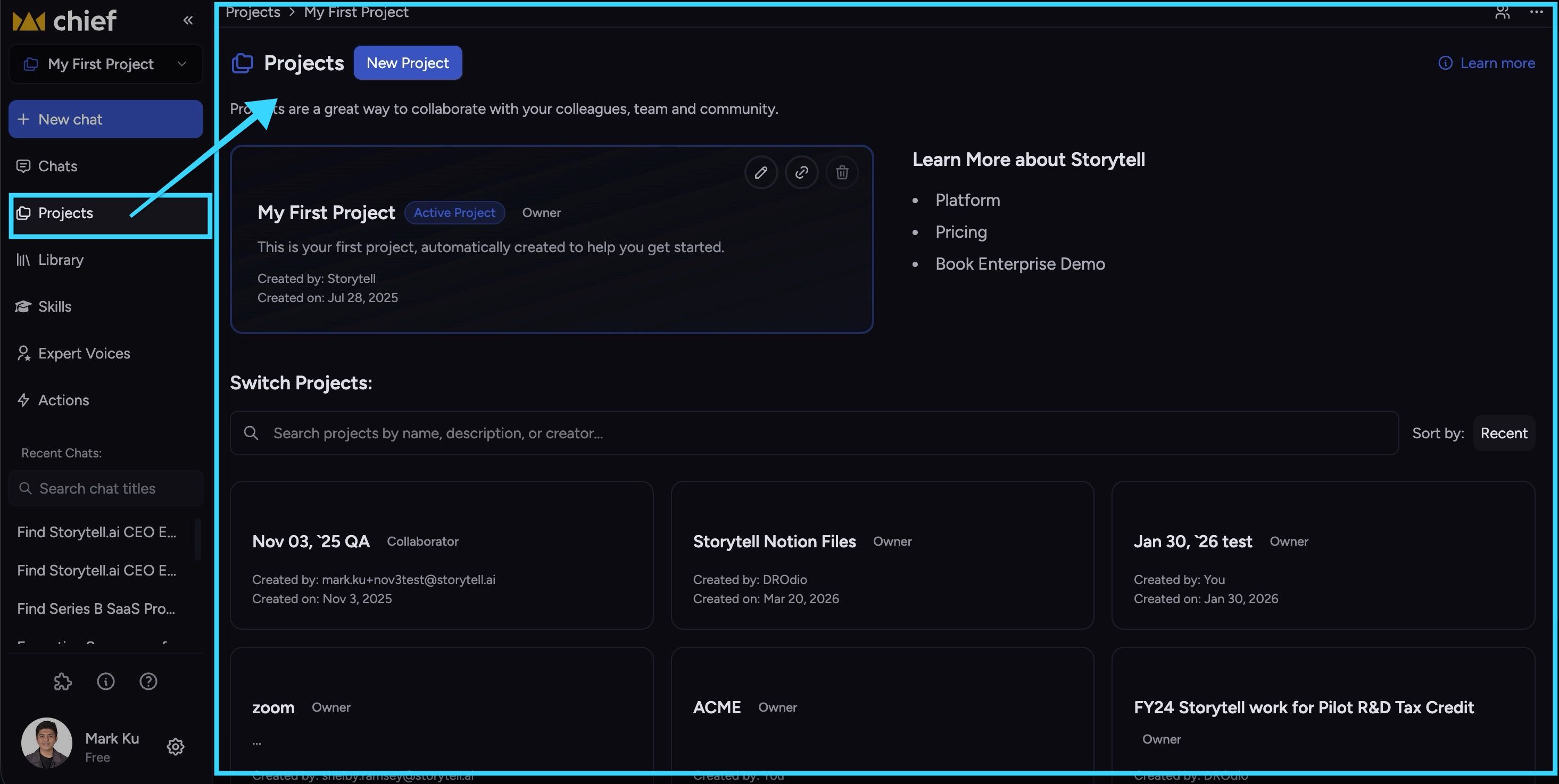
Projects sit in Chief’s broader structure (your organization and workspace). You mostly interact with the active Project: the one selected in the app right now. Chats and library content follow that Project.
What's inside a project
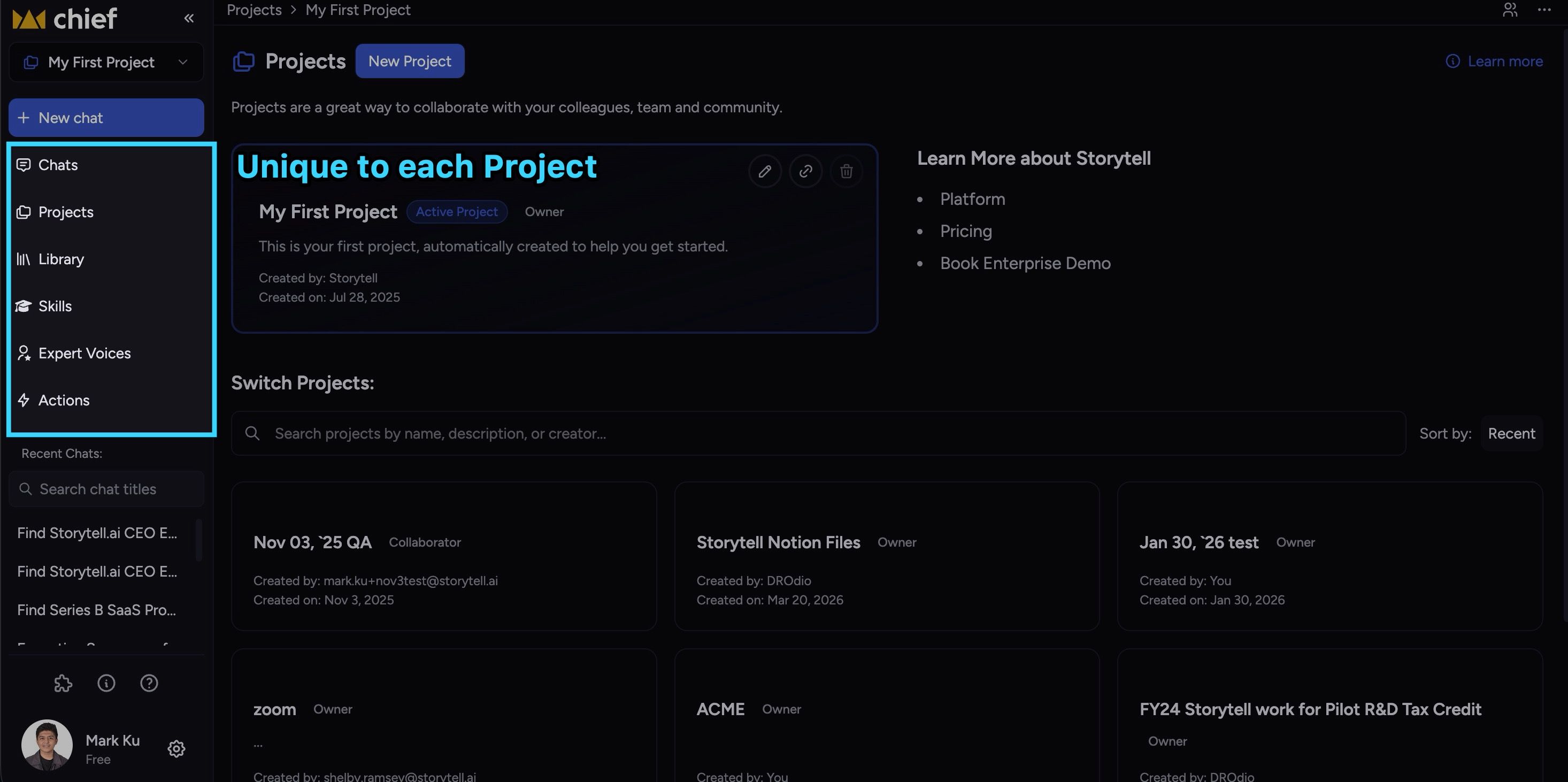
Each project contains:
Chat — Conversations are scoped to the current project and its knowledge.
Files — All files (assets) you upload; view and manage them on the Files page.
Collections — Groups of files you define; useful for chat scope and organization.
Labels — Tags you apply to files; labels are project-scoped and visible to everyone in the project.
Skills — Project-scoped skills (and user-scoped) that you can @mention in chat.
When you switch projects, your chat and view switch to that project’s content. You can copy or move files between projects when needed.
Open the Projects hub
The Projects page is the home base for seeing every Project you can access, spotting the active one, and creating new Projects.
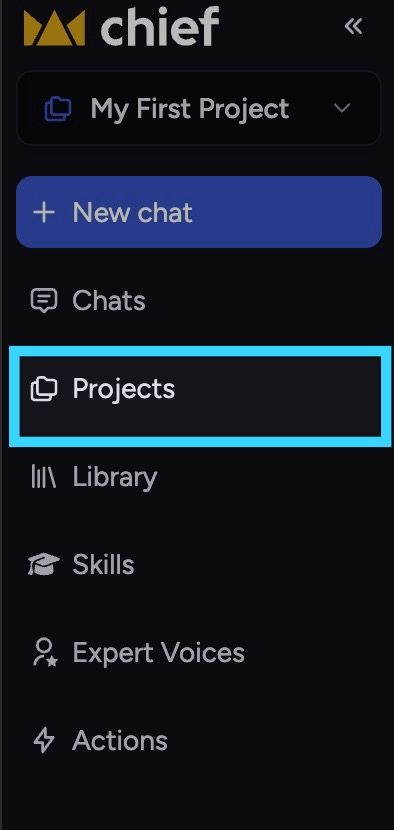
In the sidebar, click Projects.
You land on the Projects list. The active Project appears as a highlighted card at the top.
Use New Project to start another Project when you need a fresh space.
You can also open Projects from the account menu (your profile menu)
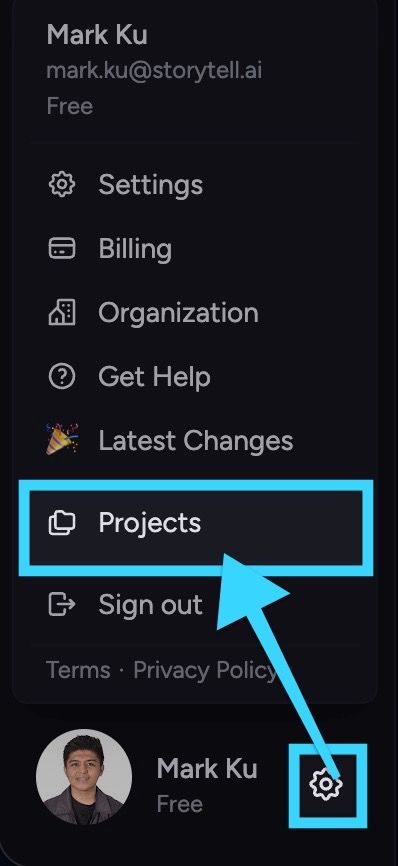
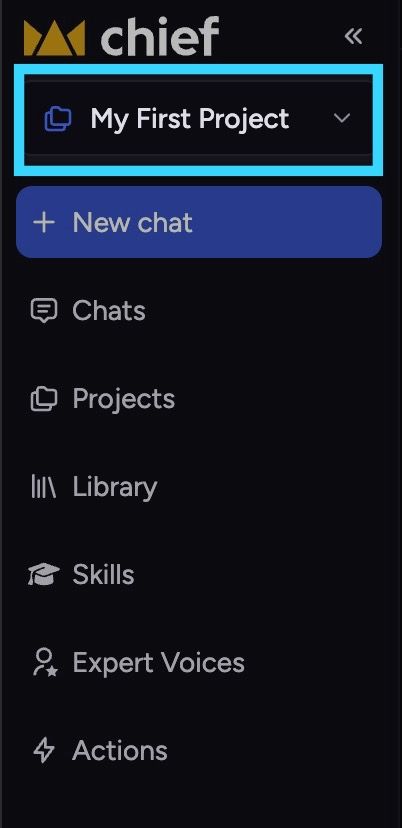
or the Project switcher
Create a Project
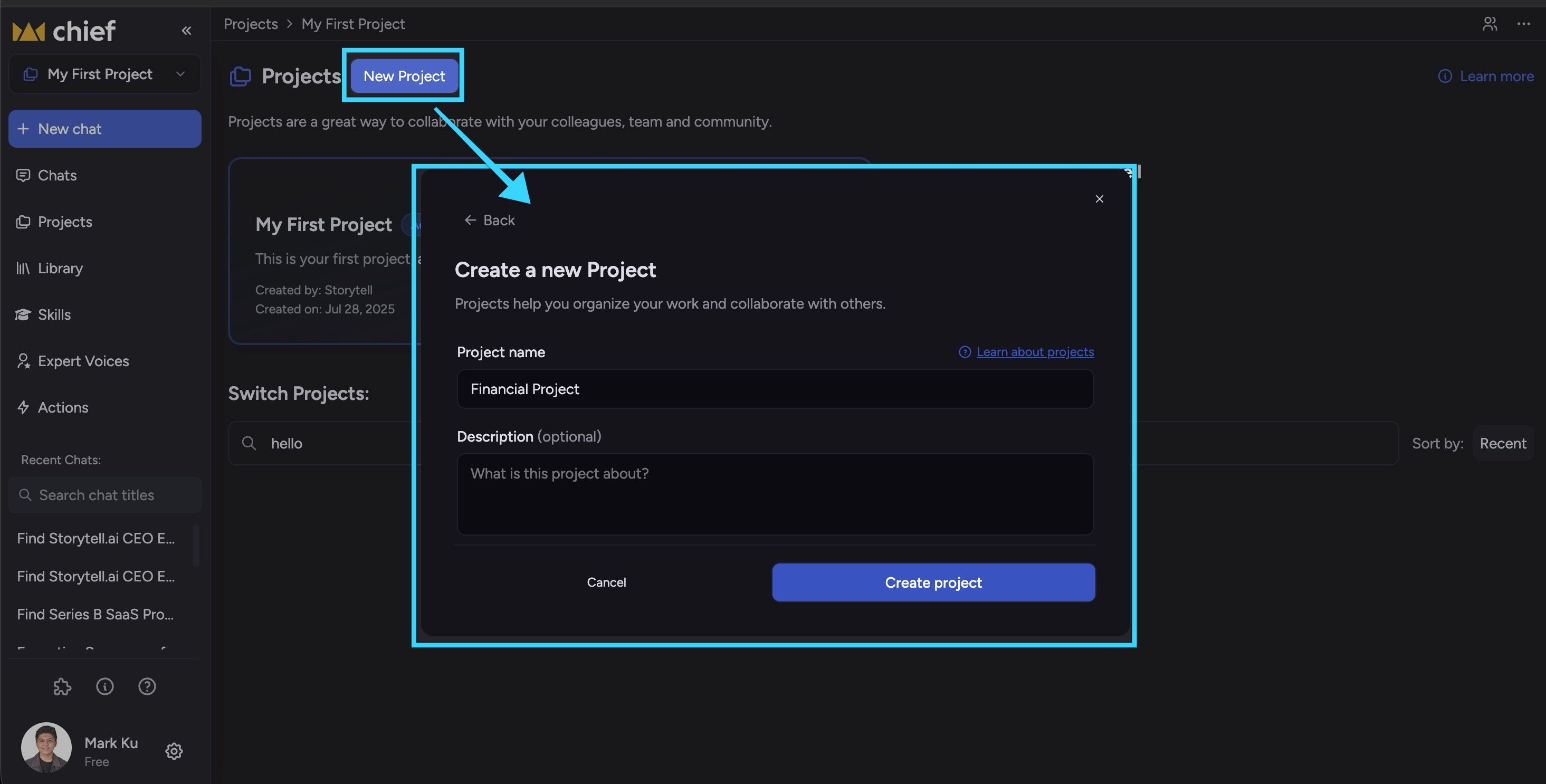
Go to Projects (sidebar → Projects).
Click New Project.
Enter a Project name (required).
Optionally add a Description so teammates know what the Project is for.
Click Create project (or the primary create action in the form).
🚀 Pro-Tip: On the Projects page, type in the search field and press Enter when there are no matches. That shortcut opens project creation with your search text as a starting name.
Switch the active Project
The active Project controls what data and chats you see. Switching updates your context across the app.
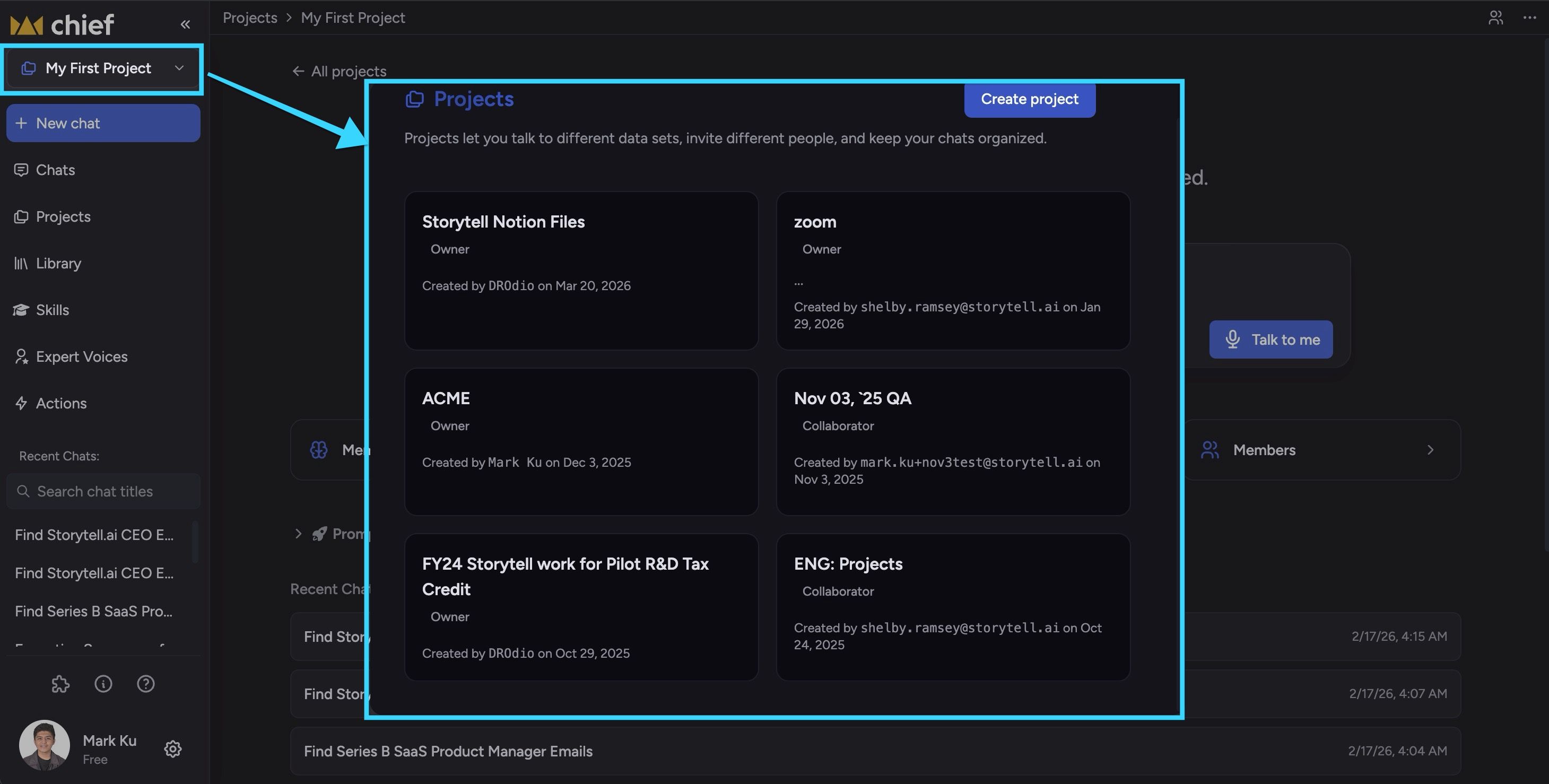
In the sidebar, click the button that shows your current Project name (folder icon and name).
The Projects picker opens. Search or scroll to find another Project.
Click the Project you want. The app switches context to that Project.
You can sort the list by Most Recent or Alphabetical using the sort control in the picker or on the Projects page.
Rename or update the description
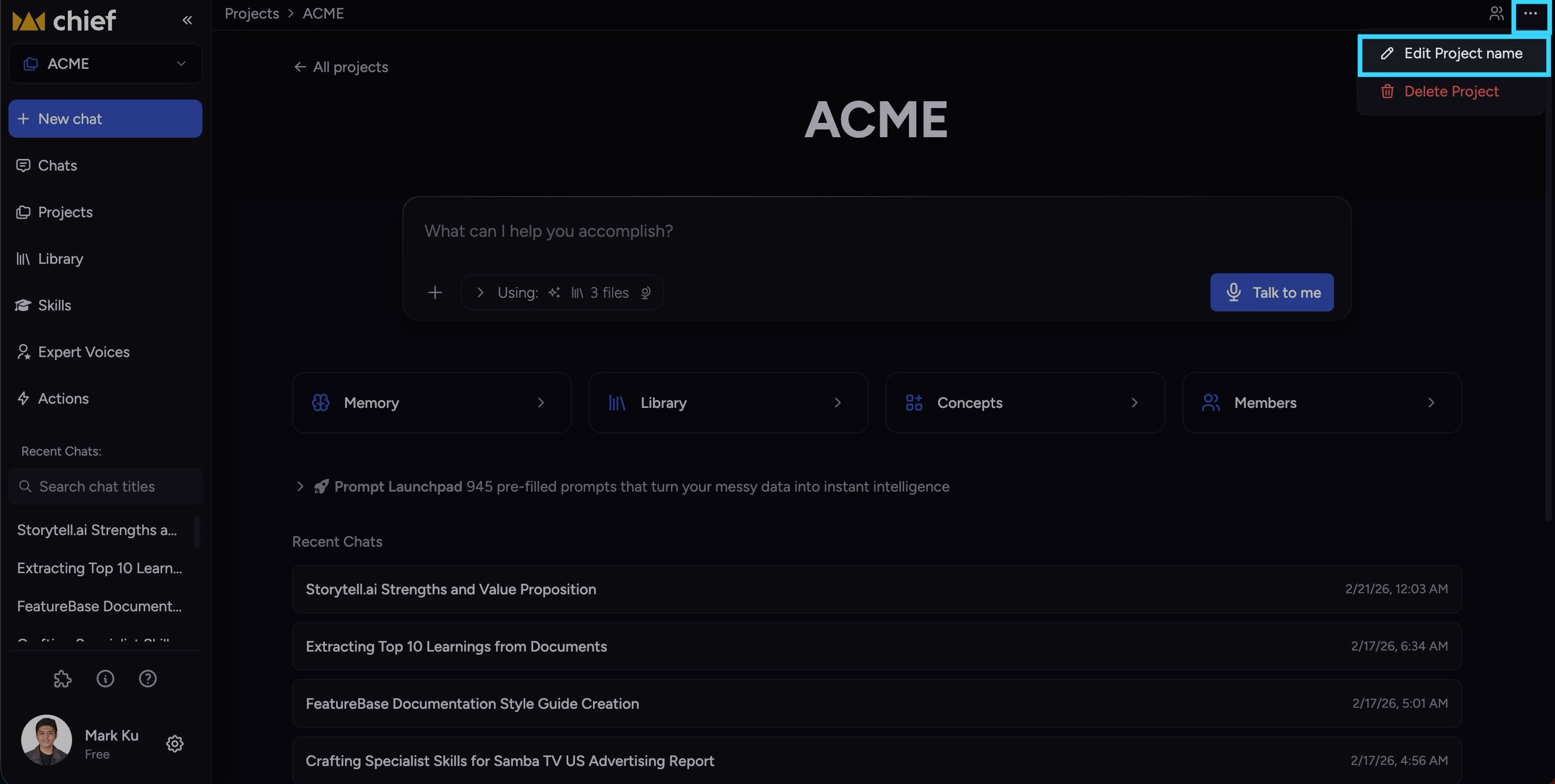
Ensure the Project is active.
In the top bar, open the ⋯ (more) menu.
Choose Edit project (or the edit name action).
Update the name and/or description and save.
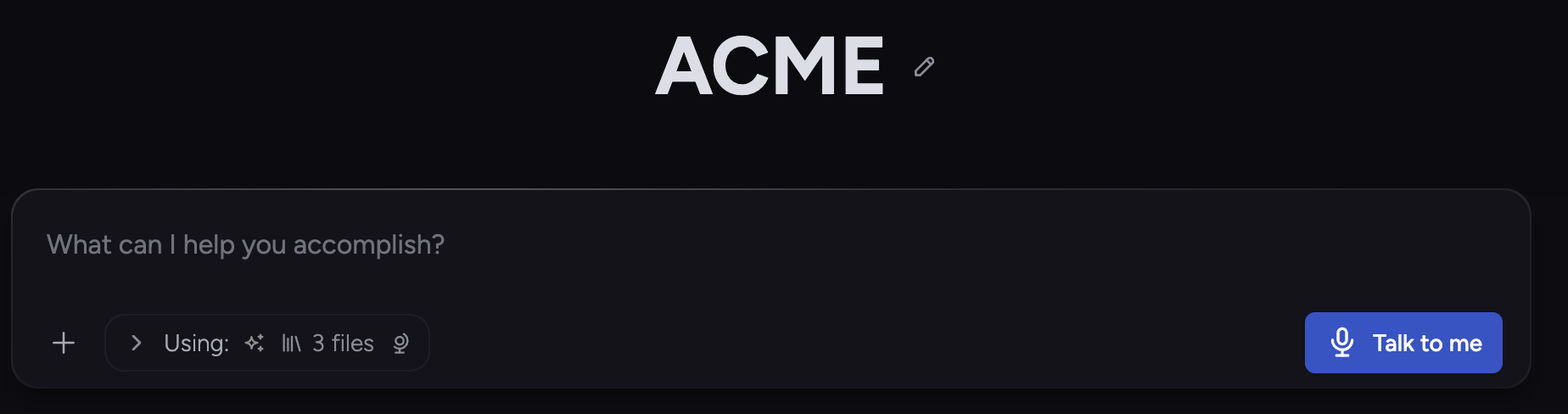
🚀 Pro-Tip: You can also start edit from the active Project card on the Projects page using the edit (pencil) control, when it appears.
Delete a Project
⚠️ Important: Deleting a project permanently removes all files, collections, labels, skills, chat history, and other data in that project. If the project is shared, all users with access will lose access and all data will be deleted for everyone. This action cannot be undone.
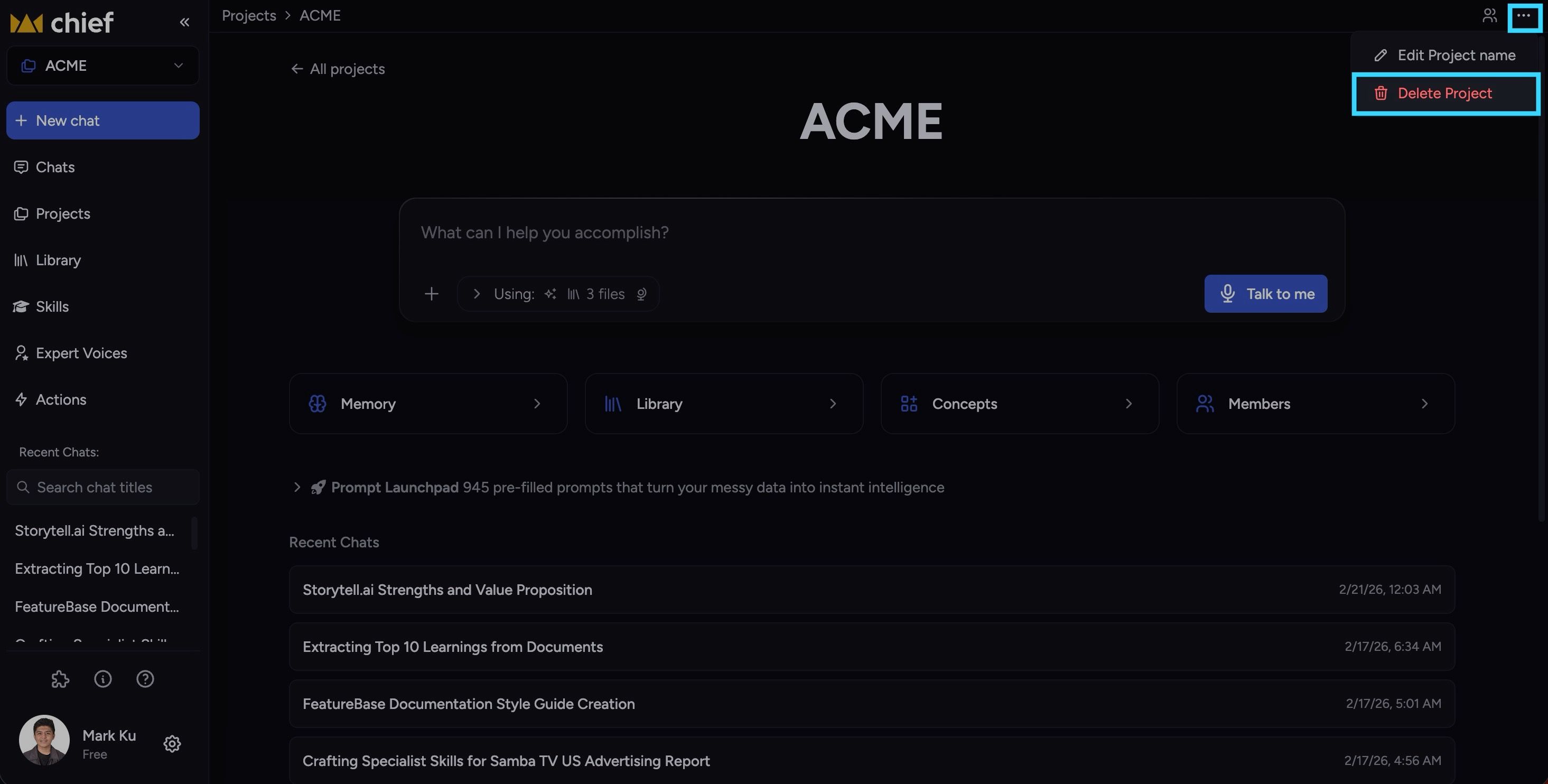
Ensure the Project is active and you are an Owner.
Open the ⋯ menu in the top bar (or use delete on the Projects page when available).
Choose Delete project and confirm.
ℹ️ Good to Know: Your default Project cannot be deleted.
FAQ
Can I have more than one project?
Can I have more than one project?
Yes. You can create as many projects as you need and switch between them from the Projects page or the project switcher.
Will my files and chats move when I switch projects?
Will my files and chats move when I switch projects?
No. Files and chat stay in the project they belong to. Switching projects only changes which project you’re viewing and chatting in. You can copy or move files between projects from the Files page.
What happens if I share a project with someone by email?
What happens if I share a project with someone by email?
Can I change someone’s role after inviting them?
Can I change someone’s role after inviting them?
Yes. Open Share this project, find the invitation or member, and change the role. The new permissions apply as soon as you save.
Why don’t I see Edit or Share on my project?
Why don’t I see Edit or Share on my project?
Is the project URL secret?
Is the project URL secret?
The project URL alone does not grant access; the user must be signed in and have been granted access (e.g. by invite). For link-based access that grants a role, use Share this project → Secret link and treat that link as sensitive.
Still need help? Ask the team