Manage your files
Learn how to rename, delete, copy, and move files so your Project Library stays clean, accurate, and easy to use.
Written By Mark Ku
Last updated 6 months ago
Overview
Managing files helps you keep your Project Library reliable as it grows. In Chief, you can update file names, remove outdated files, or transfer files between Projects without re-uploading everything.
This allows you to:
Keep names clear for search and chat scope
Remove incorrect or outdated files
Reuse files across Projects by copying
Reorganize ownership between Projects by moving
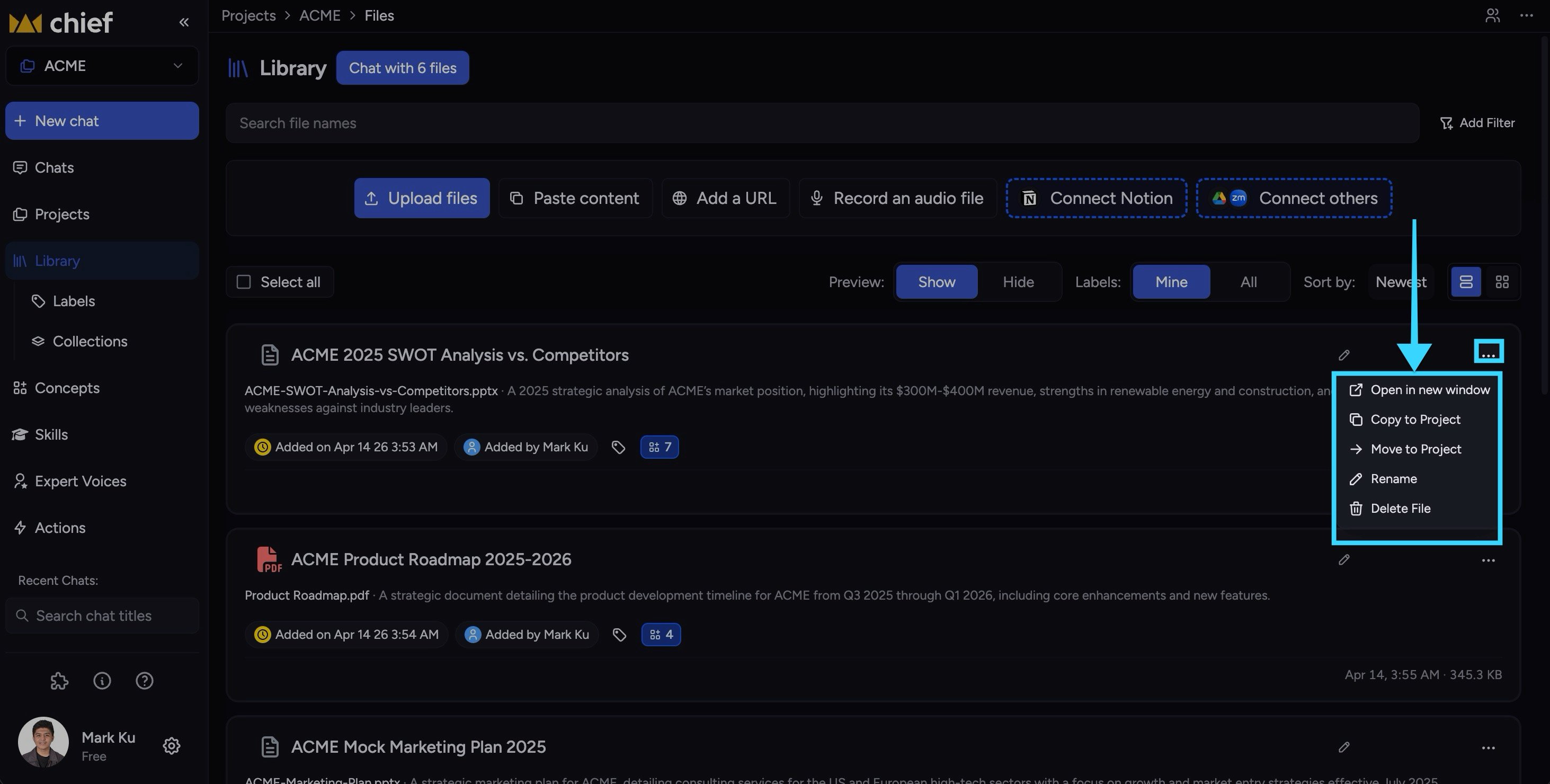
Most file management actions start from Library → Files and are available from file cards, row actions, or bulk selection tools.
Feature availability notice: Actions depend on your role and project permissions. Some users may see view-only behavior.
Where file actions live
You can manage files from two places:
Files list (card/row) — Hover or open the ⋯ menu on a file.
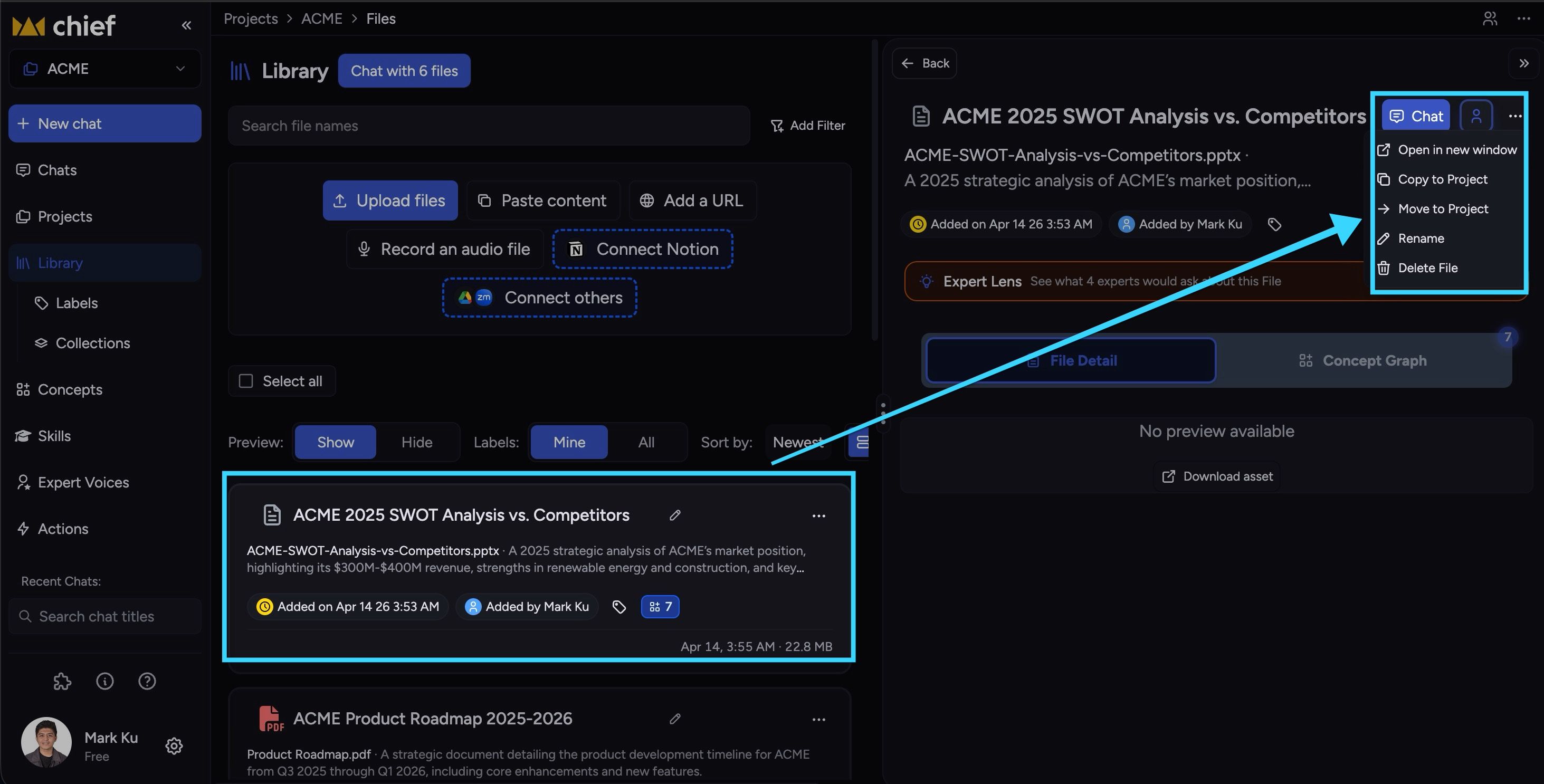
File detail view — Click a file first, then use actions in the detail panel.
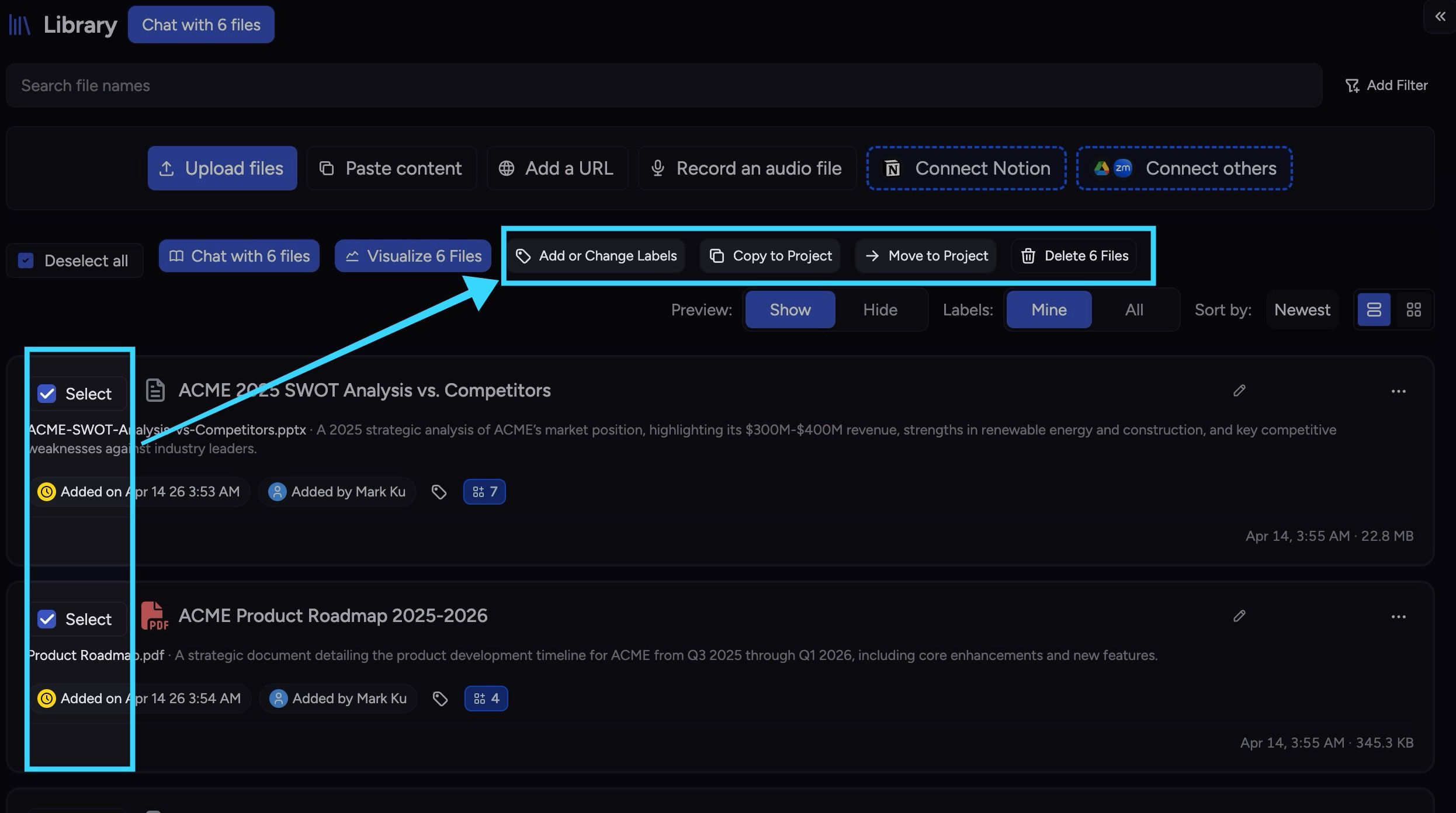
For multi-file operations, use selection checkboxes in the Files list, then run bulk actions like Copy to Project, Move to Project, or Delete.
Rename a file
Use rename when a file title is unclear, inconsistent, or no longer accurate.
Go to Sidebar → Library → Files.
Find the file you want to rename.
Open the file actions (for example ⋯) or use the rename icon where shown. or Click the file to open detail view.
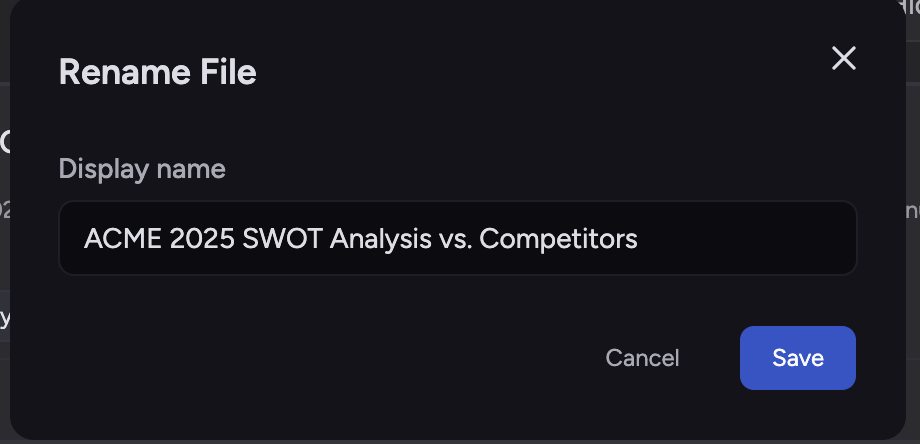
Click Rename.
In Rename File, update the Display name field.
Click Save.
This updates the file’s display name without re-uploading the file.
ℹ️ Good to Know: Rename is generally available once a file has finished processing.
Delete a file
Use delete when a file should no longer exist in the Project Library.
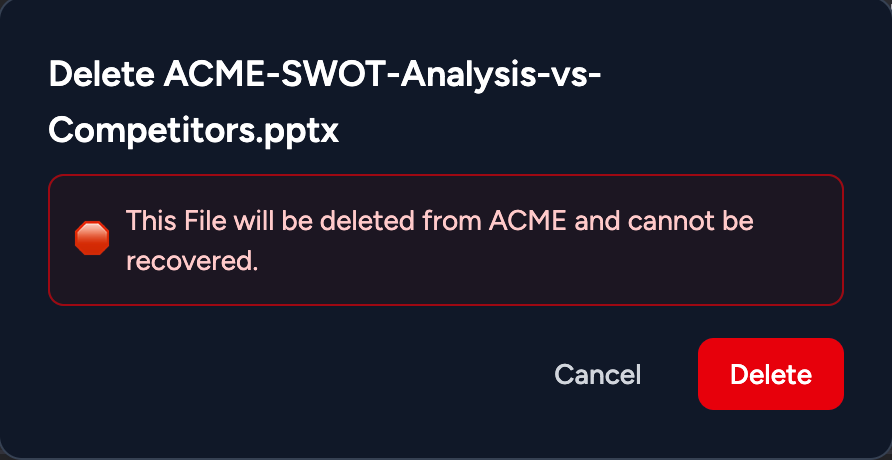
⚠️ Important: Deleting a file removes it from the current Project Library and from related file-based workflows in that Project.
Delete one file

Go to Sidebar → Library → Files.
Find the file.
Open file actions (⋯) and click Delete.
Confirm in the delete dialog.
Delete multiple files
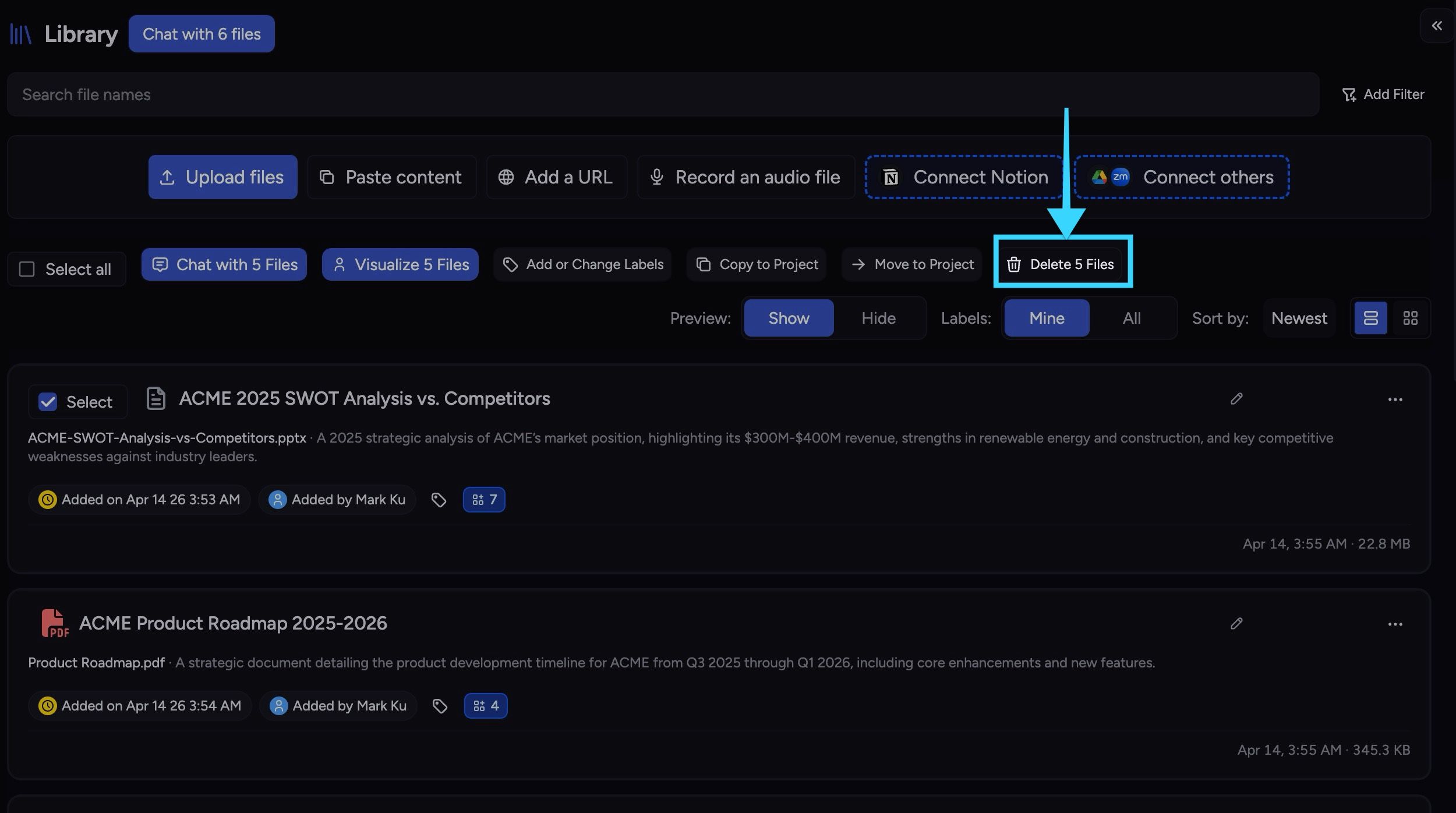
Go to Sidebar → Library → Files.
Select multiple files using the checkboxes.
Click Delete in the bulk action bar.
Confirm deletion.
💡 Tip: If you are unsure, copy or move files first, then delete after you confirm the destination Project is correct.
Copy files to another Project
Copy duplicates files to a destination Project and keeps the originals in the current Project.
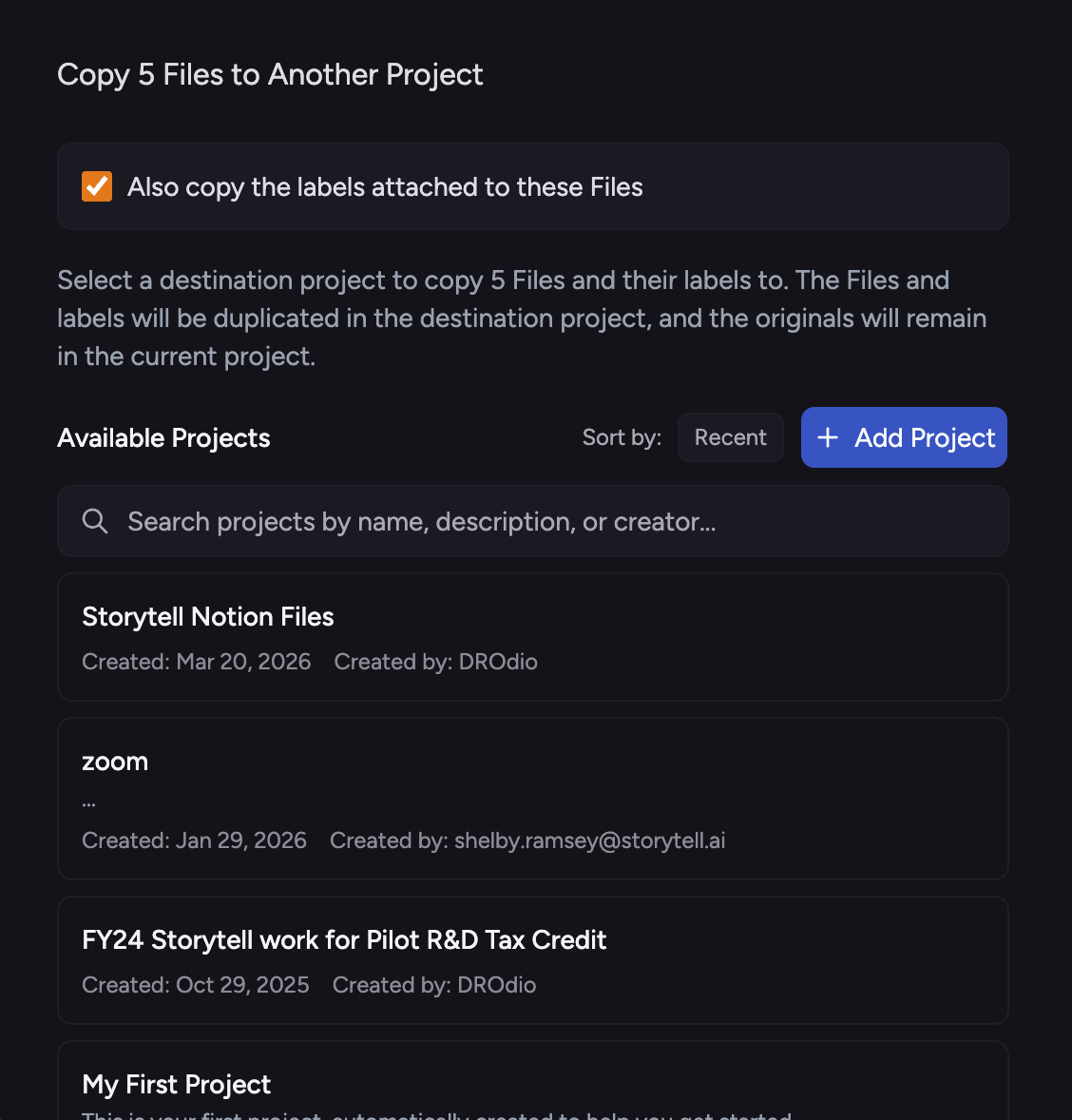
Go to Sidebar → Library → Files.
Select one or more files.
Click Copy to Project.
In Copy File(s) to Another Project, choose the destination Project.
Optional: toggle label transfer if shown (this means you also copy labels).
Confirm copy.
After success, Chief can prompt you to switch to the destination Project to review copied files.
ℹ️ Good to Know: Copy is useful for reusing shared source files across multiple Projects without losing the original context.
Move files to another Project
Move transfers files to a destination Project and removes them from the current Project.
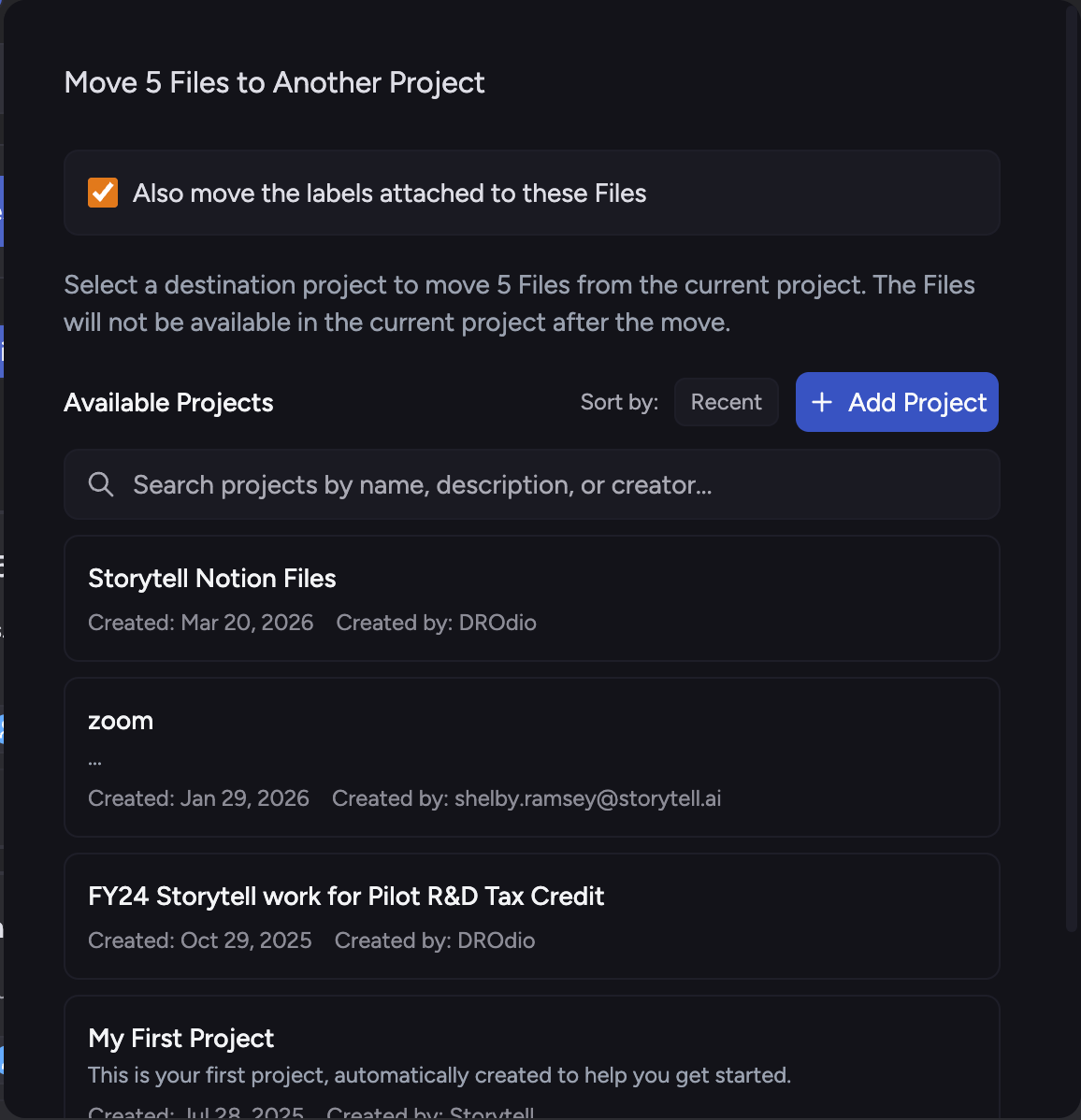
Go to Sidebar → Library → Files.
Select one or more files.
Click Move to Project.
In Move File(s) to Another Project, select the destination Project.
Optional: toggle label transfer if shown (for example Also move labels).
Confirm move.
After success, Chief can offer to switch you to the destination Project.
⚠️ Important: A moved file is no longer available in the source Project after the move completes.
Bulk actions workflow
When you select multiple files, a bulk action bar can appear with actions such as:
Chat with selected
Visualize selected
Add or change labels
Copy to Project
Move to Project
Delete
To use it:
Select files with checkboxes.
Click the action you want.
Confirm in the modal (if required).
🚀 Pro-Tip: Use search and sort first, then bulk-select. This reduces mistakes when handling large file sets.
Troubleshooting
If you are experiencing issues such as missing actions, failed copies, or move errors:
Confirm you are in the correct Project.
Refresh the Files page and try again.
Verify your role includes update/delete permissions.
For copy/move, confirm you have access to the destination Project.
Retry with fewer files to isolate file-specific errors.
If it still fails, contact support via live chat with:
Project name (source and destination, if applicable)
File names or IDs (if available)
Action attempted (rename, delete, copy, move)
Approximate time of failure
FAQ
Will rename change the underlying file content?
Will rename change the underlying file content?
No. Rename updates the display name only. It does not alter file content.
What happens if I move a file to another Project?
What happens if I move a file to another Project?
The file leaves the source Project and appears in the destination Project after processing/refresh.
Can I copy and move files in bulk?
Can I copy and move files in bulk?
Yes. Select multiple files in Files, then use Copy to Project or Move to Project.
Why don’t I see rename, delete, copy, or move?
Why don’t I see rename, delete, copy, or move?
These actions depend on your role and project grants. Readers and restricted collaborators may not see all controls.
Can I undo delete, copy, or move?
Can I undo delete, copy, or move?
Copy is additive and easy to repeat. Move can be reversed by moving back. Delete is intended as a removal action, so confirm carefully before proceeding.
Still need help? Ask the team