Command Center Overview
The Command Center and Chat Scope define how Chief chats are configured and how those configurations translate into real-time behavior. This page explains how users control inputs, system settings, and response behavior through the Command Center, and how those settings are reflected transparently in the active Chat Scope.
Written By Patrick Intervalo
Last updated 6 months ago
Overview
The Command Center is the central control hub for configuring how a chat behaves in Chief. It replaces the previous side panel system and consolidates all configuration, input, and behavior controls into a single unified interface.
It works together with Chat Scope, which provides a real-time summary of what is currently influencing the conversation.
Command Center
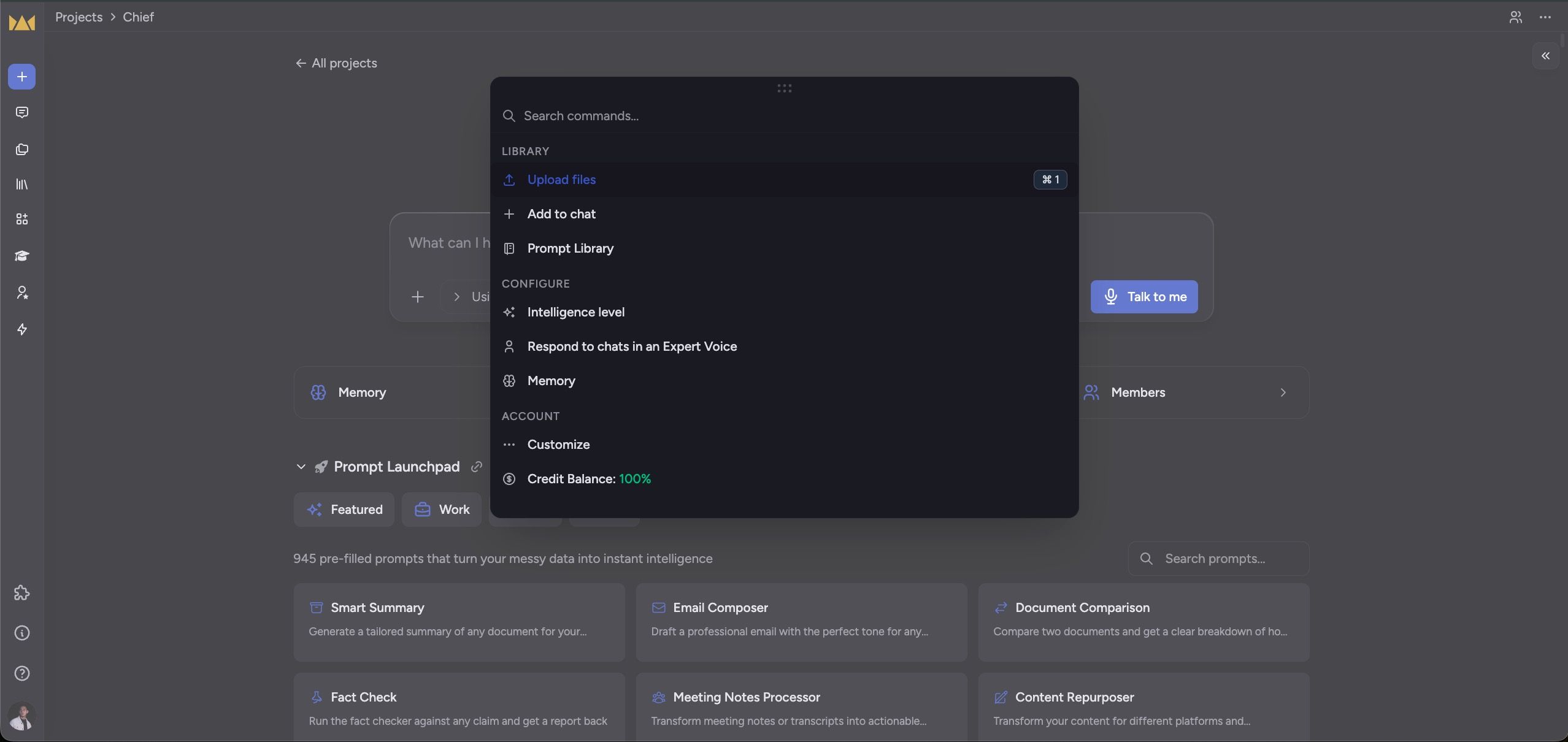
How to Open
Users can open the Command Center via:
“+” button in the prompt bar
Cmd + K shortcut
(Optional) Keyboard shortcuts menu in settings
Structure
The Command Center is organized into three sections:
Library
This section controls content sources used in chat.
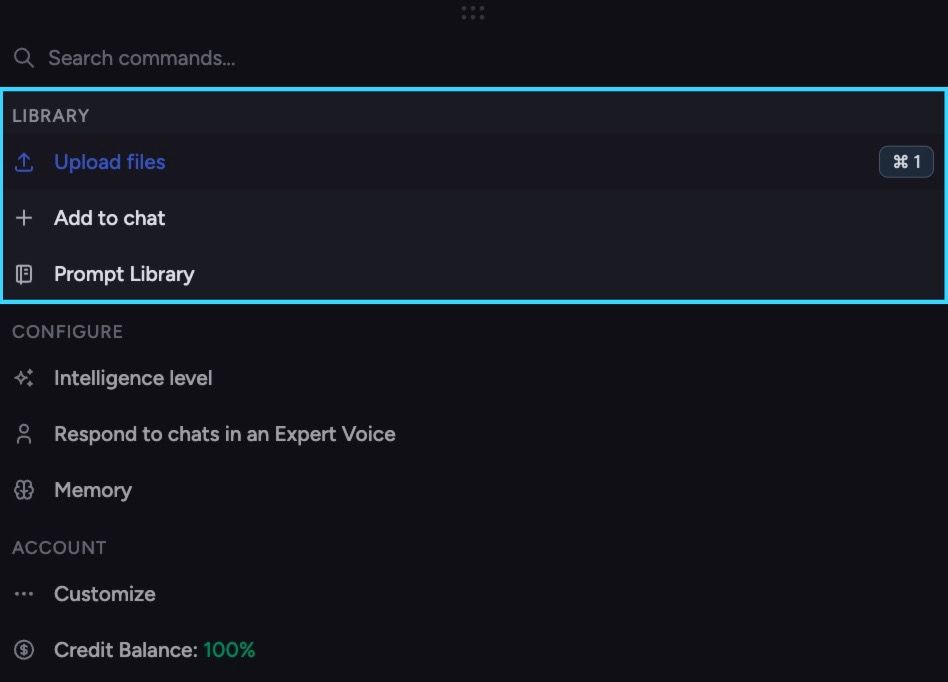
Options:
Upload files: Add new files into Chief
Add to chat: Select files from the library to include in the current chat scope
Prompt Library: Access saved prompts for reuse
Library defines what information the model can pull from.
Learn more: Files overview
Configure
This section controls how the model behaves.
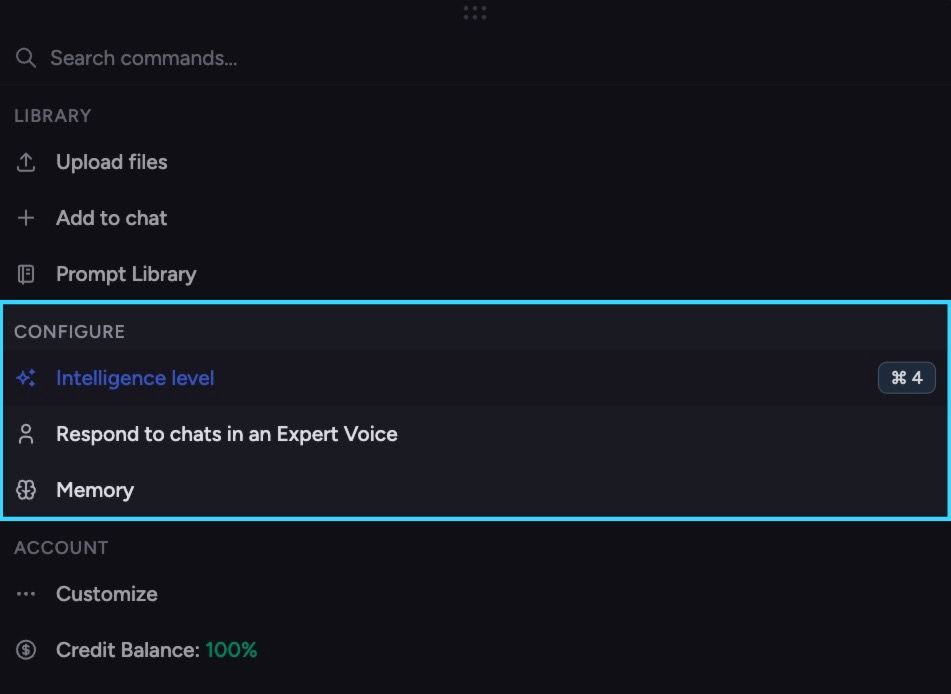
Options:
Intelligence level: Adjusts reasoning style and depth (e.g. Expert vs simpler modes)
Voice: Controls tone and personality of responses
Examples:Coach
Teacher
Executive / C-level style
Memory: User, project, or system-level memory settings
Configure defines how responses are generated, not what data is used.
Account
This section controls user-level settings and system access
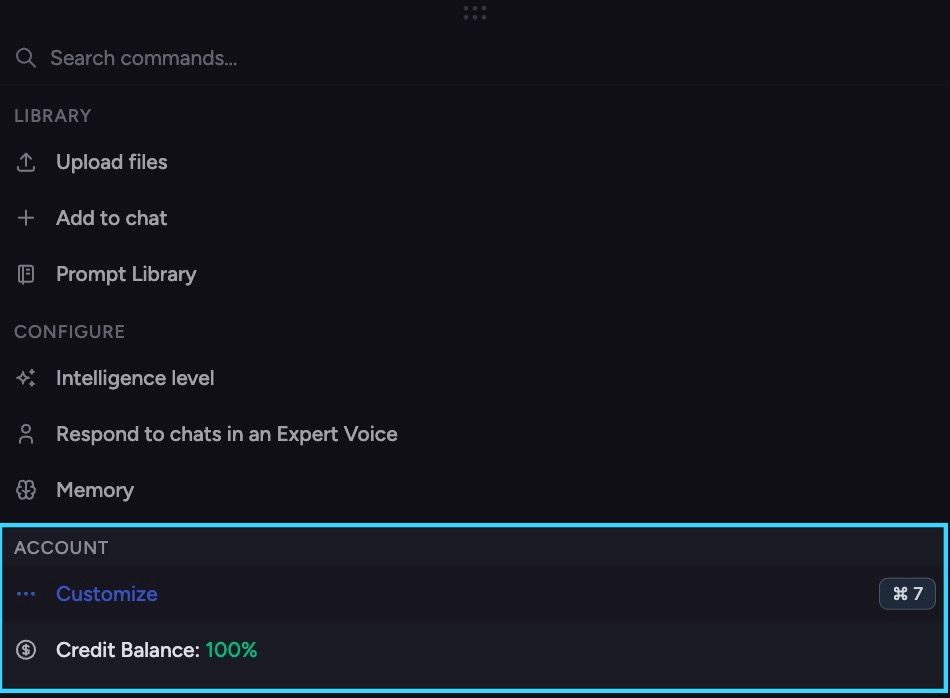
Options:
Customize
Personalization and account configurationCredit Balance
Displays usage credits (e.g. “100%” remaining)
Account manages global user state and billing-related visibility.
How It Connects to Chat Scope
Every change you make in the Command Center is reflected in Chat Scope in real time—showing which settings, files, and behaviors are currently active in your chat.
For full details, see: How to manage scope
Relationship between Command Center & Chat Scope
Any change in Command Center should immediately update Chat Scope.
Still need help? Ask the team