Library overview
Browse, search, and manage all files in your project from the Files page in the sidebar.
Written By Mark Ku
Last updated 6 months ago
How to open the Files page
Sidebar — Under Library, click Files (library icon). That opens the Files page for the active Project.
Hover or expand — Under Library, you’ll also see Labels. With Advanced user mode on, Collections appears there too.
Project home — On the Project homepage, click the Library card to jump straight to Files. Expand the chevron on the card for a short description and recent file previews.
The top bar breadcrumb uses Files when you are on the main Library list.
To access the Files page:
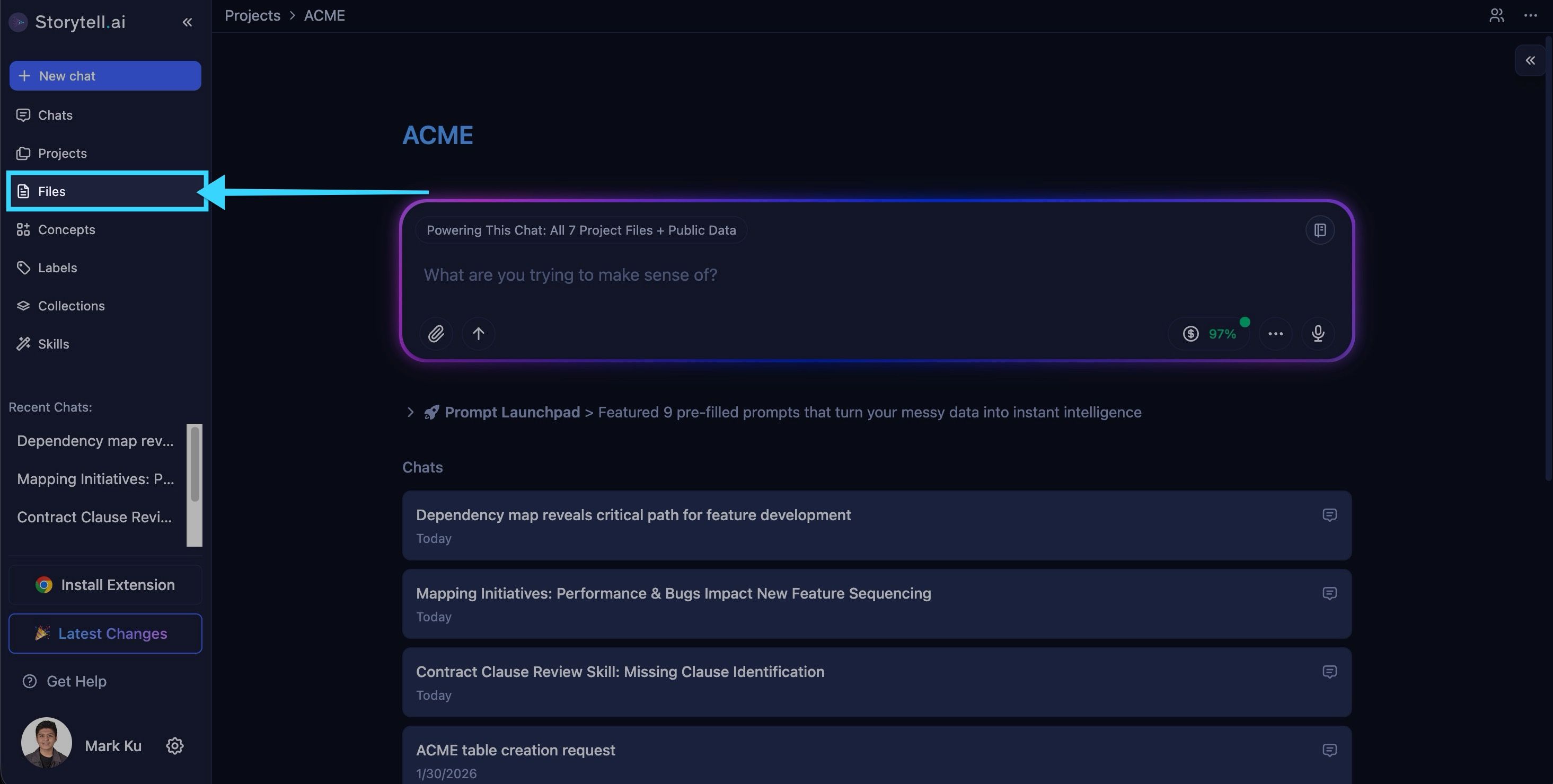
Look at the sidebar on the left side of the screen.
Click on Library
The Files page opens, showing all files in your current project.
The Files page displays all files uploaded to your project. This gives you a project-wide view of all your content.
Overview
The Library is your Project’s knowledge base in Chief. Everything in it belongs to the active Project: when you switch Projects, you see a different Library.
The Library helps you:
Upload and connect content — Documents, data, URLs, and content from integrations.
Ground your chats — Add files to a chat’s scope so answers use the right sources.
In the product, Files is the Library: the Files page is where you browse and manage everything in the Project Library.
Files page layout
The Files page has three main areas: the header, the search/filter/action row, and the file list itself.
Header and actions
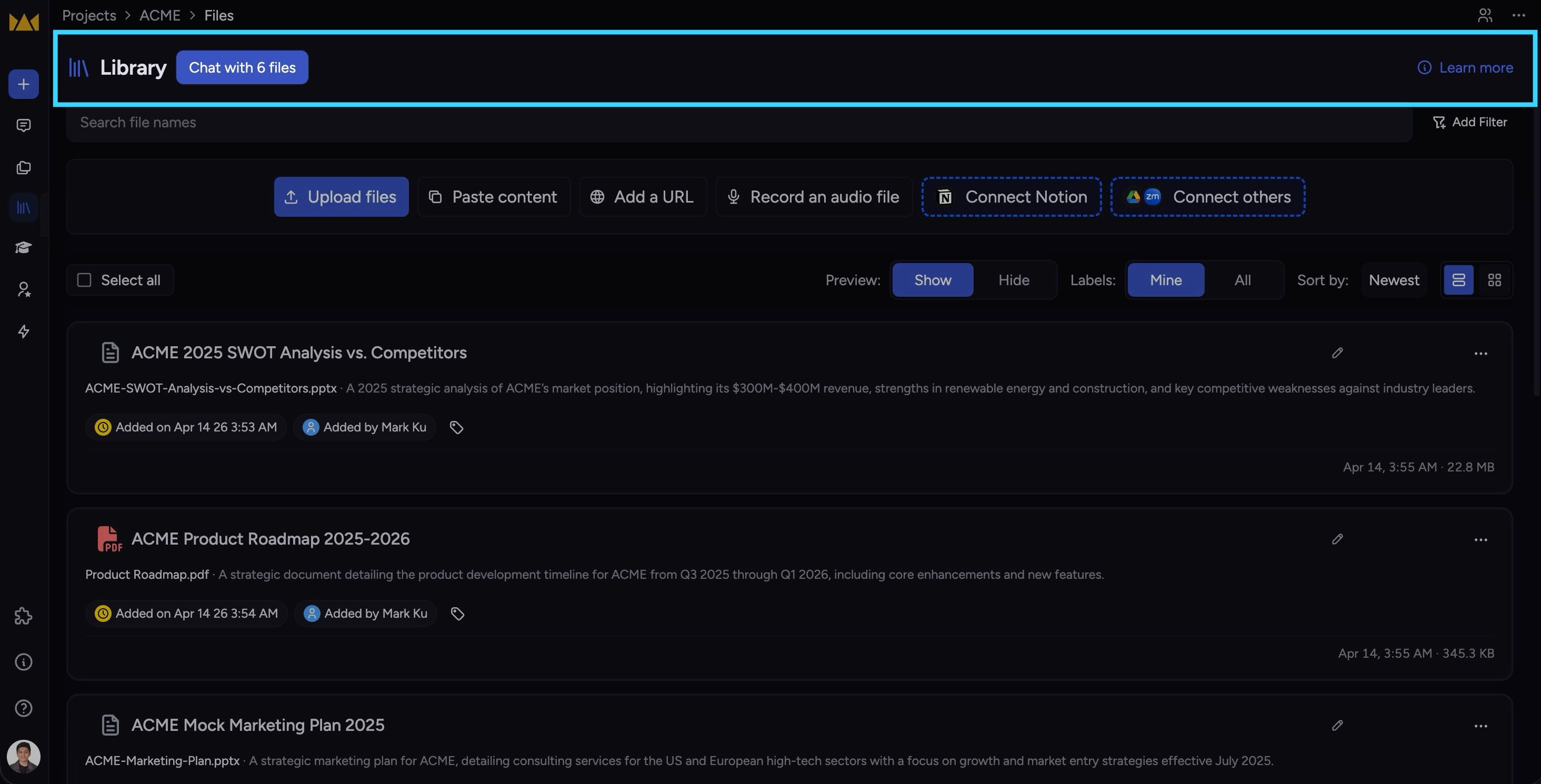
At the top of the page, you’ll see:
Library title — Confirms you are viewing the Project’s Files page.
Chat with X files button — Opens a new chat with the Project’s selected files in scope.
Learn more link — Opens the product help link for files.
ℹ️ Good to Know: Chat with X files starts a new chat that uses the Project’s file set as context. This is useful for broad questions that may span many sources.
Search, filters, and page controls
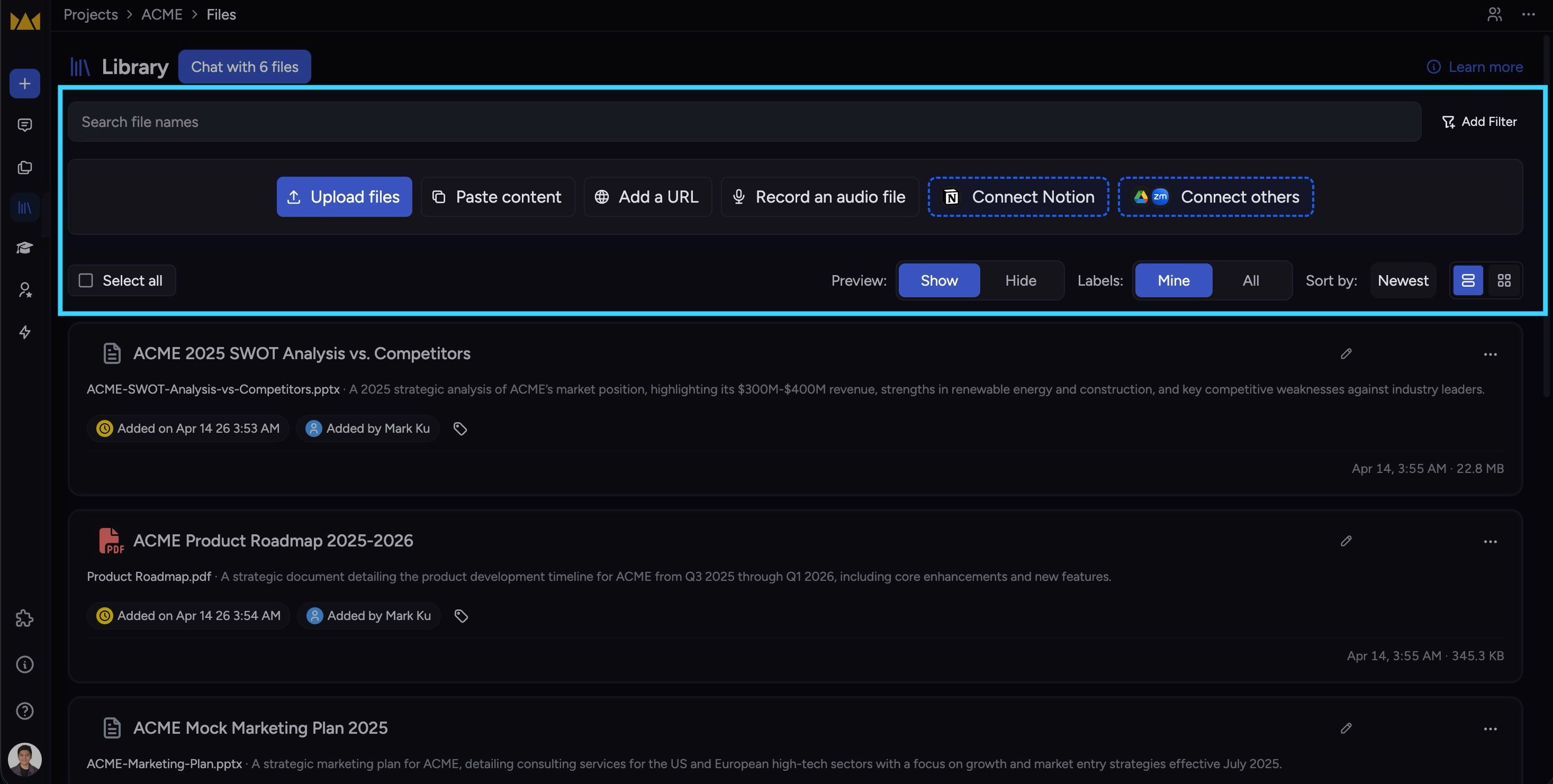
Below the header, you’ll find:
Search bar — Search the file list.
Filter button — Open the filter picker to narrow the list.
Upload section — Upload content into your Project
For step-by-step upload instructions, drag-and-drop, pasted content, URLs, and integrations, see Uploading Files
Sort by control — Switch between Newest, Oldest, A–Z, and Z–A style sorting.
View controls — Toggle between row view and card view on desktop.
Preview visibility — Show or hide file previews where supported.
When you select multiple files, the page can also show bulk actions such as:
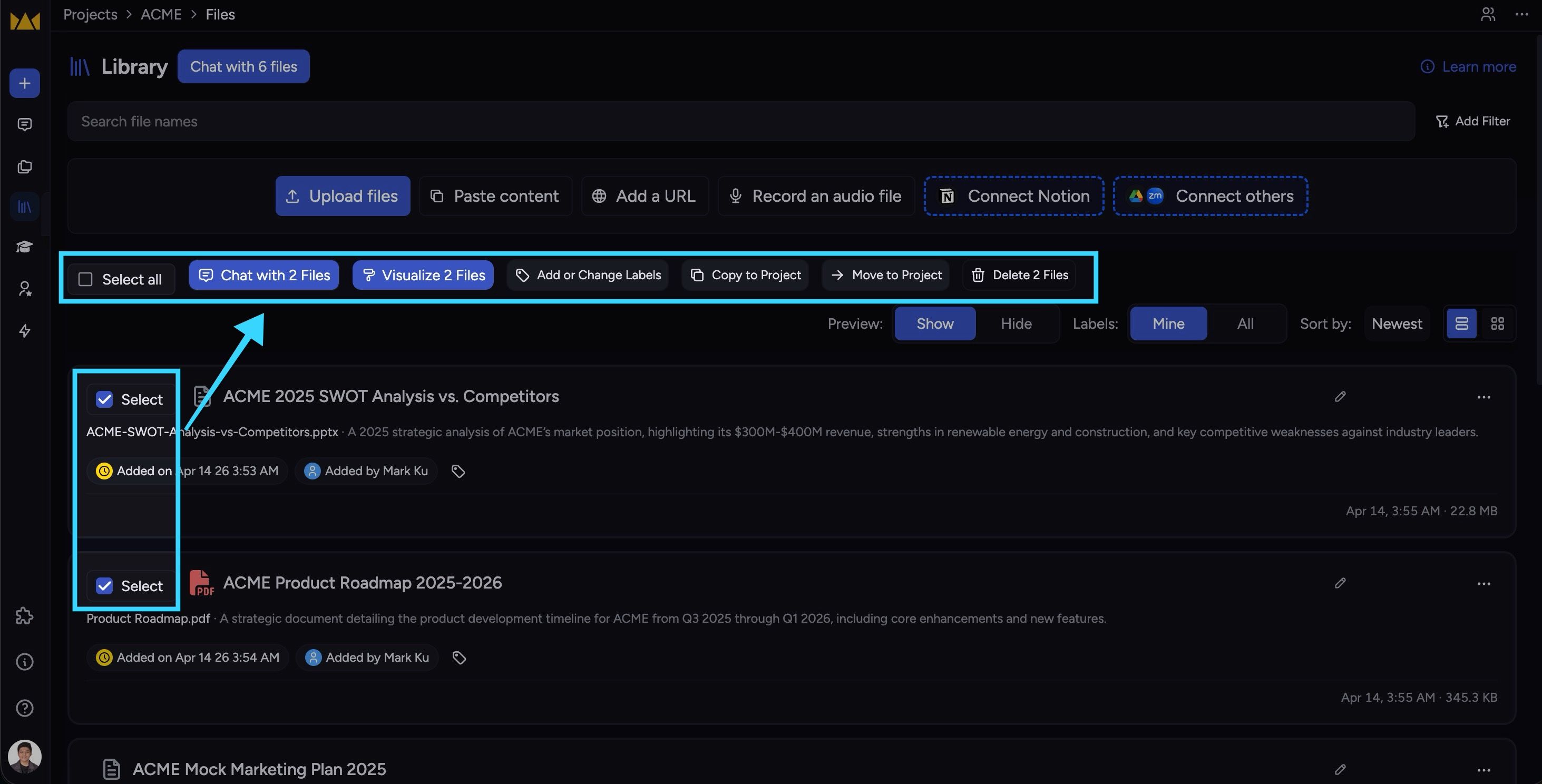
Chat with selected
Visualize selected
Add or change labels
Copy to project
Move to project
Delete
Which bulk actions you see depends on your role and the state of the selected files.
File cards
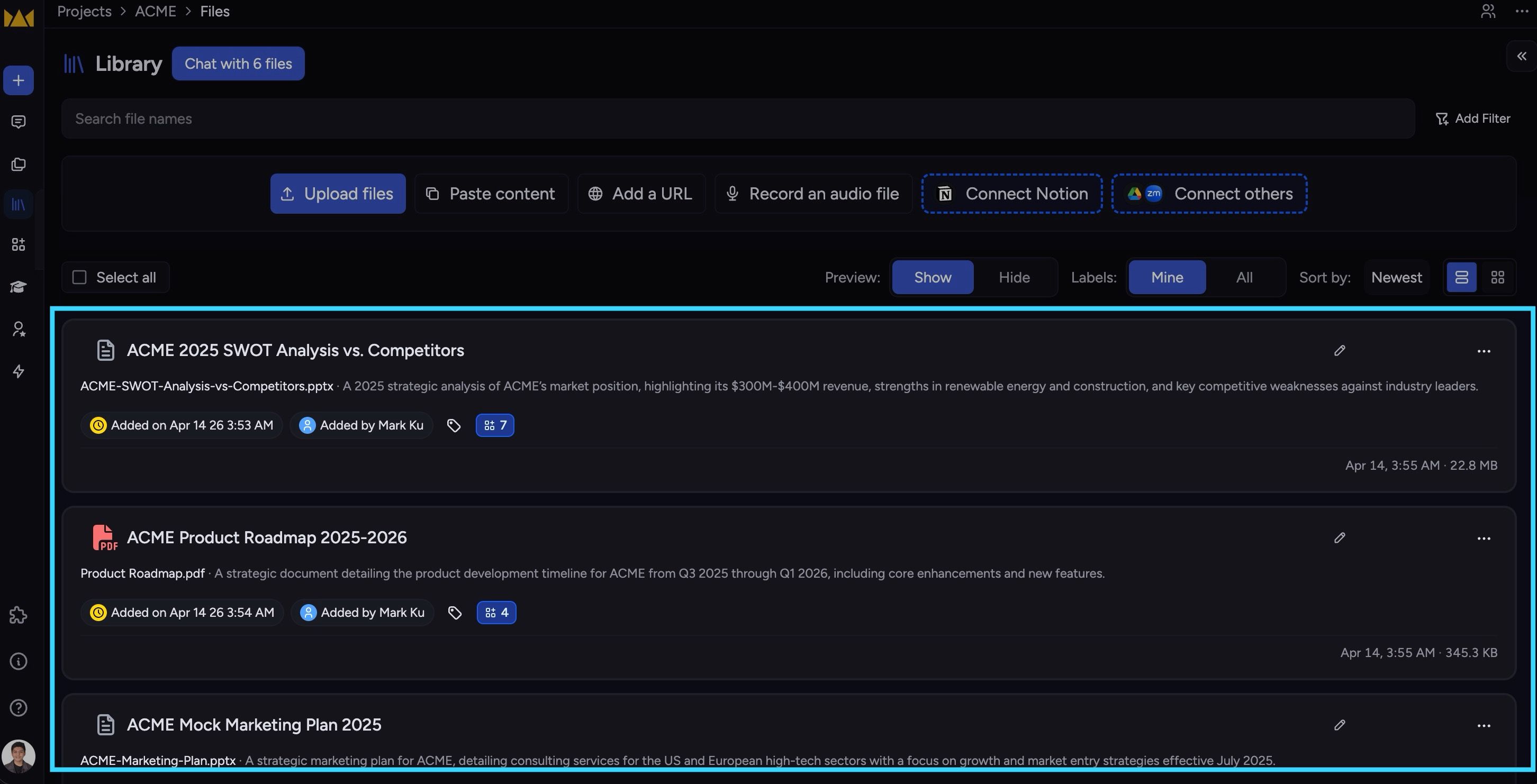
Files are displayed as cards (or rows, depending on your view preference). Each card shows:
File icon — Visual indicator of file type (PDF, Word, Excel, image, etc.)
File name — The original filename
Labels — Any labels assigned to the file
Concepts count — Number of concepts Storytell extracted from the file
Expert Lens badge — If available, shows how many expert questions are suggested
Status indicator — Processing status (ready, processing, error)
Actions menu — Options to chat, visualize, rename, delete, and more
ℹ️ Click a file card to open it in the File Detail view, where you can preview the content and see more information.
File cards and rows
Files are shown either as cards or as rows.
Card view — Better for visual scanning and previews.
Row view — More compact and better when you want to scan many filenames quickly.
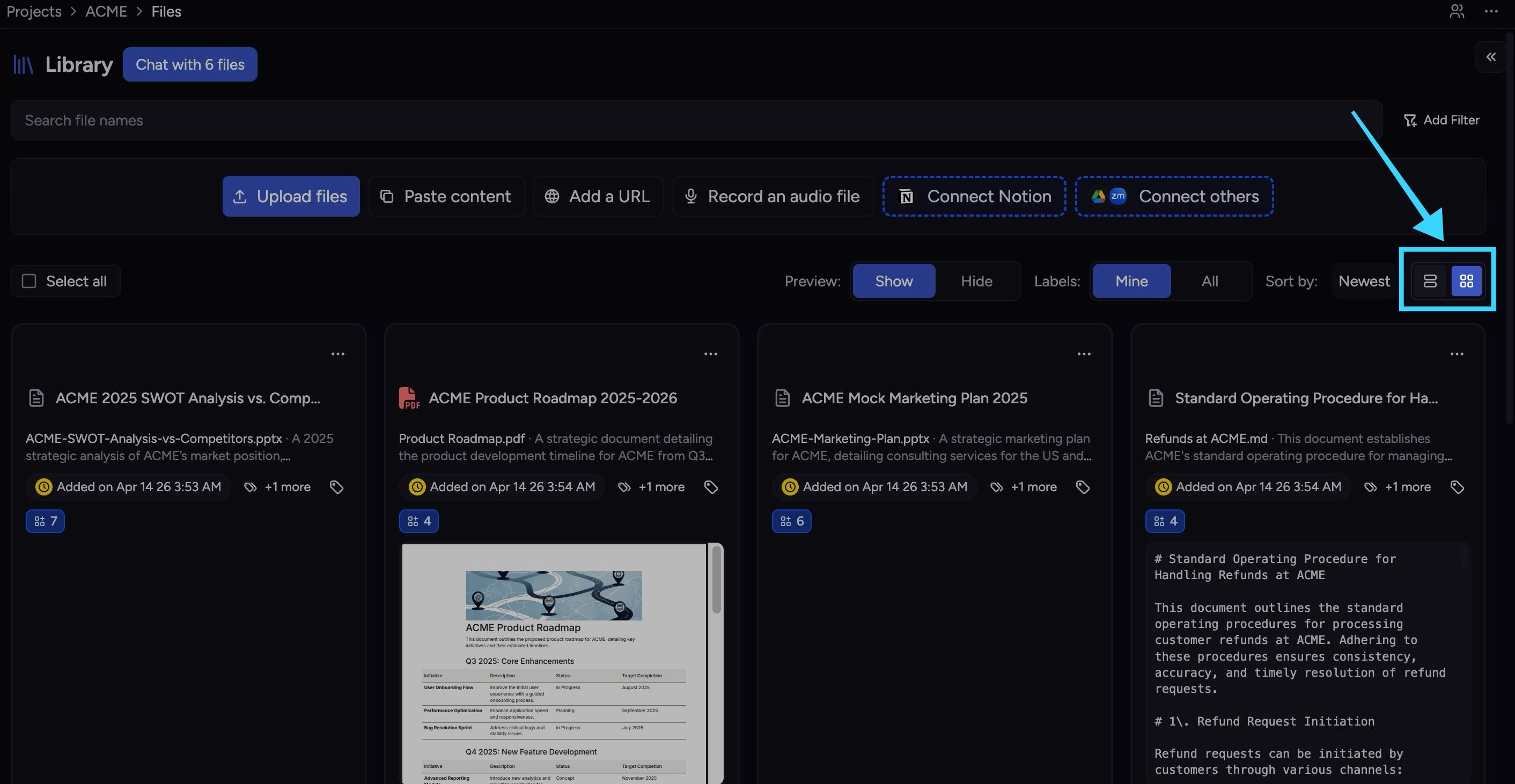
You can also toggle preview visibility so cards show or hide inline previews where supported.
Each card can include:
File icon — Visual indicator of file type.
File name — The display name or original filename.
Status — Whether the file is uploading, processing, ready, or has an error.
Description / secondary text — When available.
Quick actions — Actions such as Chat, Visualize, and the ⋯ menu.
In card view, some file types also show a preview when preview visibility is on.
Open a file and view details
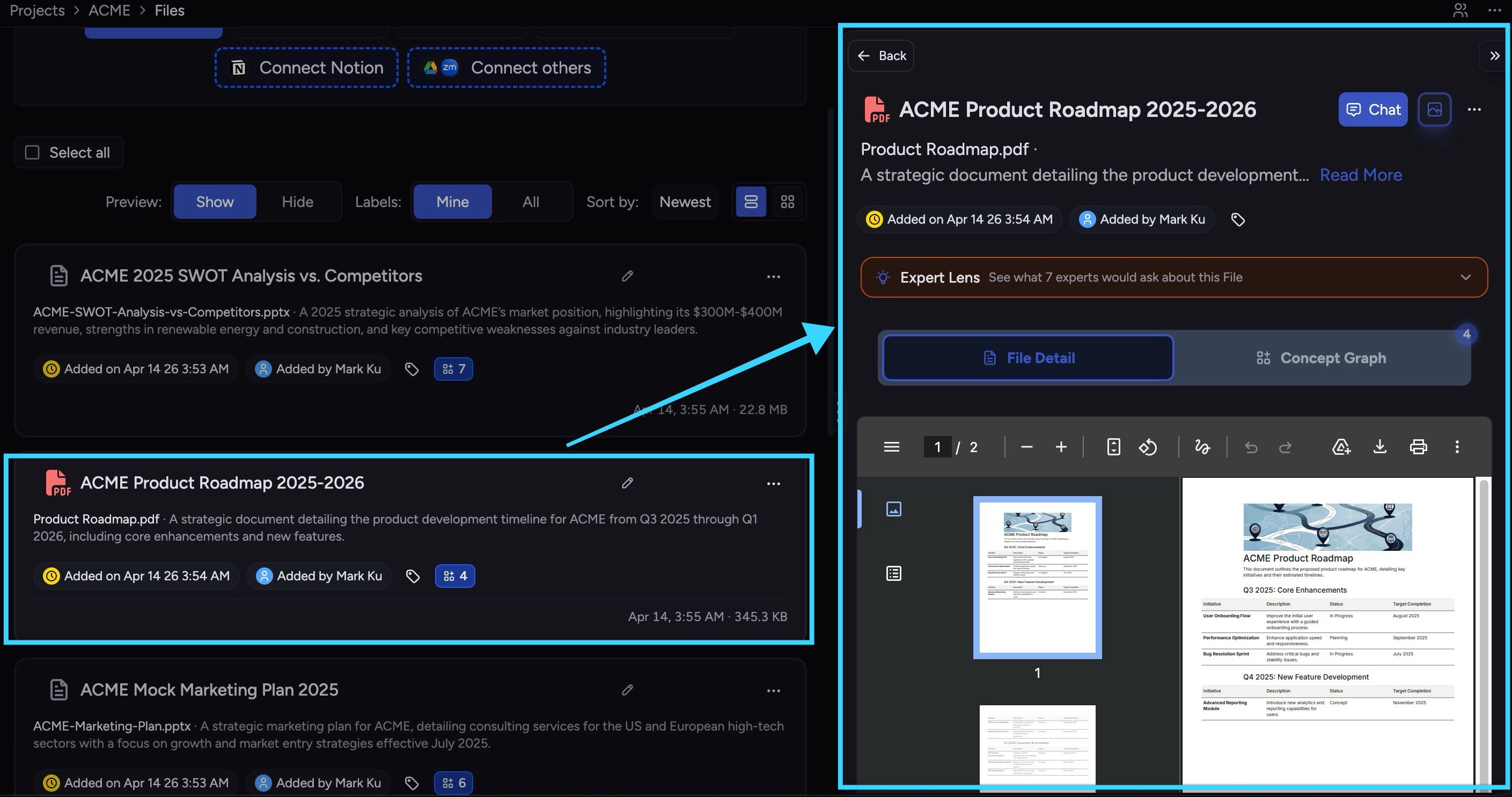
Each file card displays key information about the file at a glance. To view a file:
Click anywhere on the file card or row (outside the action buttons).
The file opens in the detail view.
Every file card shows:
File icon — Color-coded icon indicating file type (PDF, Word, Excel, image, video, etc.)
File name — The original filename from upload
File type indicator — Visual or text indicator of the file format
The file icon and color help you quickly identify file types when scanning through many files.
Labels
If a file has labels assigned, they appear as small pills on the card. Labels help you categorize and organize files. Click a label to filter the Files page to show only files with that label.
Concepts
The card shows a concepts count — the number of semantic concepts Storytell extracted from the file. Concepts are key topics, entities, and ideas Storytell identified in the content. A higher concept count often indicates richer, more detailed content.
Click the concepts indicator (if available) to see the Concept Graph view for that file.
Expert Lens
If Expert Lens suggestions are available for a file, you'll see an Expert Lens badge on the card (e.g., "See what 5 experts would ask about this File"). This shows how many expert-style questions Storytell has generated for that file.
Click the badge to see the suggested questions, then click a question to start a chat with that prompt.
Actions you can take on files
From the Files page, you can do several things without leaving the file list.
Chat with one file
Hover a file and click Chat to start a new chat scoped to that file.
Chat with all files
Click Chat with X files at the top of the page to start a new chat with the Project’s files in scope.
Rename a file
If the file is ready and you have permission, use the rename action (for example the pencil icon or the ⋯ menu).
Move or copy to another Project
Use Copy to project or Move to project when those actions are available. This is useful when content belongs in a different Project without re-uploading it from scratch.
Delete a file
Use the delete action from the file entry or from bulk selection when you need to remove files from the Project.
Searching files
Use the search bar at the top of the Files page to find files quickly.
To search:
Click the search bar.
Type your search term.
The file list updates to show matching results.
Search is useful when you know part of a filename and want to jump to it quickly.
Filtering files using labels
Use label filters to show only files that have specific labels assigned.
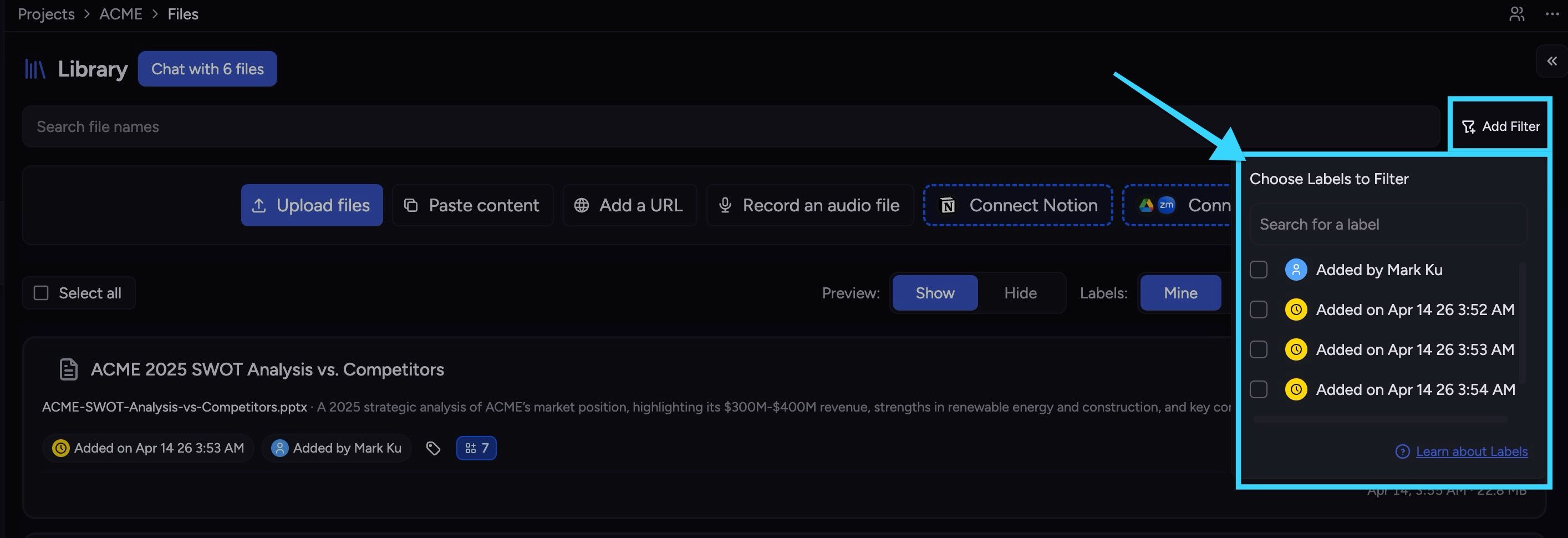
To add a label filter:
Click the Filter button (plus icon) next to the search bar.
In the label picker that opens, search for or scroll to find the label you want.
Click the label to add it as a filter.
The file list updates to show only files with that label.
Filter operators:
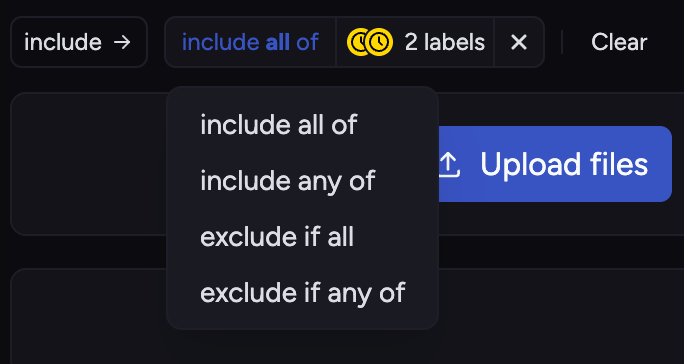
When you add multiple label filters, you can control how they combine:
Include all — Shows files that have ALL selected labels (AND logic)
Include any — Shows files that have ANY of the selected labels (OR logic)
Exclude if all — Hides files that have ALL selected labels
Exclude if any of — Hides files that have ANY of the selected labels
Click the operator button (shows "include all" or "include any") to switch between AND and OR logic.
To remove filters:
Click the X on a filter pill to remove that specific filter
Click Clear to remove all filters at once
Still need help? Ask the team