Create and manage Labels
Learn how to create labels, apply and remove them from files, and filter knowledge using labels in Chief.
Written By Mark Ku
Last updated 6 months ago
Overview
Use labels to build a reusable tagging system for your project knowledge.
With labels, you can:
create a consistent taxonomy (for example
Client - Acme,Q1,Needs review)apply labels to one file or many files
remove labels as content changes
filter large libraries into focused working sets
Before you start
You are inside the correct project.
You have permissions to create/update labels.
Files are uploaded and visible in
Library -> Files.
Create a new label
You can create labels from both the Files page and the Project Labels page.
Method A: Create from Files page

Go to
Library -> Files.Open label controls from a file card/row (or select files and open bulk label actions).
Click
Create label/Add label.Enter label details:
name
optional description
icon
color
Save.
ℹ️ The new Label is immediately applied to the file/s you created the Label from
Method B: Create from Project Labels page

Open
Project -> Labels.Click
Create label.Enter label name, description, icon, and color.
Save.
This is best when setting up a taxonomy before tagging files.
Apply labels to files
Apply to one file (Files page)

Go to
Library -> Files.Find the file you want.
Open the label picker on that file.
Select one or more labels.
Confirm/apply.
The label chips appear on the file immediately.
Apply to many files (Files page)

Go to
Library -> Files.Select multiple files with checkboxes.
Click
Labels/Edit labelsin the bulk action bar.Select labels to add.
Apply changes.
All selected files are updated in one action.
Apply from Project Labels page
You can also work from label-first context:
Open
Project -> Labels.Click a label to open label detail.
Use the add/select flow to associate files with that label.
Apply changes.
ℹ️ You can select which Files to add to a Label only when that Label has 0 files included
Remove labels from files
Remove from one file (Files page)

Go to
Library -> Files.Open the file’s label area.
In label chips or picker, remove the label from that file.
Confirm if prompted.
Remove in bulk (Files page)

Select multiple files.
Open
Labels/Edit labels.Deselect labels you want removed.
Apply changes.
Remove from Project Labels page
Open
Project -> Labels.Click a label to open its detail view.
From associated files, remove the label association where needed.
Save/apply.
This is useful for cleanup when a label is no longer relevant to a subset of files.
Filter Library using labels
Filtering helps you narrow large knowledge sets to just what matters.

Go to
Library -> Files.Open
Filter.Add a label filter and choose one or more labels.
Observe how your selected labels appear in the active filter bar.
With 1 label selected:
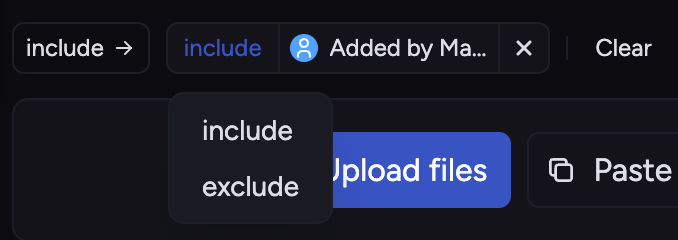
Include: Show only items with this label
Exclude: Hide items with this label
With 2 or more labels selected:

Include any of: Shows items that match at least one of the selected labels.
(This works like an “OR” condition.)Include all of: Shows only items that match every selected label.
(This works like an “AND” condition.)
Review the filtered file set.
Clear filters to return to the full library.
🚀 Pro-Tip: Learning to filter is important because it’s how you create Collections. Learn more about Collections here: Data Collections: Overview
Still need help? Ask the team