Invite users to a Project
invite people by secret link, email, or domain, and manage existing invitations. Roles (Owner, Collaborator, Reader) are described in Project roles.
Written By Mark Ku
Last updated 6 months ago
Overview
Inviting users to your Project allows them to collaborate on chats, access knowledge base articles, and work with assets. You can invite users in three ways:
Secret links — Share a link that anyone can use to join with a specific role.
Email invites — Send invitations directly to specific email addresses.
Domain access — Grant access to everyone with an email address from a specific domain.
Each invitation method supports three role levels—Owner, Collaborator, and Reader—so you can control exactly what access each person has.
For more information on Roles read:Project Roles
Ways to open sharing
The same three methods—Share a Secret Link, Invite by Email, and Domain Access—appear whether you use the Share this Project modal (overlay) or the full Sharing page. Use whichever entry point fits your workflow.
ℹ️ Good to Know: You need permission to update the project (Owner, Collaborator) to see Share in the top bar or on the Projects page. Reader users do not see these controls.
From the top bar (while working in a Project)
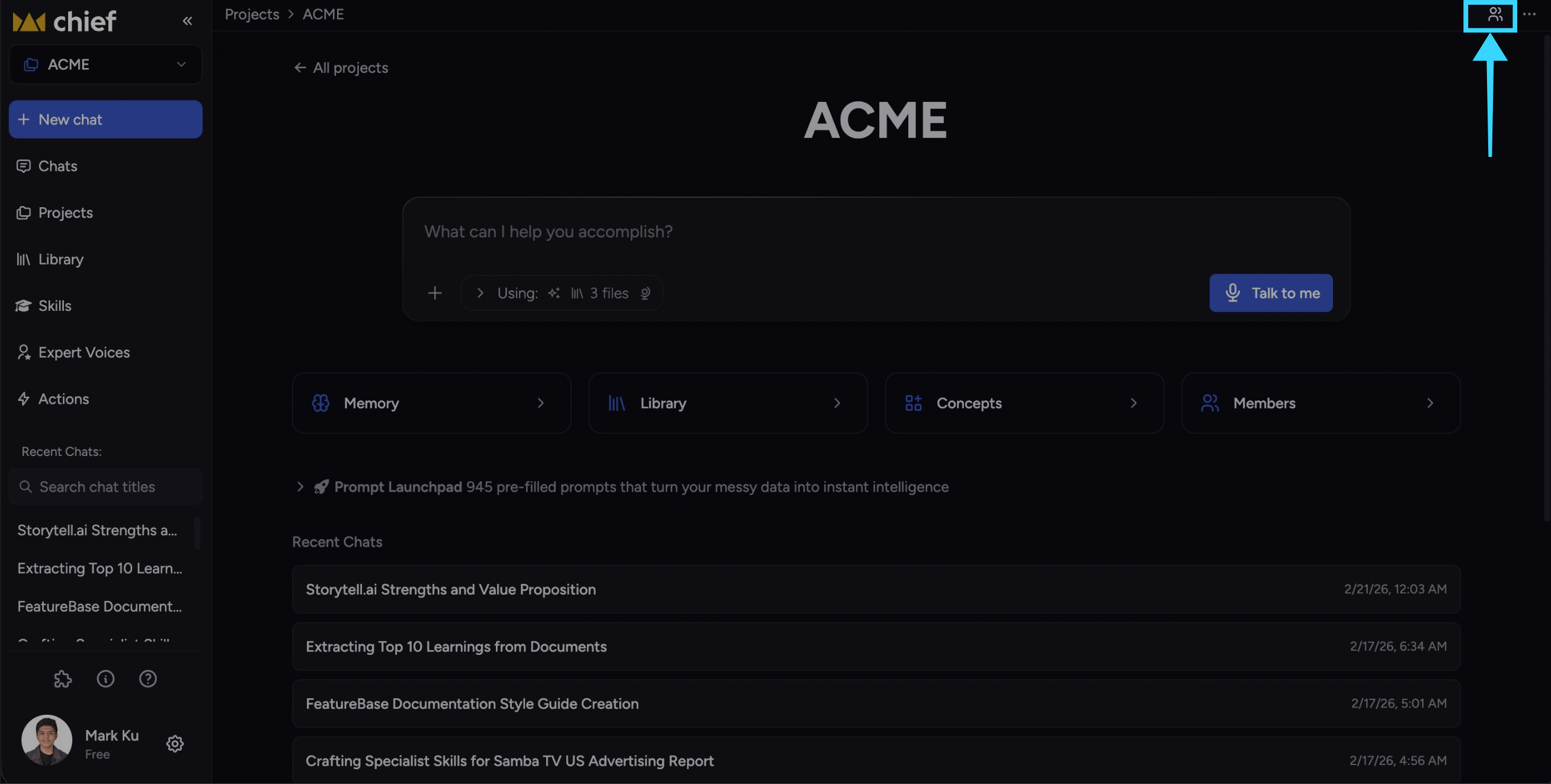
Make sure the correct Project is active.
In the top bar, click the Share this Project control (people icon).
Make sure the correct Project is active.
From the Projects page

Go to Projects.
On the active Project card, click Share Project (link icon), if you have permission.
Sharing / Members page

In the row of cards below the prompt bar, click Members
In the steps below, open sharing means: use any of the paths above so you can see Share a Secret Link, Invite by Email, and Domain Access.
Invite via secret link
Secret links let you share access to your Project with anyone who has the link. Each link is tied to a specific role, so you can maintain separate links for Owner, Collaborator, and Reader.

Create a secret link
Open sharing (see Ways to open sharing).
Click Share a Secret Link to expand the section.
Choose the role you want for this link:
Owner — Full control (use with care).
Collaborator — Editing and collaboration access.
Reader — Read-only access.
In that role’s card, click Create Secret Link (or click the card—either creates or copies the link for that role).
The link is copied to your clipboard when it is created (or when you use Copy Link on an existing link).
⚠️ Important: Anyone with a shared Project link gets the access level tied to that link. Be careful—sharing an Owner link gives full control of the project to anyone who opens it.
Share the link
After it is created, you can paste the secret link into:
Email
Slack or other messaging tools
Any other channel you use with your collaborators
The person who opens the link is prompted to sign in or create an account, then receives access to your Project with the role you chose for that link.
Copy an existing link
If a link already exists for a role:
Open sharing (see Ways to open sharing).
In Share a Secret Link, find the Owner, Collaborator, or Reader card that already has a link.
Click Copy Link.
You can only have one secret link per role. To fully revoke link-based access for that role, delete the link (see Delete a secret link) and create a new one later if needed.
Delete a secret link
Open sharing (see Ways to open sharing).
In Share a Secret Link, find the role card for the link you want to remove.
Click the Delete control (trash icon) beside that link.
Confirm in the dialog.
Deleting a secret link revokes access for people who only had access through that link; they need a new invitation to return.
Invite via email
Email invites let you send invitations directly to specific people. Use this when you know exactly who should have access.

Send email invitations
Open sharing (see Ways to open sharing).
Click Invite by Email to expand the section.
Choose the role from the dropdown next to the input (Owner, Collaborator, or Reader).
Enter one or more email addresses in the field (commas or spaces work, depending on your input).
Press Enter or use the control to add each address to the list.
Click Add to send the invitations.
🚀 Pro-Tip: You can add multiple email addresses in one go. Each person receives an email invitation they can accept to join your Project.
Manage email invitations
To see email invitations you have sent:
Open sharing (see Ways to open sharing).
Scroll to the Invite by Email section.
Review the list of invited addresses and their roles.

Change role before sending: While addresses are still in the “pending” list (before you click Add), each row can include a role dropdown—adjust there, then click Add.
Remove an email invitation:

Find the address in the list.
Click the Delete control (trash icon).
Confirm if prompted.
Removing an invitation revokes access for someone who has not accepted yet. If they have already joined, removing the invitation will also remove their access.
Invite via domain
Domain invites grant access to everyone with an email address from a specific domain. This works well for giving a whole organization access at once.

ℹ️ Good to Know: Consumer email domains (such as large free providers) are blocked for domain access. Use Invite by Email for those addresses.
Set up domain access
Open sharing (see Ways to open sharing).
Click Domain Access to expand the section.
Choose the role from the dropdown (Owner, Collaborator, or Reader). Be cautious with Owner for entire domains.
Enter a domain (for example
example.comorcompany.org).Press Enter or add the domain to the list, then click Add to save.
You can add multiple domains. Anyone who signs in with an allowed email domain can access the Project with the role tied to that domain invitation.
💡 Tip: Use domain invites to give your whole organization access at once with preset roles—especially helpful for larger teams or agencies managing multiple Projects.
Manage domain invitations
To view domain invitations:
Open sharing (see Ways to open sharing).
Scroll to the Domain Access section.
Review domains and their roles.
Change role before saving: For domains still in the pending list, use the role dropdown on each row before you click Add.
Remove a domain invitation:
Find the domain in the list.
Click the Delete control (trash icon).
Confirm if prompted.
Removing a domain invitation revokes access for users who relied on that domain rule.
Manage existing invitations

From the Members / Sharing page, you can:
See who is currently a member of your Project
Manage and Delete all invitations
Change roles after invitations exist
Pending emails/domains (not yet submitted with Add): use the role dropdown on each row.
Already listed email or domain invites: the UI shows the current role. To change access, remove that invitation and add the person or domain again with the new role, if your permissions allow.
⚠️ Important: Broad changes (especially Owner on a domain invite) affect everyone who joined under that rule. Double-check before saving.
Accepting an invitation
From a secret link
Click the secret link you received.
If you are not signed in, sign in or create an account.
You are added to the Project with the link’s role and taken to the Project.
From an email invitation
Open the invitation email.
Click Accept Invitation (or the link in the email).
If you are not signed in, sign in or create an account.
You are added to the Project and redirected to the Project page.
If you already have an account
If you are already signed in when you open an invitation link, you are added to the Project without extra steps when the invite is valid.
Still need help? Ask the team